How to Choose the Best Ordenador Compacto?
Choosing the right Ordenador Compacto starts with how you will use it. A small desktop can save space on a crowded desk, but its size alone does not make it a good fit. Consider your daily tasks, available ports, noise tolerance, and room for future upgrades. For office work, web browsing, and video calls, a modest processor and 16 GB of memory may be enough. Photo editing, software development, or gaming can require stronger graphics, more memory, and better cooling. Tiny cases have limits.
This guide explains how to compare compact computers without relying on headline specifications alone. Check the processor generation, memory configuration, storage type, and warranty details. Look for clear information from the manufacturer, then compare independent reviews that test heat and fan noise under sustained workloads. A compact model may run quietly during light work yet become audible when pushed. That matters in a shared room. Also measure your desk space and check whether the power supply, monitor connections, and wireless features suit your setup. Some upgrades are possible, but others may be difficult or uneconomical. I have seen buyers focus on speed and overlook ports they use every day; it is an easy mistake to make. No single model is best for everyone. The right choice balances performance, reliability, price, and the small compromises you can actually live with.
Understanding What Defines a Compact Computer
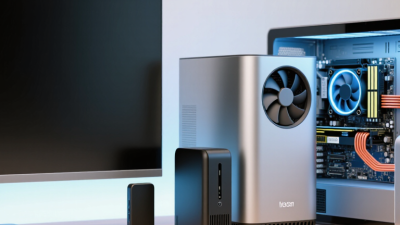
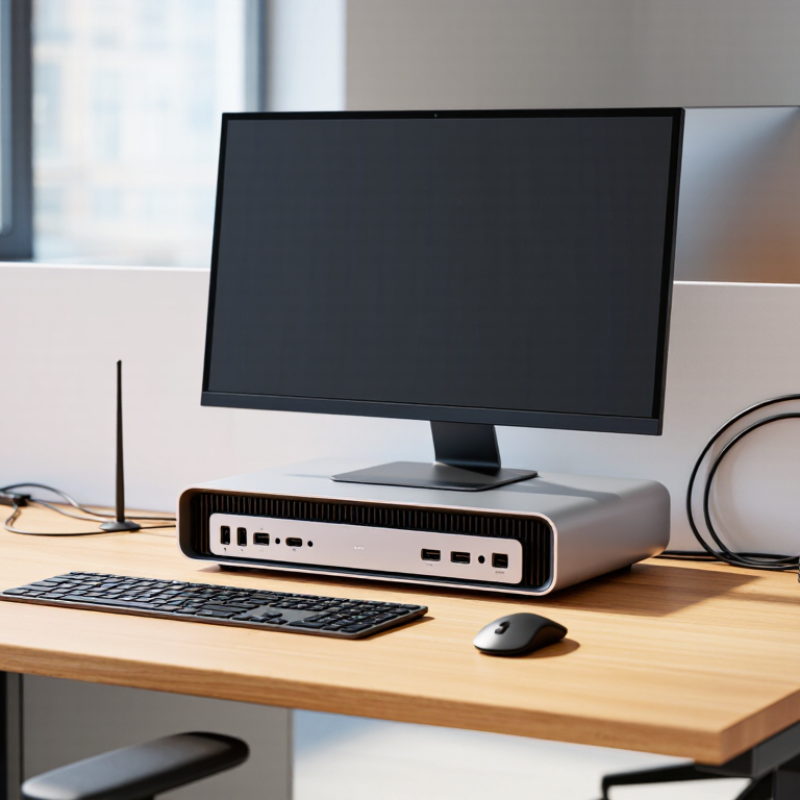
A compact computer is defined less by its name than by its footprint, internal layout, and ability to handle everyday workloads. Measure the space you actually have: a small desk shelf, a crowded media cabinet, or a narrow workbench. Check the chassis dimensions, but also leave room for cables and airflow. “Compact” can still mean a box that blocks a shelf’s ventilation.
IDC estimated that worldwide PC shipments reached 262.7 million units in 2024. That broad figure includes many types of computers, not just compact models, so it cannot tell you which size is best. It does show why comparing specifications matters: compact systems vary widely in processing capability, memory, storage, and upgrade options. Look for independent performance tests that match your tasks, such as office work, video calls, or light photo editing. A tiny case is not automatically efficient.
Heat changes the experience. During a long video export, a tightly packed system may become louder or reduce performance to control temperature. Review sustained-load test results, not only short benchmark scores. ENERGY STAR’s computer specifications assess energy use across operating states, including idle and sleep; those measures can help compare efficiency, though they do not describe speed or noise. One detail is easy to miss: ports. Count the displays, drives, and accessories you will connect, then check whether the computer needs adapters. Small, yes. But practical? It depends on the setup.
Identifying Your Performance and Usage Requirements
Choosing a compact computer begins with an honest look at what you do each day. A machine for email, video calls, and several browser tabs needs less processing power than one used for 4K editing or large data projects. Be specific: note the software you use, how many apps stay open, and whether your work includes demanding tasks. Small details matter. A spreadsheet with thousands of rows can feel very different from a simple document.
Memory and storage affect daily comfort, too. For general office use, 16 GB of memory is a practical starting point; heavier creative workloads may benefit from more. A solid-state drive helps the computer start quickly and open files without long waits. Check the capacity against your actual files, not an optimistic guess. Photos and project folders grow. They always do. Also consider the connections you need, such as ports for a monitor, external drive, or wired network. If possible, test a similar setup before buying. A compact case may save desk space, but limited upgrade options can become frustrating later. I have seen people prioritize peak speed and overlook noise, heat, or the simple need for one more port. That trade-off deserves a pause.
Comparing Size, Connectivity, and Upgrade Options
A compact ordenador should fit your desk without turning every connection into a workaround. Measure the space, including room for cables and airflow; a tiny case can run warm when tucked beside a monitor. Port count matters more than appearance. USB-IF specifies USB4 data rates up to 40 Gbps, but a USB-C connector alone does not guarantee USB4 or display output. Check the actual port specifications. For a two-monitor setup, confirm supported resolutions and refresh rates, then count the ports you will use daily. Small detail. A missing Ethernet jack may mean another adapter on your desk.
Upgrade options decide how long the system stays useful. Before buying, check whether memory is replaceable, how many M.2 storage slots are available, and whether opening the case affects service coverage. IDC’s Worldwide Quarterly Personal Computing Device Tracker reported that global PC shipments reached about 262.7 million units in 2024, showing a large, active market—but that figure does not tell you how repairable a specific compact computer is. Read its service documentation instead. A single accessible storage slot is helpful; soldered memory is a real limitation if your workload grows. I would not assume “upgradeable” means easy: cramped screws and short cables can make a simple replacement fiddly. Compare the dimensions, port map, and upgrade path together, not as separate checklist items.
Evaluating Cooling, Noise, and Energy Efficiency
How to Choose the Best Ordenador Compacto?
Evaluating Cooling, Noise, and Energy Efficiency
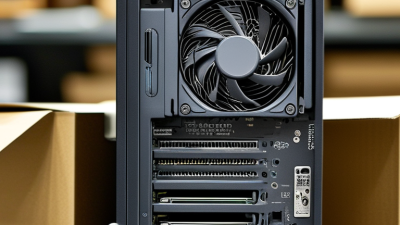
A compact computer can sit neatly beside a monitor, but its small case leaves less room for airflow. Check where air enters and exits. A vent pressed against a wall or shelf may trap warm air, even in a quiet room. During testing, run a video call and a demanding application together. Then feel the case near its vents and listen from your usual desk position.
Listen closely. A brief fan surge is normal under heavy work; constant high-speed noise may signal poor airflow or an unsuitable workload. If possible, compare the computer during light browsing and sustained tasks, not just at startup. Small details matter: fan tone, vibration through the desk, and whether warm air blows toward your hands. I once judged a tiny system by its low idle noise and missed how distracting it became during a long export. A fair test takes longer.
Energy efficiency is more than a low number on a product label. Measure power at the wall during idle use and a typical work session, using the same display and peripherals for a meaningful comparison. Lower power draw can reduce heat, which may also help the cooling system stay quieter. Still, measurements vary with settings and workload. Keep the vents clear, clean dust gently, and leave space around the case. A compact computer is not automatically efficient. The room, task, and placement all count.

 14 Inch Office Notebook
 Dual Screen Laptop
 Fingerprint Business Notebook
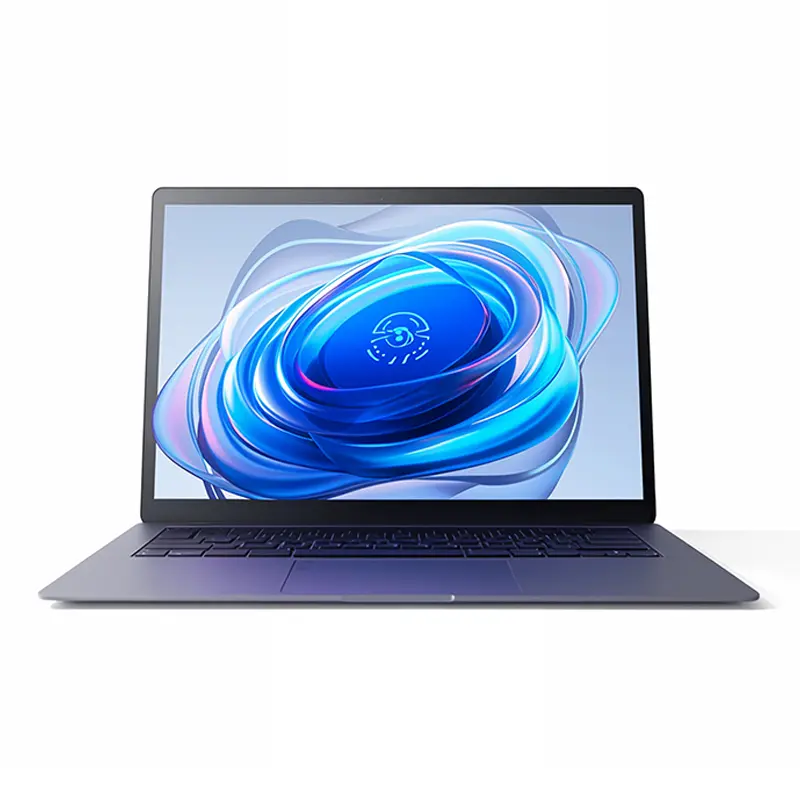 Big Screen Laptop
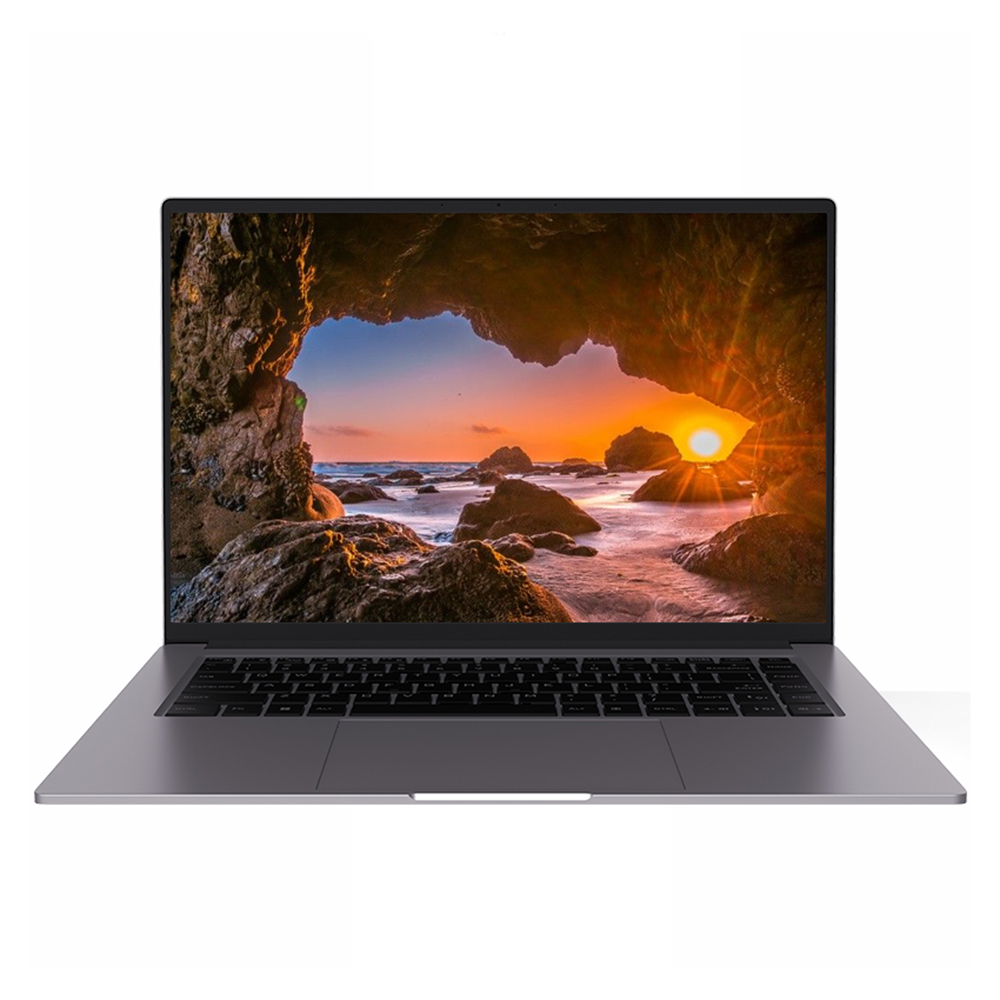 HD Gaming Laptop
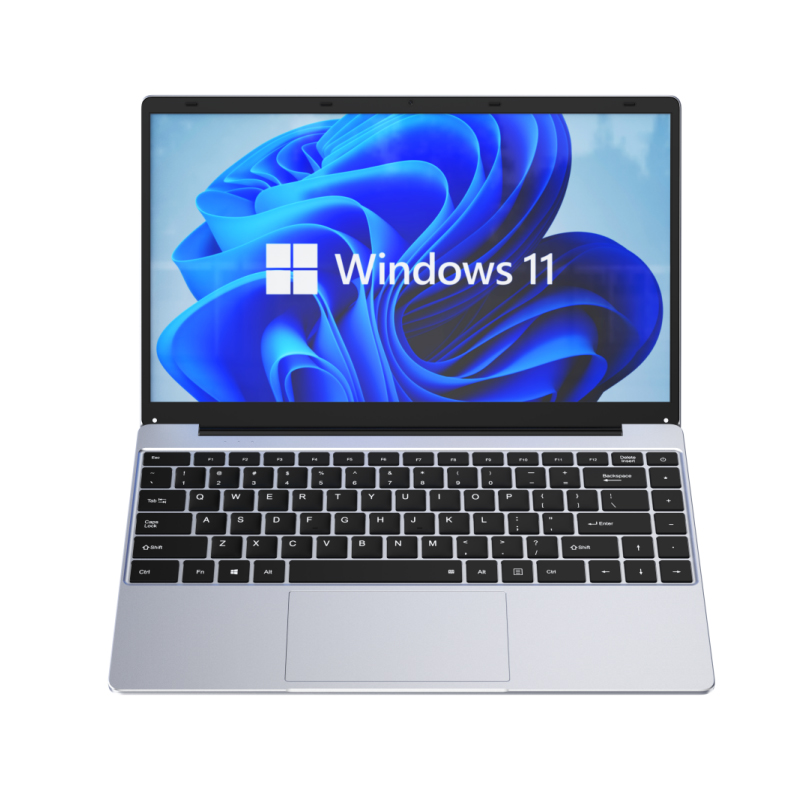 14.1 Inch Student laptops
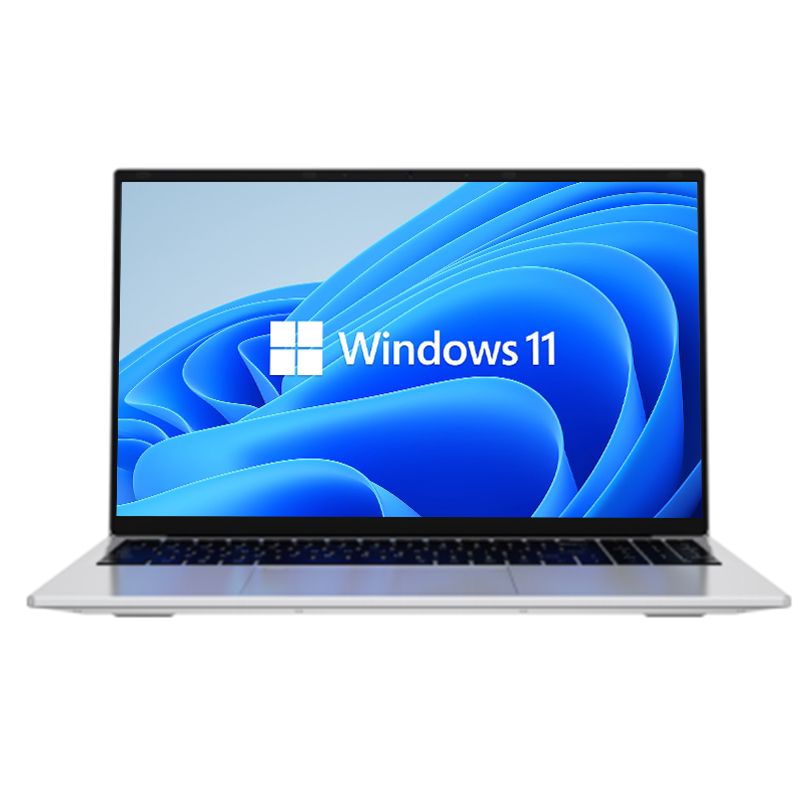 16.1 Inch Office Laptops
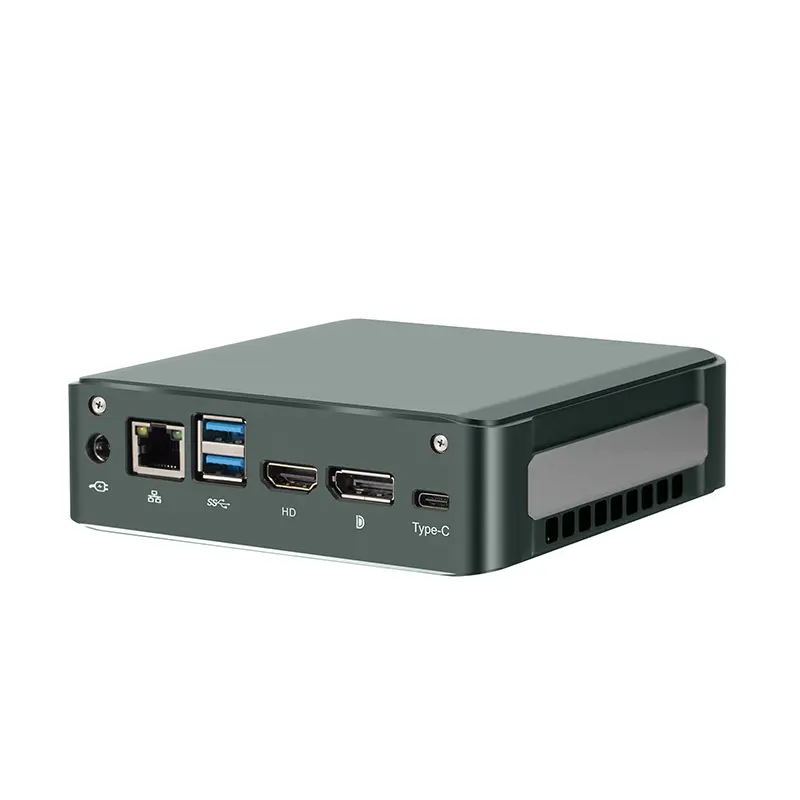 Home Mini Host
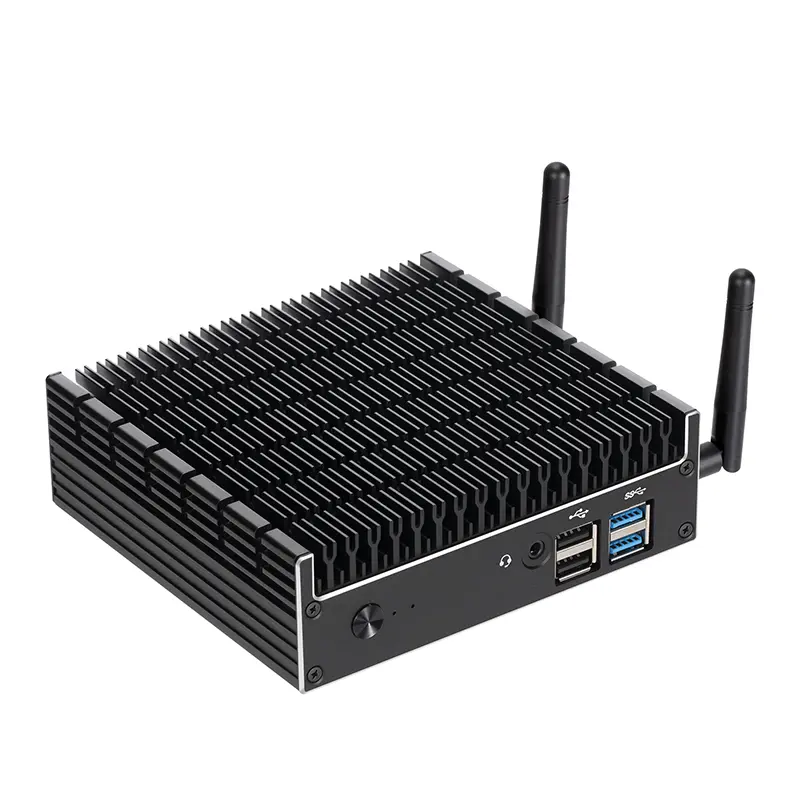 Industrial Micro PC
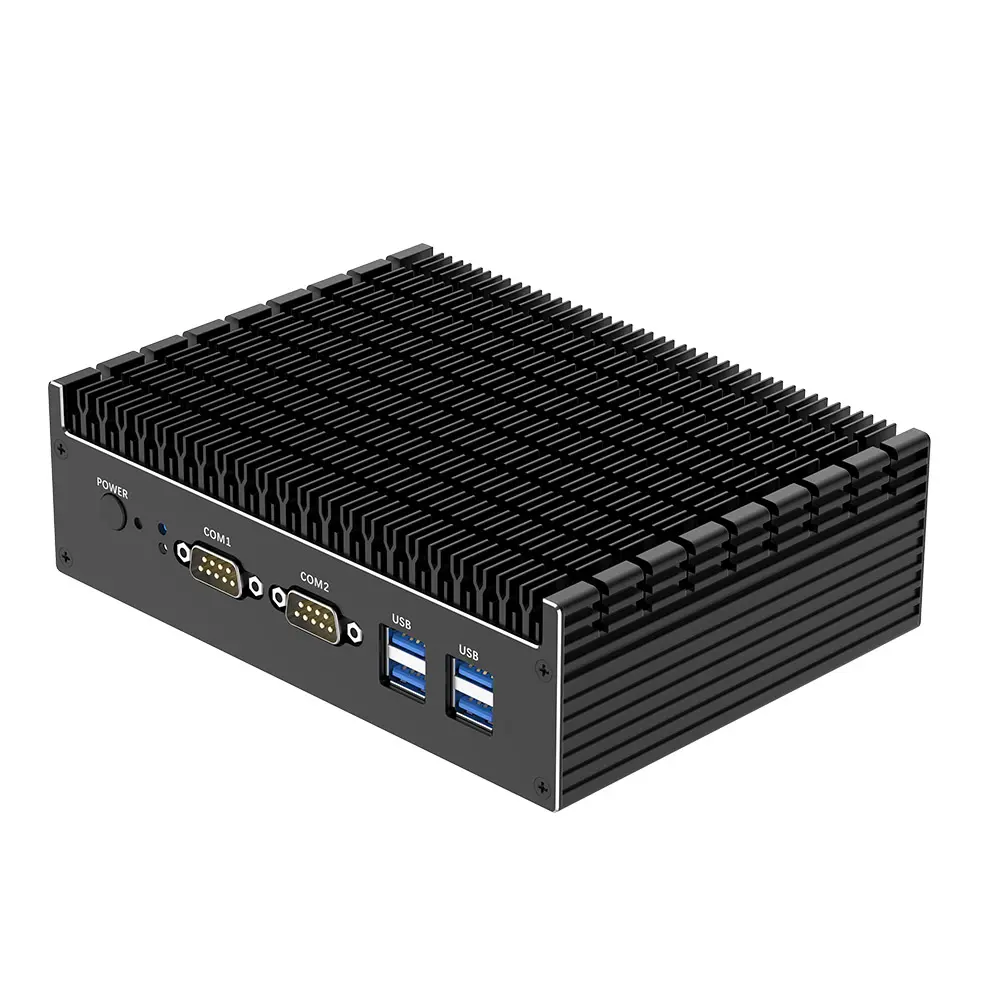 Fanless Industrial Mini PC
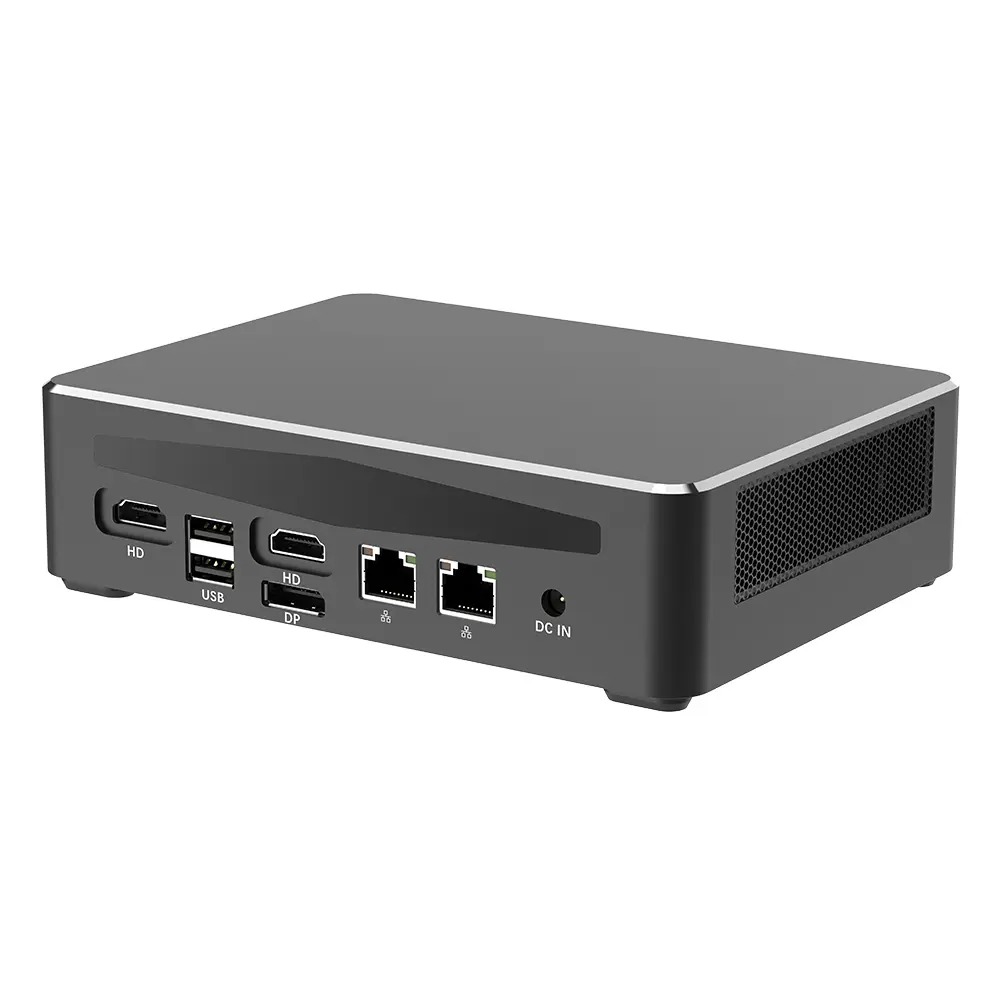 Commercial Mini PC
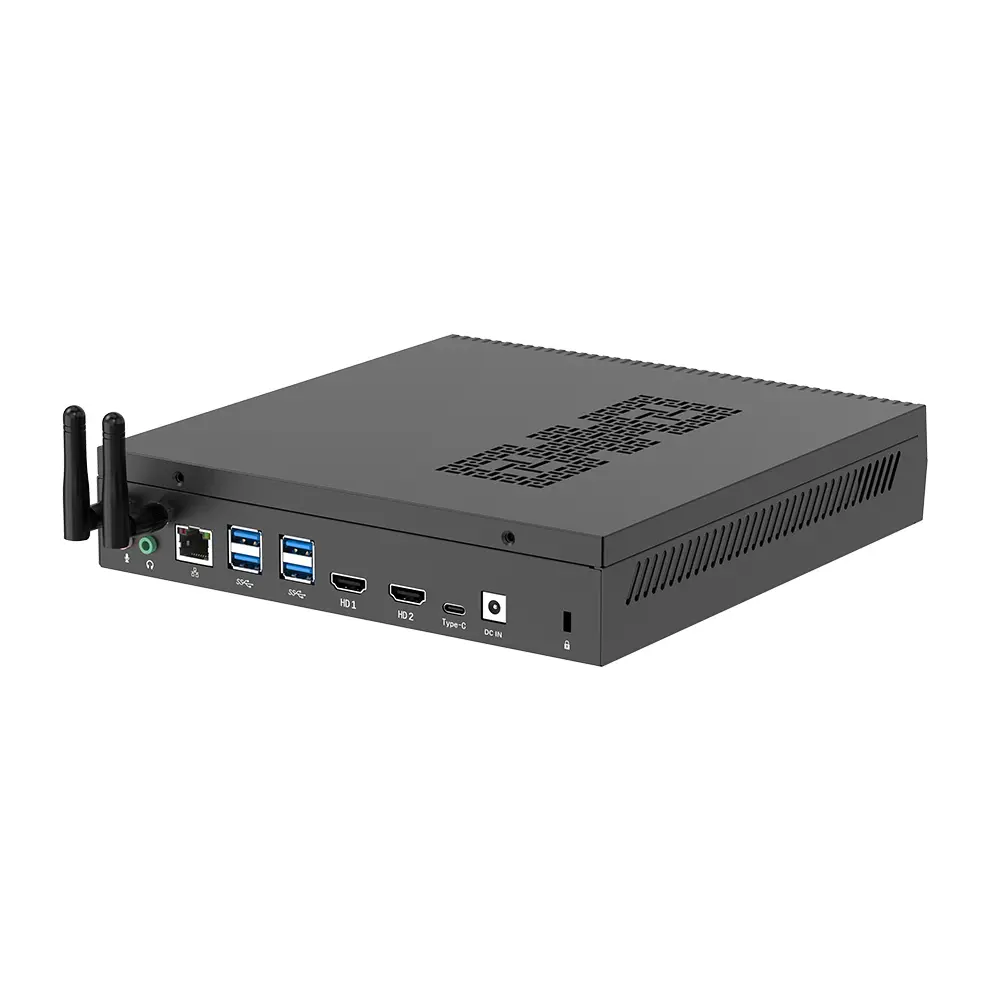 RTX3050TI Game Mini PC
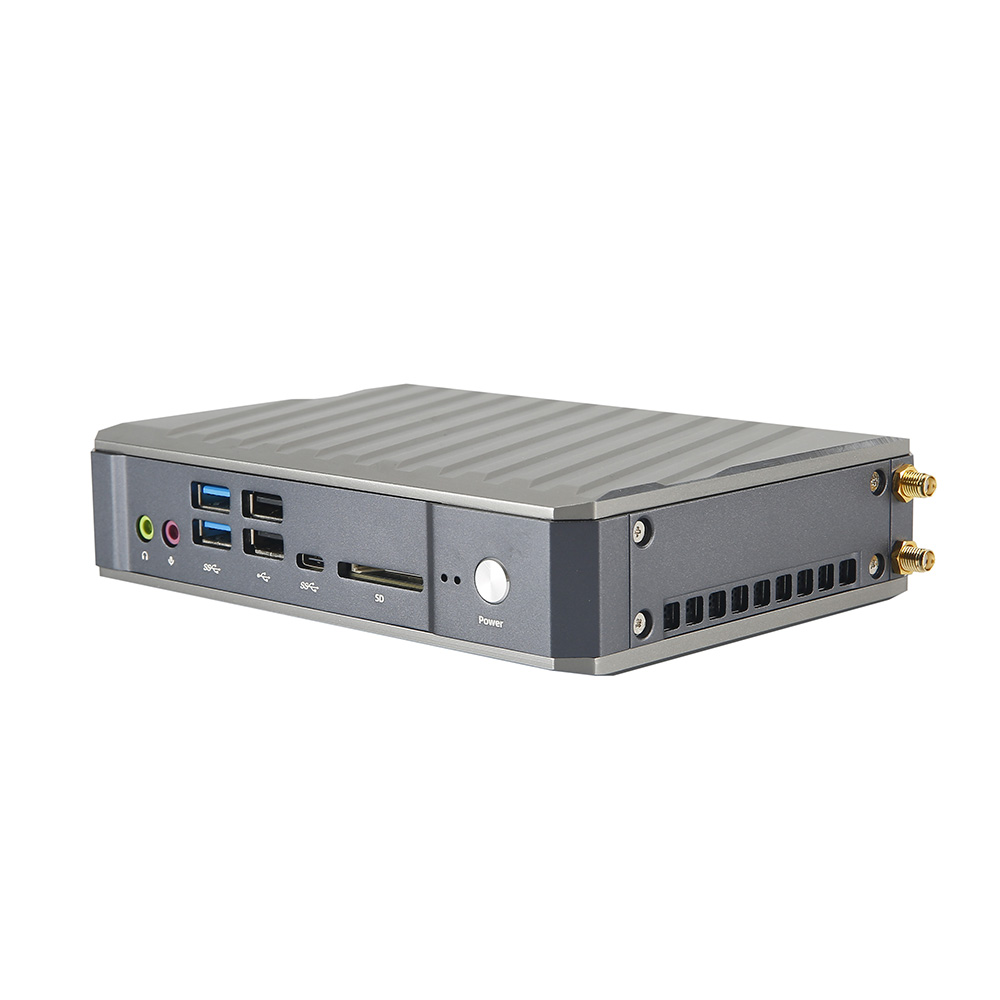 Micro Mini PC
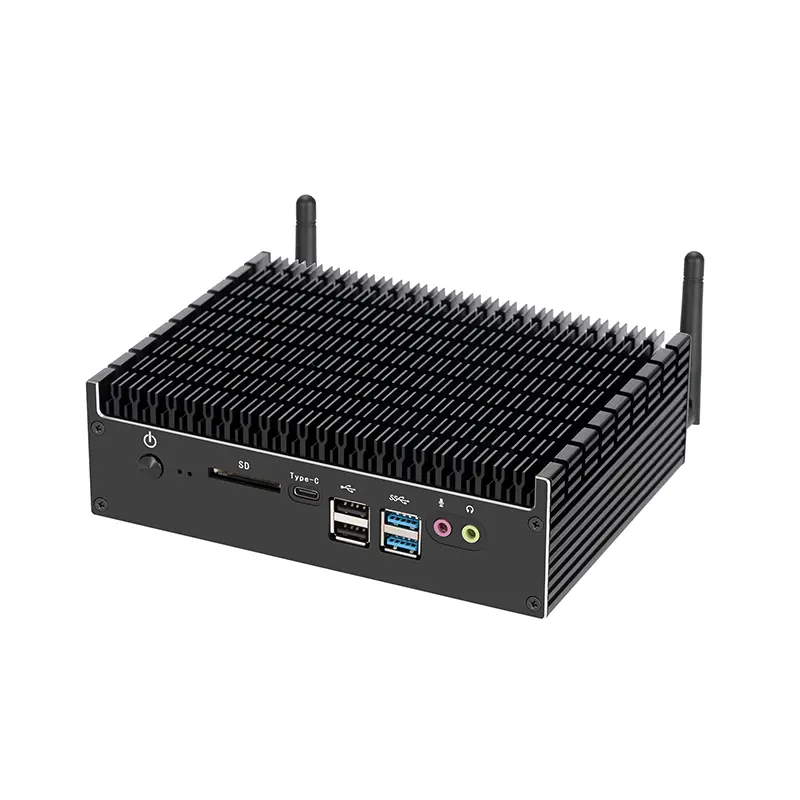 Fanless Mini PC
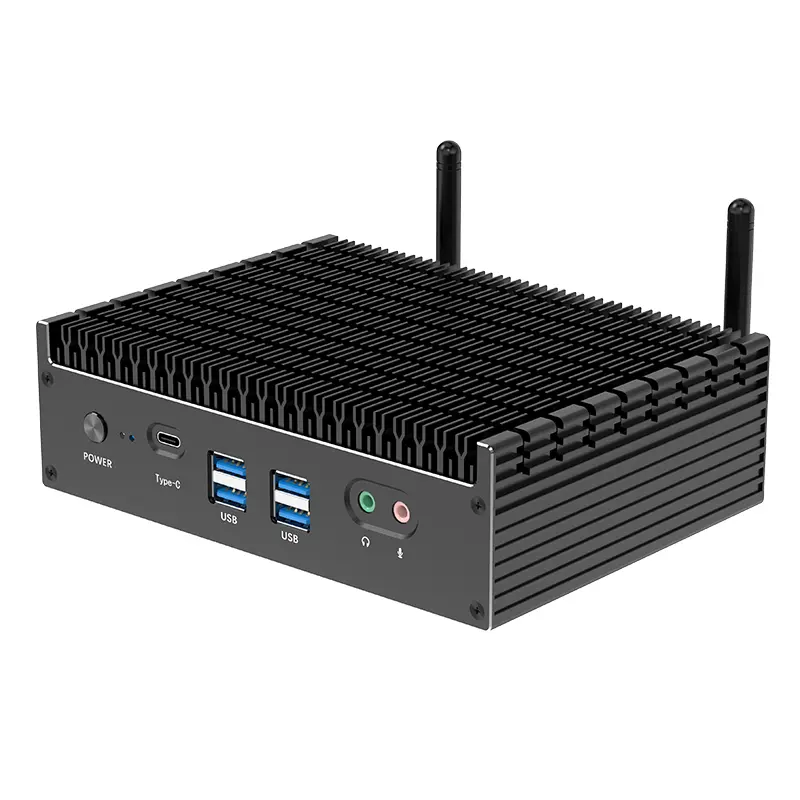 High-end Mini PC
 More
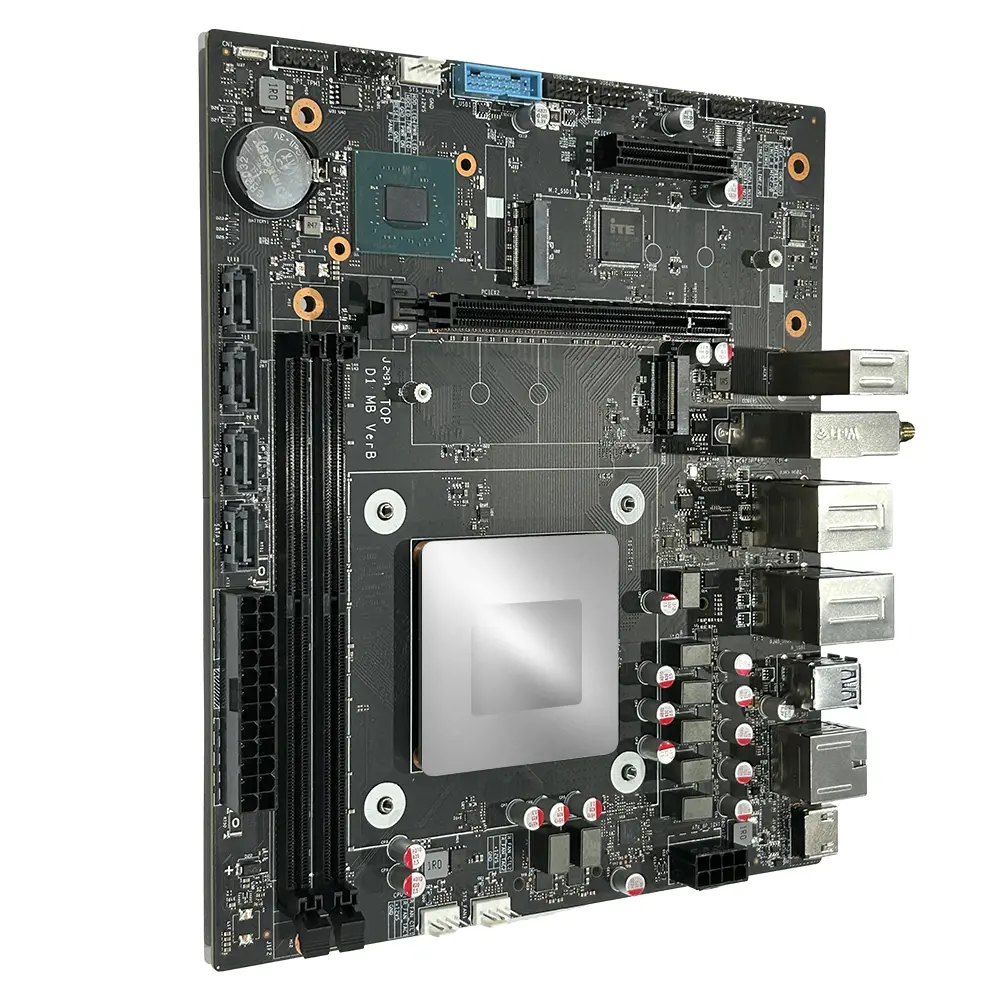 Micro ATX Computer Motherboard