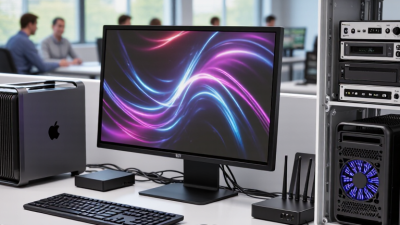
How to Choose the Best Compact Computer for Business?
Choosing the best compact computer for business is not simply a matter of finding the smallest box. It means matching reliable performance, security, connectivity, and service life to real work. A receptionist handling browser-based bookings needs different hardware from an analyst running large spreadsheets. The right Ordenador Compacto should fit the workload, not just the desk.
Gartner’s January 2025 preliminary PC shipment report estimated that 245.3 million PCs shipped worldwide in 2024, a 1.3% increase from 2023. That figure signals a broad market recovery, but it does not identify which compact systems suit a particular business. Buyers still need to compare processor performance, memory, storage, and warranty terms. Small matters. So do ports: a missing Ethernet connection or second display output can mean extra adapters and more clutter.
For a practical shortlist, check whether the system supports the applications employees use daily, has enough memory for several open tasks, and offers the connections your workspace requires. Review manufacturer security features and update policies, too. These details are easy to overlook during a quick price comparison. Physical testing helps: listen for fan noise during a video call, check access to serviceable components, and confirm the device fits its mounting space. A compact PC may run hot or feel restrictive under heavier workloads. That is a trade-off worth examining, not ignoring. The sections ahead explain how to balance size, performance, manageability, and total cost before choosing a business computer.
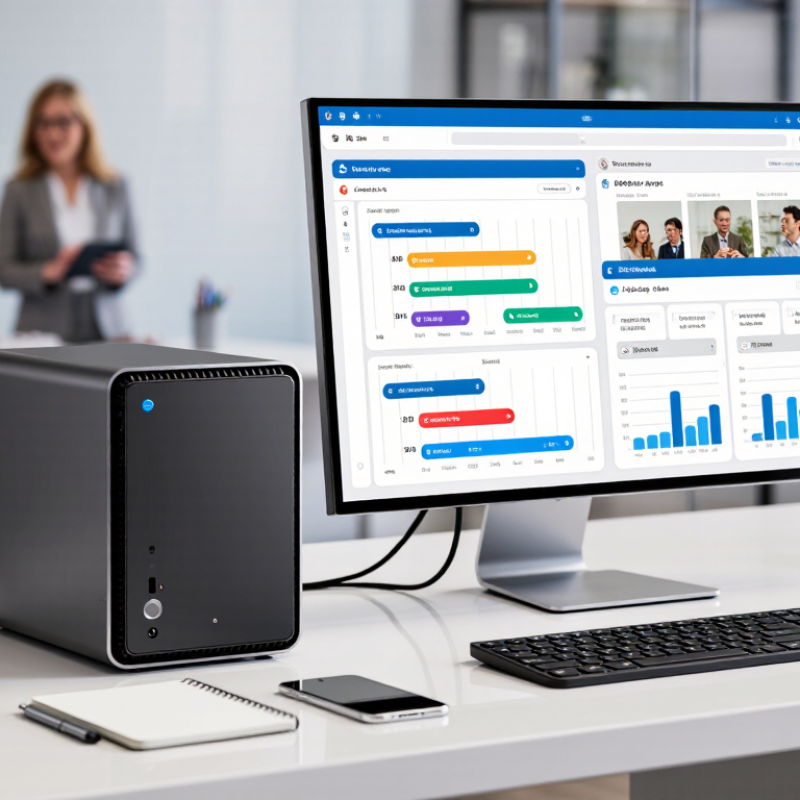
Identify the Business Tasks the Computer Must Support
Before choosing a compact computer, write down the work it must handle during an ordinary week. A reception desk may need video calls, booking software, and several browser tabs open at once. An accounting office may process large spreadsheets while backing up files. These tasks create different demands on memory, processor performance, storage, and ports. “Office use” is too vague to guide a reliable choice.
Observe how employees actually work, not just what a job description says. Note whether they connect two displays, transfer photos from a camera, or keep dozens of documents open. Check the software’s published requirements, then allow some headroom for updates and busier days. A computer that barely meets today’s needs can feel slow sooner than expected. That estimate may be imperfect. Recheck it with the people who use the equipment.
Separate essential tasks from occasional ones. Daily video meetings and large data files deserve more weight than a rare presentation. Consider where the computer will sit, too: a cramped counter may limit airflow, while a shared workspace may require quiet operation. List the required connections, such as display, network, and USB ports, before comparing specifications. Ask staff to describe one frustrating task on their current setup; their answer can reveal needs a checklist misses.
Compare Processor, Memory, and Storage Requirements
A compact business computer should be chosen around the work it must handle, not its smallest possible price or size. Start with the daily workload: email and browser-based tools need less processing power than large spreadsheets, design software, or frequent video calls. For routine office tasks, a current multi-core processor is usually adequate. If staff run several demanding applications together, prioritize stronger sustained performance over a high peak-speed figure. Small cases can limit cooling, so check whether the system can stay quiet during longer workloads. It depends.
Memory affects how smoothly those applications run side by side. Eight gigabytes may suit light use, but sixteen is a more practical starting point for multitasking. Heavy data work may need more. My rule of thumb is imperfect: actual needs vary with software and habits, so test a typical workday before ordering many units. For storage, a solid-state drive helps systems start quickly and open files without delay. A 512-gigabyte drive can fit many office workloads, while large media or project archives may need more capacity or separate network storage. Check upgrade options, too. Some compact systems make memory or drive replacement difficult, and that detail is easy to overlook when comparing specification sheets.
How to Choose the Best Compact Computer for Business? — Compare Processor, Memory, and Storage Requirements
| Business workload |
Processor guidance |
Memory guidance |
Storage guidance |
Useful features to check |
| Email, web apps, documents, and video calls |
Recent 4-core processor; prioritize responsive everyday performance. |
8 GB minimum; 16 GB recommended for several apps and browser tabs. |
256 GB solid-state drive (SSD) minimum; 512 GB for more local files. |
Reliable Wi-Fi, wired network option, USB ports, and support for the required displays. |
| Spreadsheets, accounting, and multitasking |
Recent 6-core processor is a practical target for heavier multitasking and larger spreadsheets. |
16 GB recommended; consider 32 GB for unusually large datasets or intensive concurrent workloads. |
512 GB SSD recommended; choose more capacity if files must remain stored locally. |
Check memory upgrade options, external display connections, and backup arrangements. |
| Software development and local test environments |
6–8 cores are a sensible starting point; more cores can help with parallel builds and virtual machines. |
16 GB minimum; 32 GB recommended for multiple development tools, containers, or virtual machines. |
512 GB SSD minimum; 1 TB is useful for large projects, tools, and local environments. |
Verify operating-system and virtualization support, cooling, and available high-speed ports. |
| Light photo or video editing |
A recent 6-core or higher processor can suit light editing; demanding projects may need a more capable system. |
16 GB minimum; 32 GB recommended for larger projects and smoother multitasking. |
1 TB SSD recommended for active project files; plan separate backup storage for important work. |
Check graphics requirements, display support, cooling, and fast external storage connections. |
| Shared office or front-desk workstation |
Recent 4-core processor is generally suitable for browser-based business tools and routine office tasks. |
8 GB minimum; 16 GB offers more room for multiple users’ apps and browser tabs. |
256–512 GB SSD, depending on how much data is stored on the computer. |
Prioritize manageable security settings, wired network access, a practical port selection, and warranty coverage. |
Guidance is workload-based, not a guarantee of performance. Confirm the software’s system requirements, memory upgradeability, display support, and storage needs before purchasing. SSD capacity available to users may be lower than the drive’s stated capacity.
Check Connectivity, Security, and Management Features
A compact business computer should fit your network, not just your desk. Check for wired Ethernet, current Wi-Fi support, and enough USB ports for a headset, keyboard, and external drive. A conference-room unit may also need reliable display outputs. Test the exact setup: adapters can add clutter and create another point of failure. Small details matter.
Security and management deserve equal attention. Look for secure boot, hardware-backed encryption support, and a business-grade security chip. Verizon’s 2024 Data Breach Investigations Report found that the human element was involved in 68% of breaches. That figure is not specific to computers, but it shows why clear update controls and staff-friendly security matter. IBM’s 2024 Cost of a Data Breach Report put the global average breach cost at $4.88 million. Ask whether IT can track devices, deploy patches remotely, and check firmware status from one console. These features can reduce hands-on work across a fleet. Still, remote management is not magic; someone must review alerts and confirm updates worked. I would test that workflow before buying. A tidy specification sheet can hide awkward daily maintenance.
Assess Form Factor, Upgrade Options, and Reliability
How to Choose the Best Compact Computer for Business?
Assess Form Factor, Upgrade Options, and Reliability
A compact business computer earns its desk space only when its shape fits the work around it. Measure the shelf, monitor stand, and cable clearance before comparing dimensions. A unit that sits vertically may free room, but can block vents against a wall. Small details matter.
Check whether memory and storage can be replaced, and whether access requires ordinary tools. A growing office may need more browser tabs next year, while a finance workstation may need faster local storage. Confirm supported capacity and available slots in the service documentation; an empty-looking panel does not guarantee an upgrade path. Also check whether upgrades affect warranty coverage. An upgrade that is possible on paper may still be impractical during a busy workweek.
Reliability depends on cooling, service access, and predictable performance, not just a failure-rate figure. Dust-filled vents and constant fan noise can become daily annoyances in a shared office. Test under load. Run the computer through typical tasks for several hours, then check temperatures, noise, and unexpected slowdowns. A smaller case can seem like the obvious choice, yet that judgment is easy to regret if repairs require removing the entire setup. Leave room for airflow and reachable ports, even if the final desk looks slightly less tidy.
How to Choose the Best Compact Computer for Business
Compare common form factors across space efficiency, upgrade flexibility, and reliability supportability. Scores are illustrative planning ratings, not measured market-wide results; actual capabilities vary by model.
How to use this: Mini PCs suit tight workspaces, while small-form-factor desktops often offer more room for upgrades and servicing. Check each model’s component compatibility, cooling, warranty, and support terms before buying.
Balance Purchase Price with Long-Term Operating Costs
A compact business computer can look inexpensive on an invoice, yet its purchase price tells only part of the story.
Check the full cost over three to five years: electricity, warranty coverage, memory or storage upgrades, and staff time spent resolving slowdowns. Small details matter. A unit that runs warm beneath a reception desk may need extra cooling or more frequent cleaning. Ask for written warranty terms and confirm whether key parts can be replaced without replacing the whole system. These checks make low quotes easier to compare.
Estimate electricity using rated power, expected daily hours, and your local utility rate; treat the result as an estimate, not a promise. Compare idle and typical-use figures when available. Then consider the workload: a front-desk system may need little memory, while accounting software, many browser tabs, and video calls can expose weak specifications. A cheaper configuration that forces early replacement may cost more in practice. Still, maximum capacity is not automatically worth paying for. Planning spreadsheets can miss messy realities, such as a software update or a dusty cabinet. Leave room for likely upgrades, and revisit the assumptions before buying.

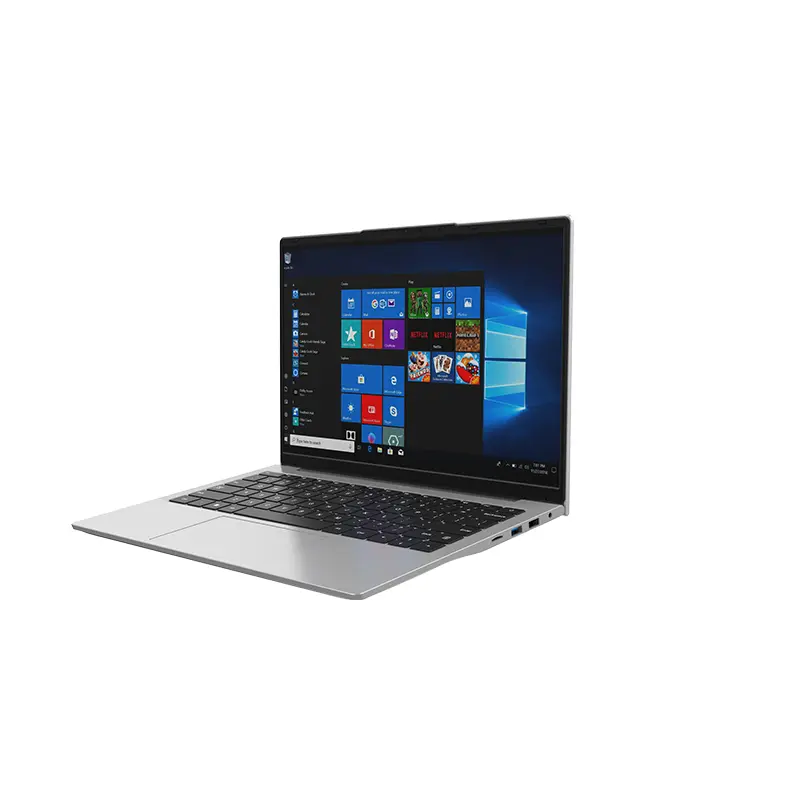 14 Inch Office Notebook
 Dual Screen Laptop
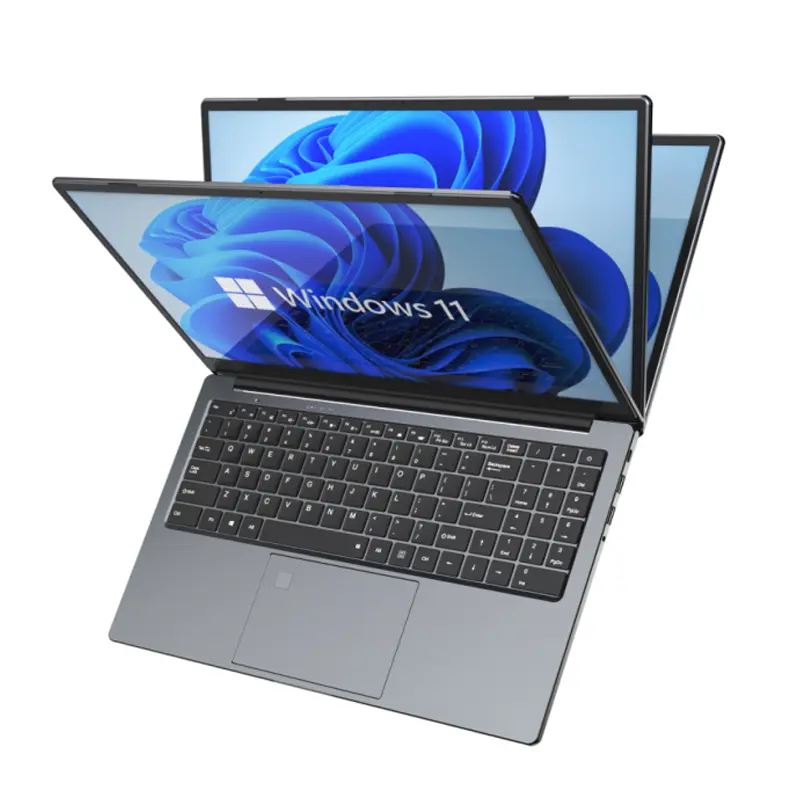 Fingerprint Business Notebook
 Big Screen Laptop
 HD Gaming Laptop
 14.1 Inch Student laptops
 16.1 Inch Office Laptops
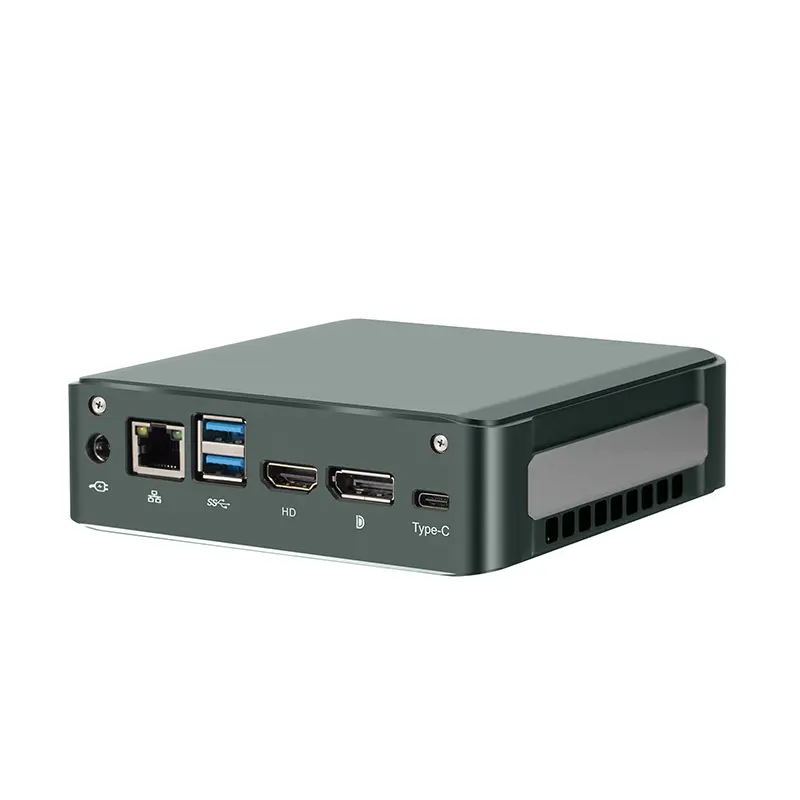 Home Mini Host
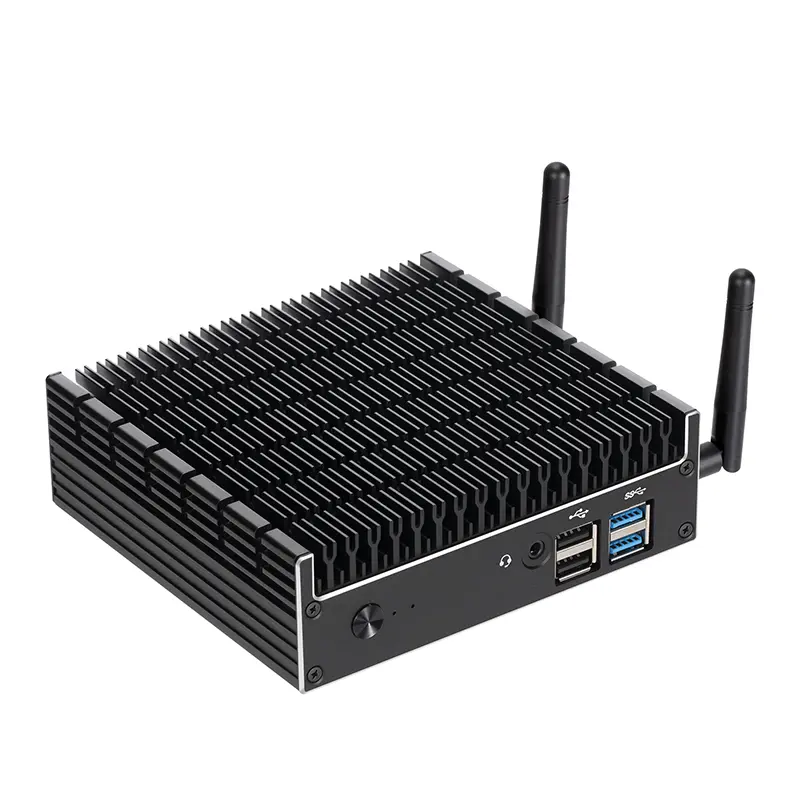 Industrial Micro PC
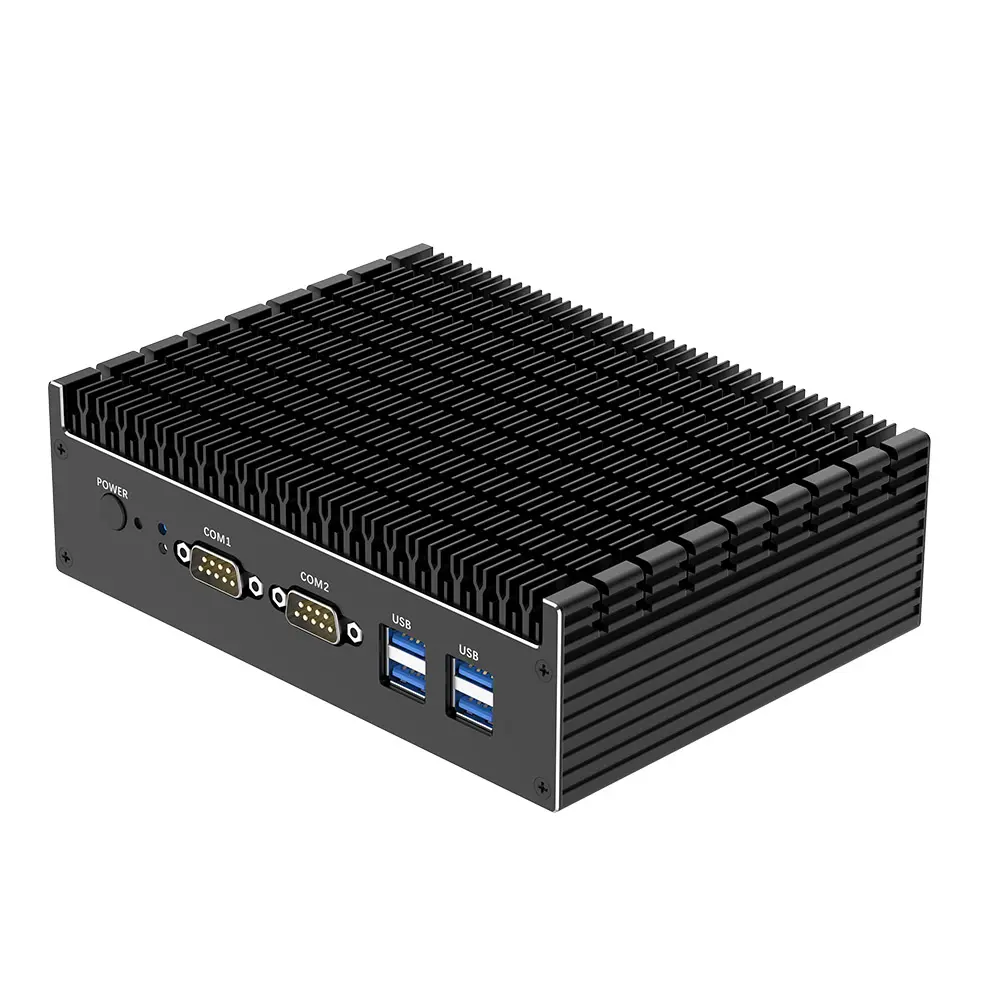 Fanless Industrial Mini PC
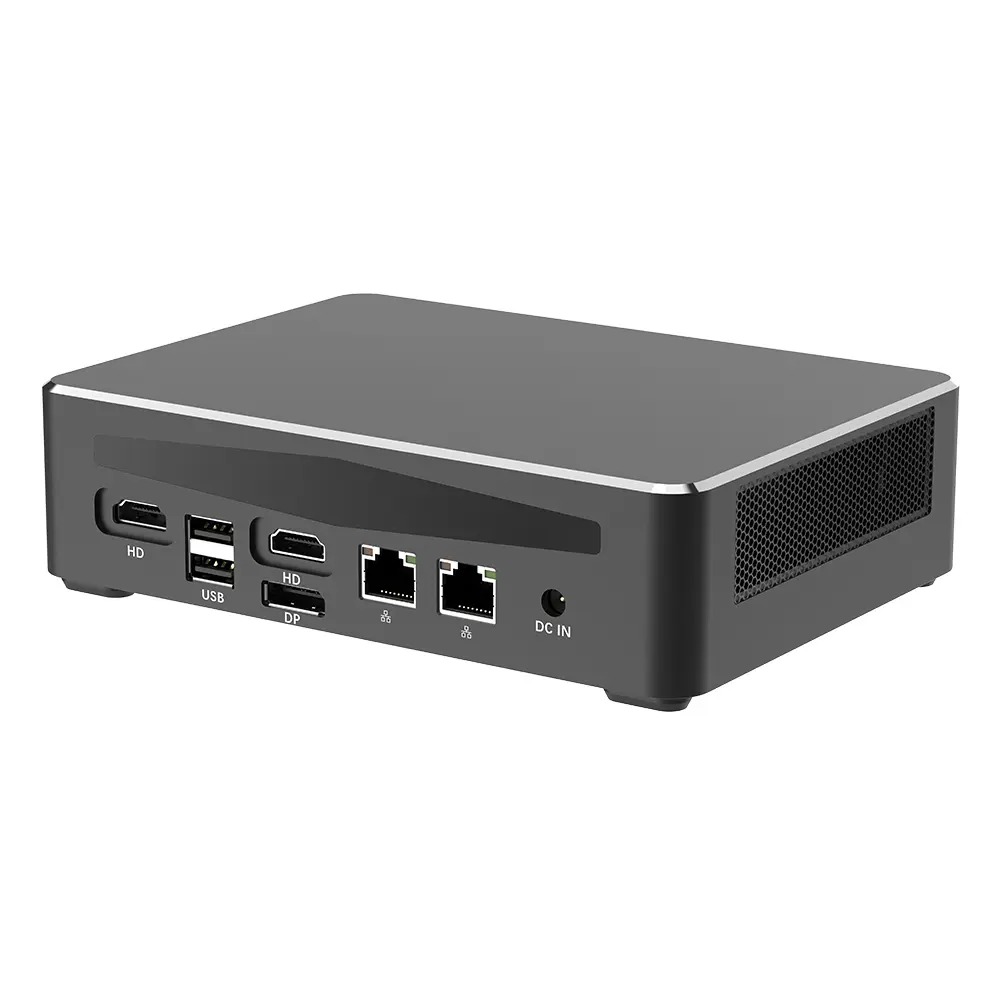 Commercial Mini PC
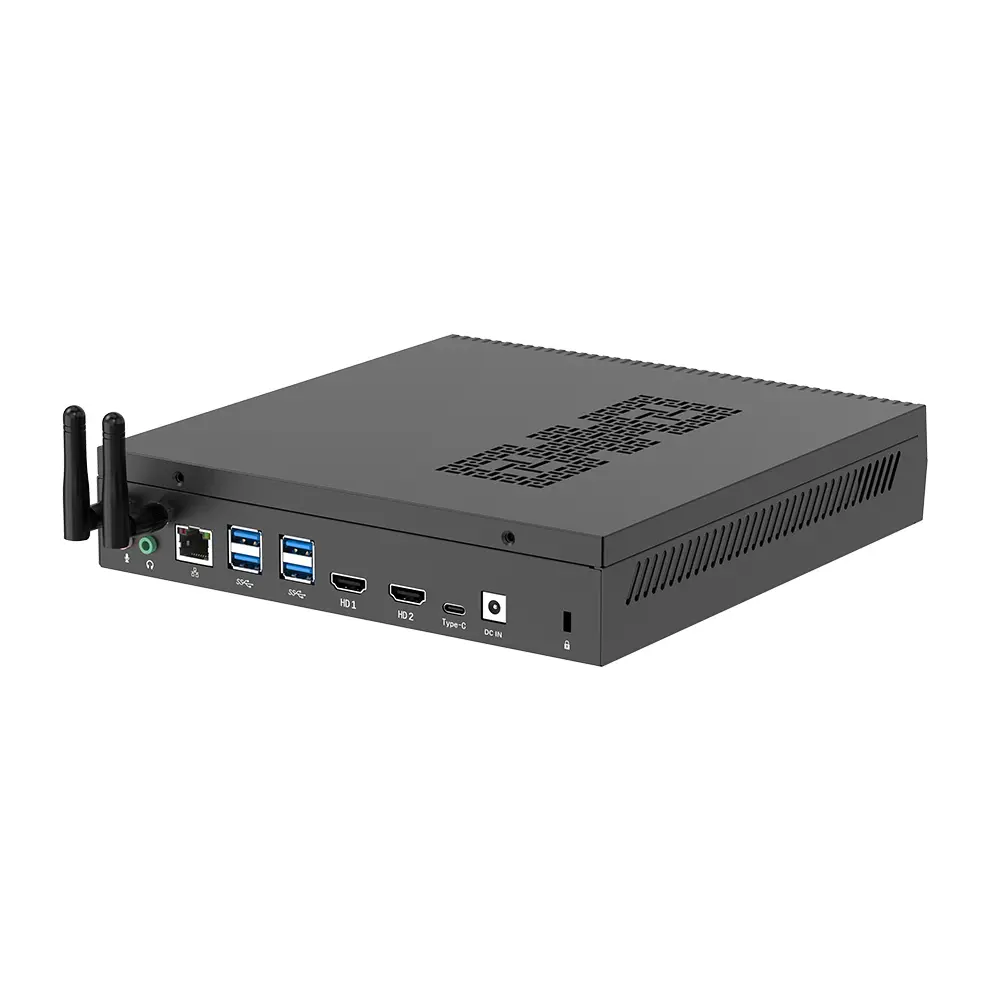 RTX3050TI Game Mini PC
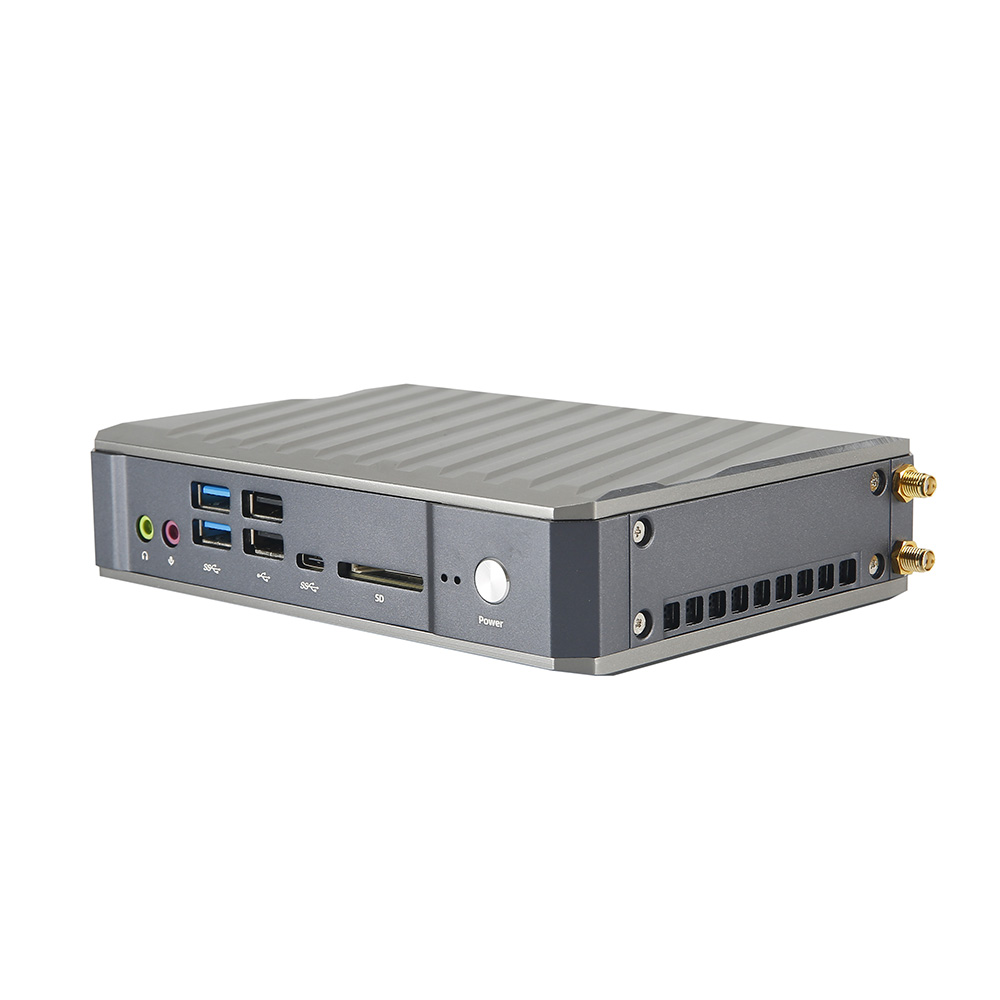 Micro Mini PC
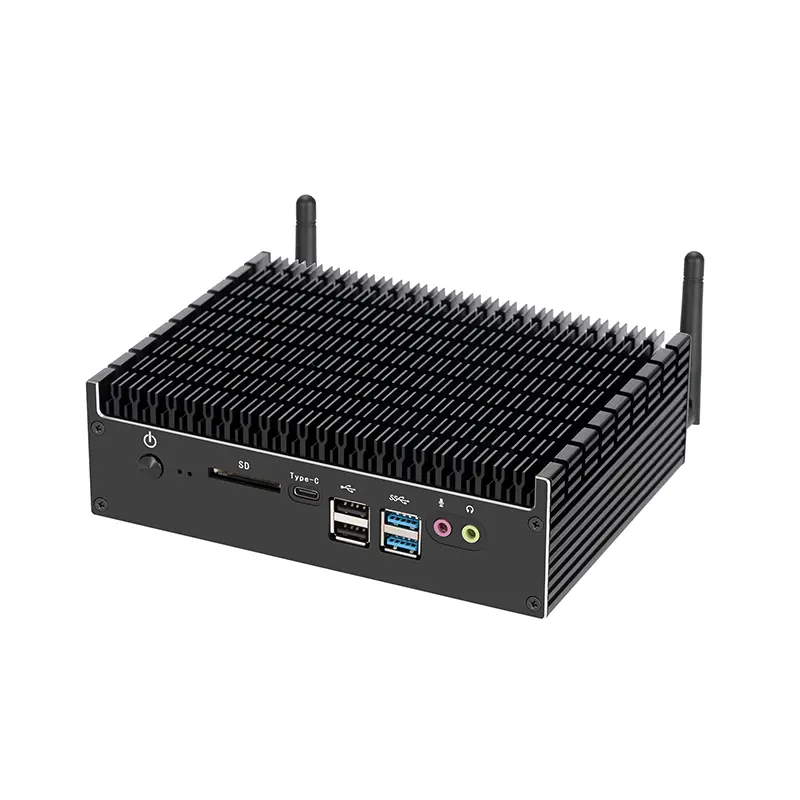 Fanless Mini PC
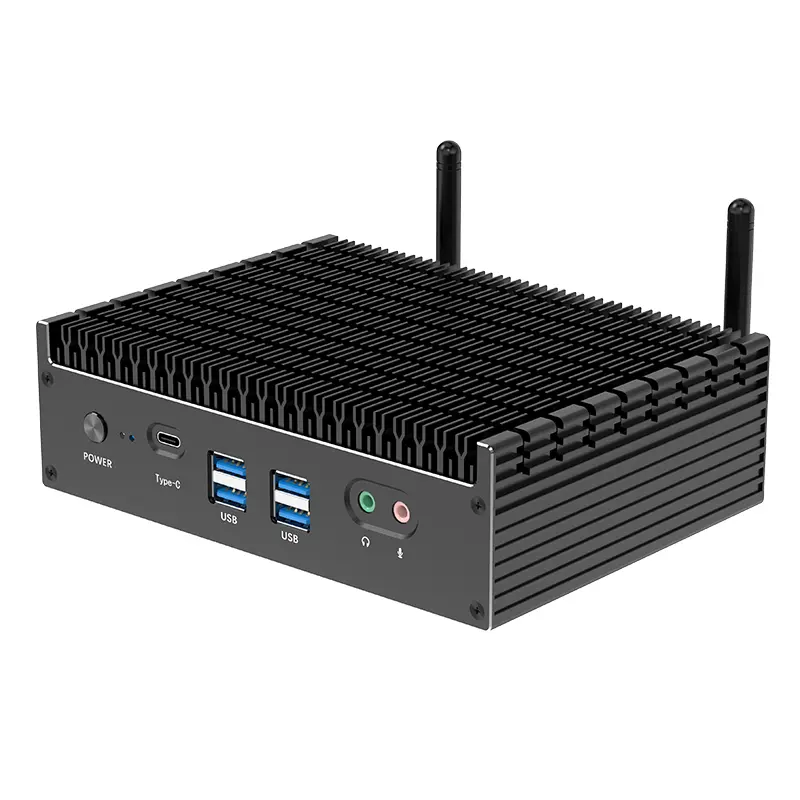 High-end Mini PC
 More
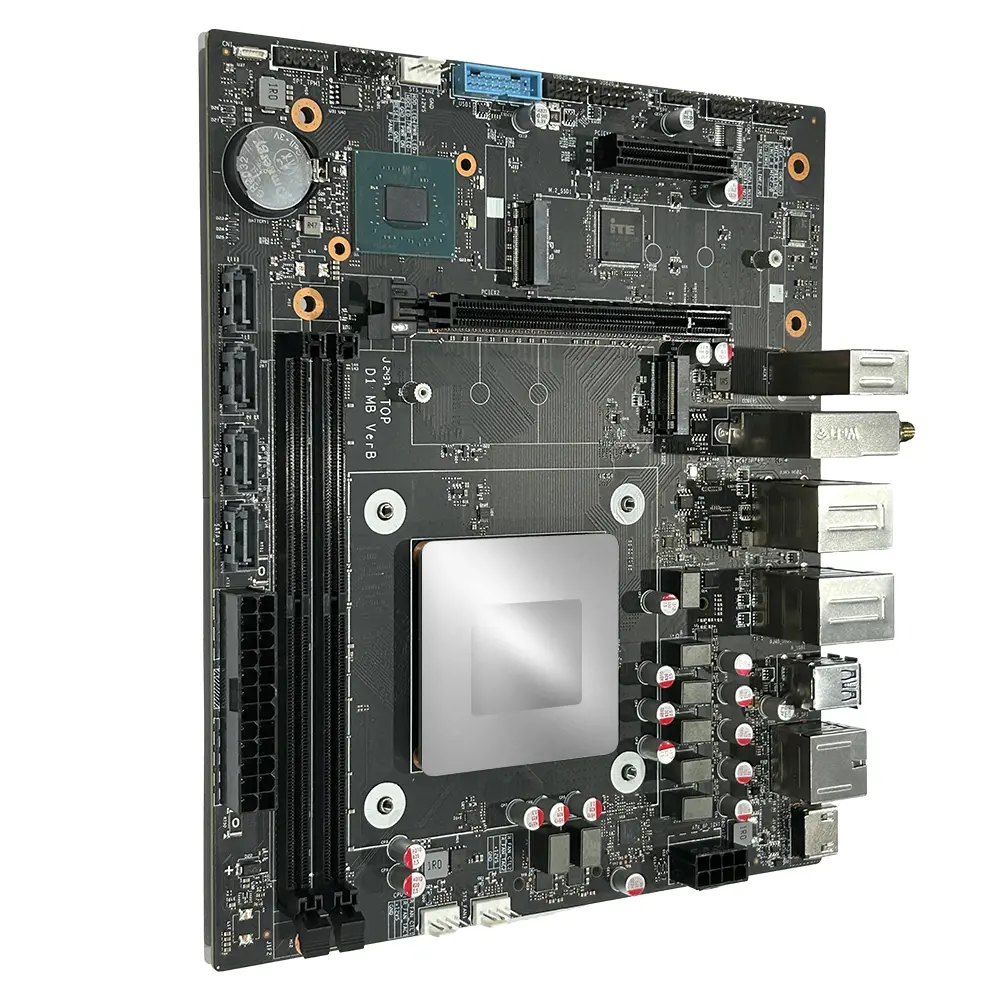 Micro ATX Computer Motherboard