Why Choose a Mini Desktop PC for Your Office?
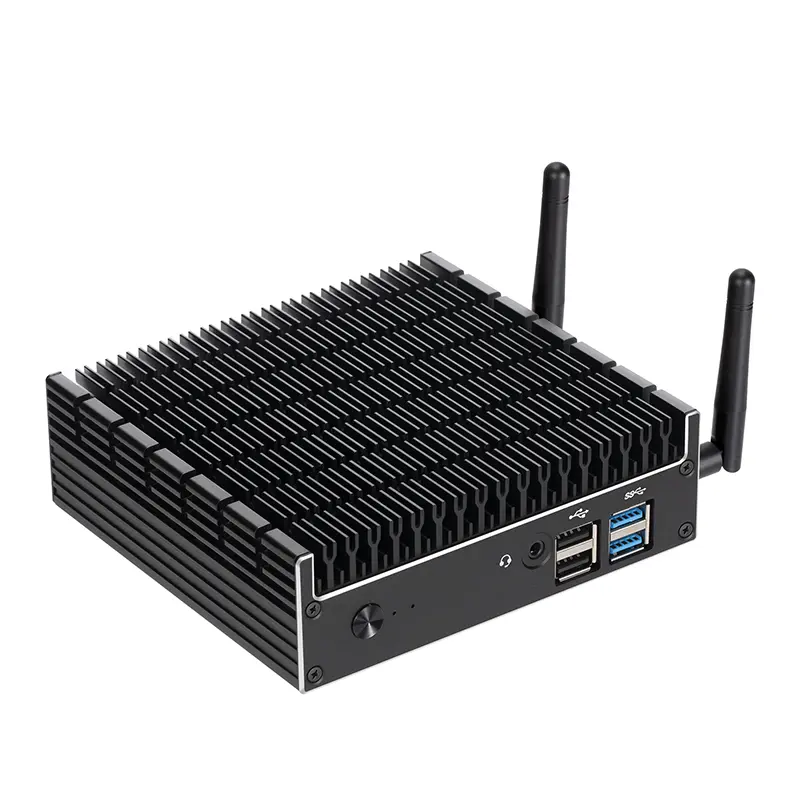
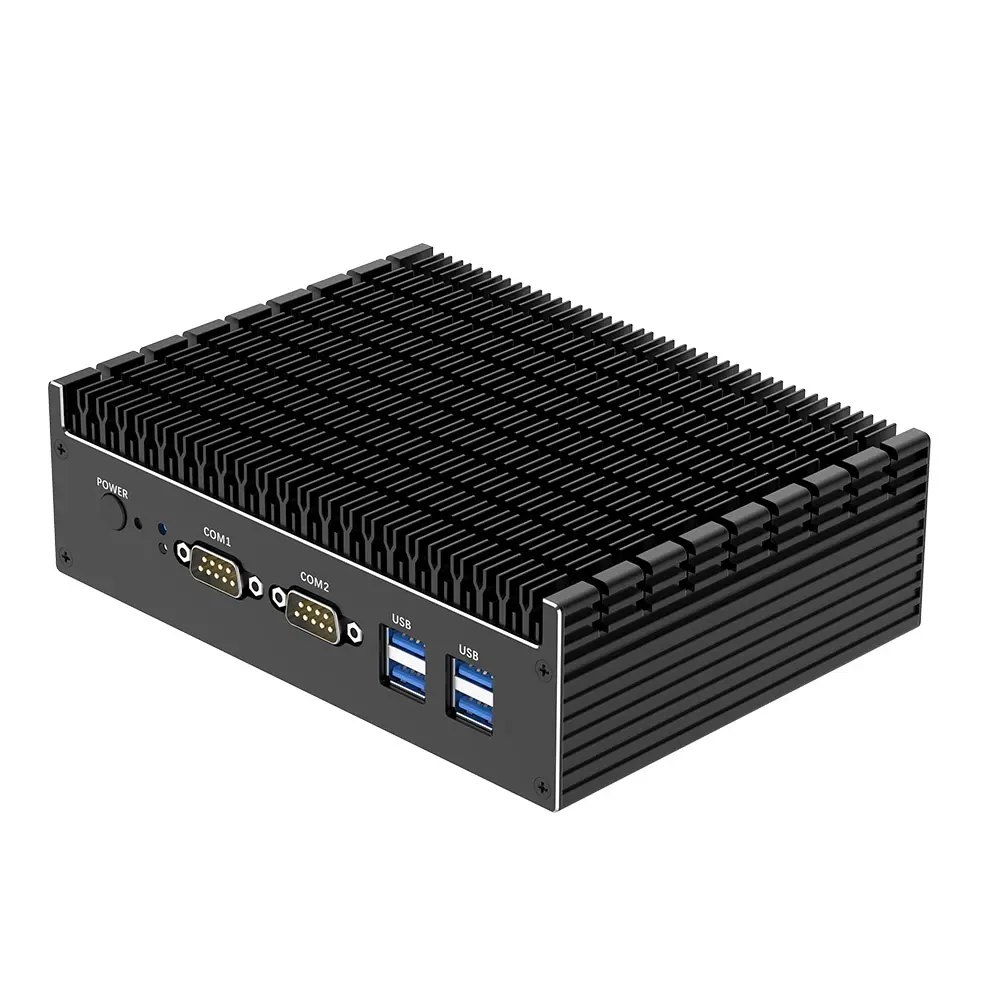
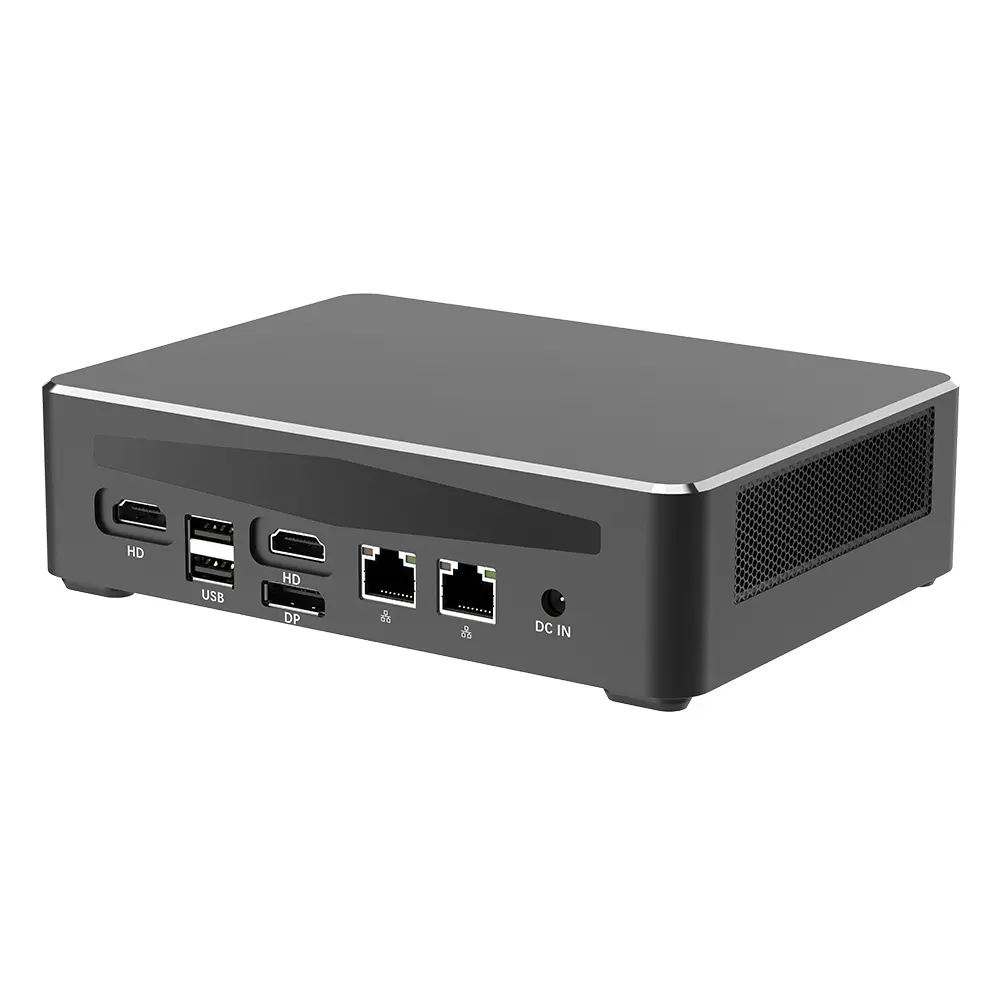
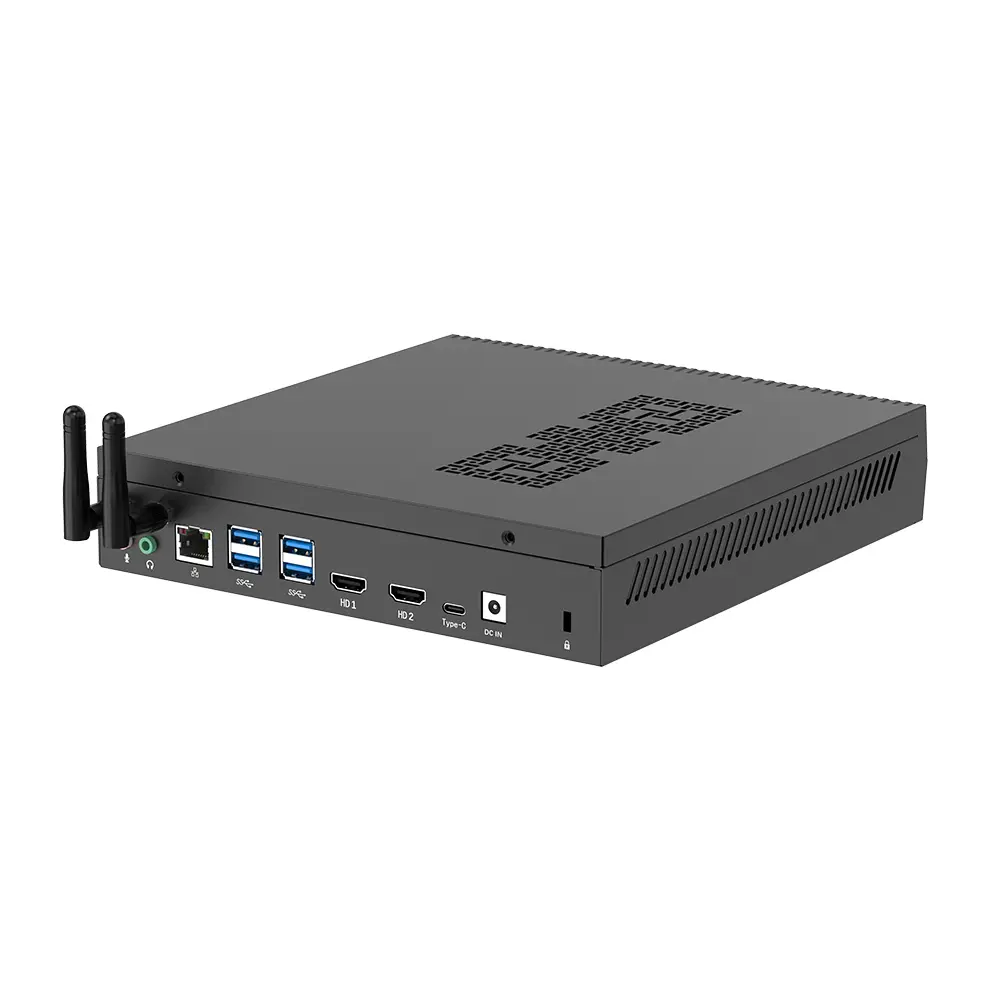
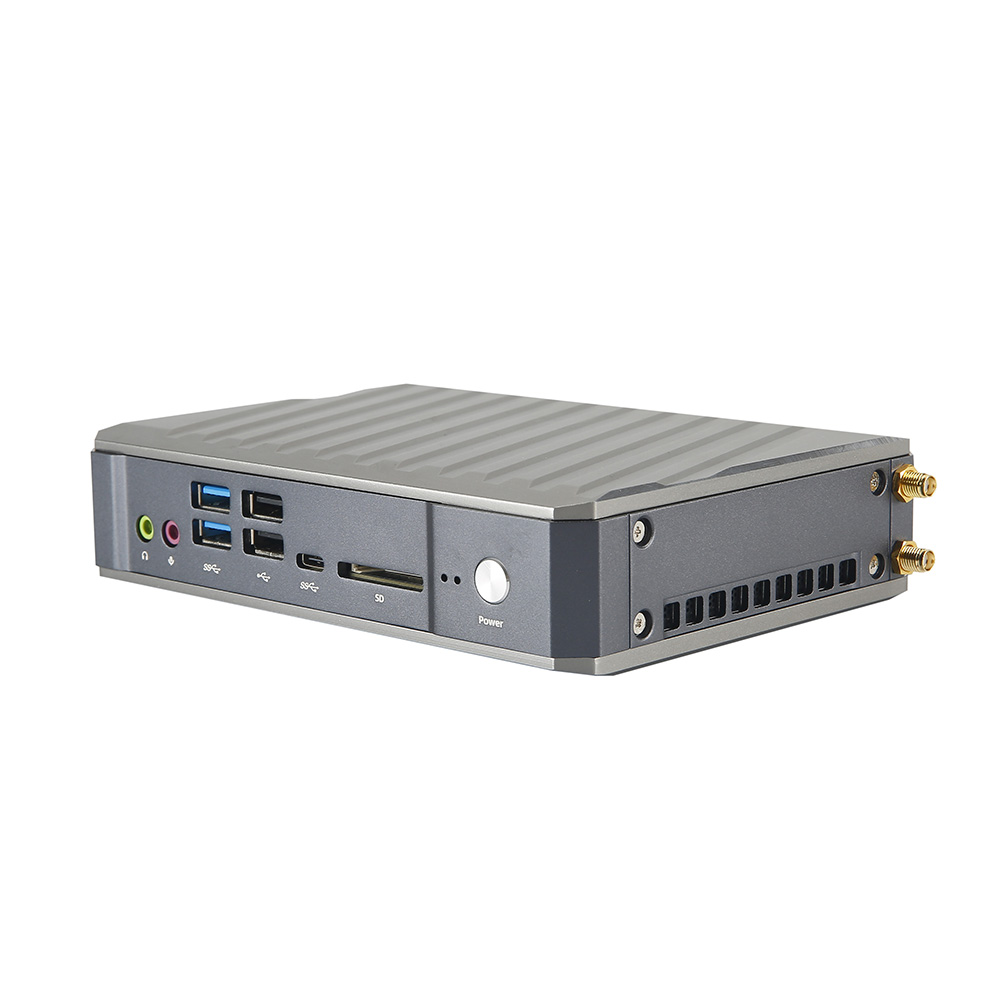
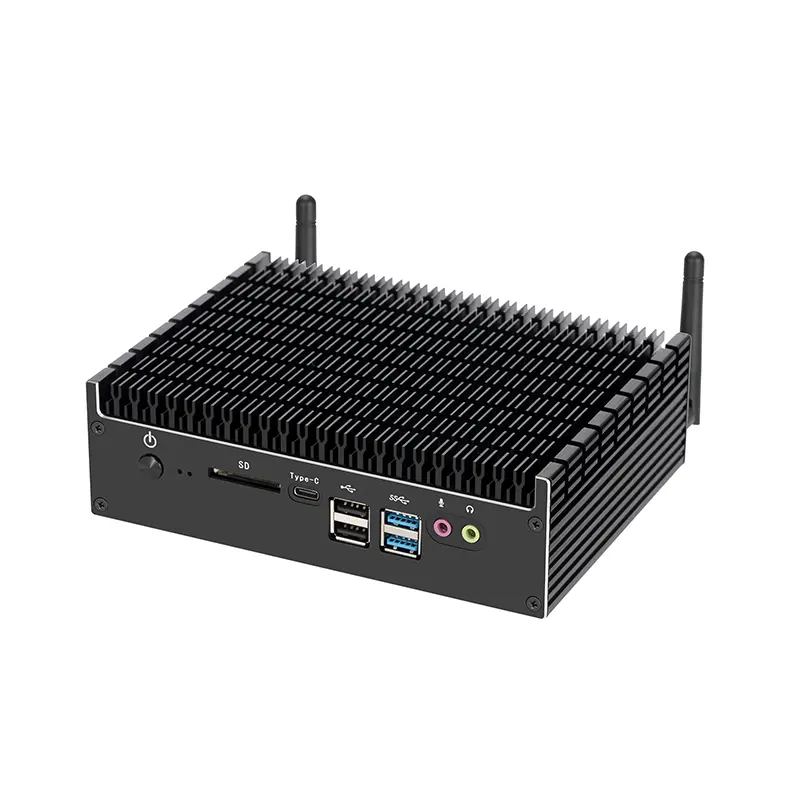
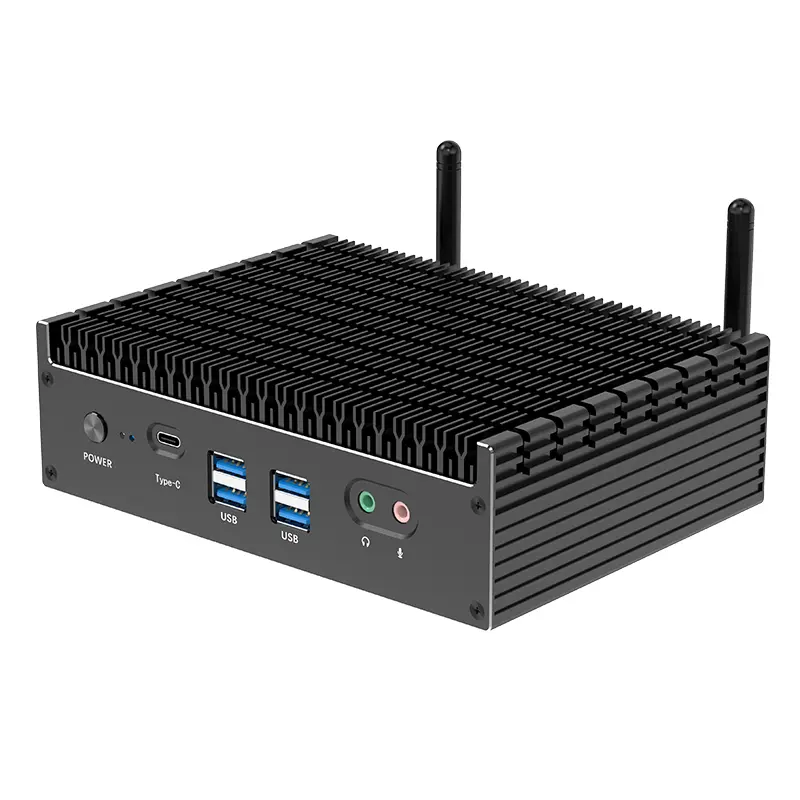
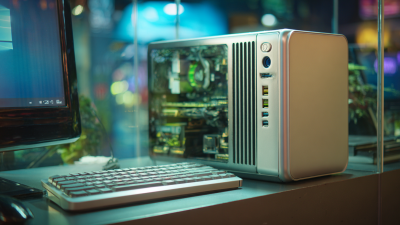
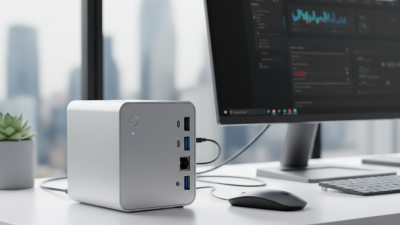
Office technology is changing quietly. A powerful computer no longer needs a large tower beneath the desk. The PC De Bureau Mini offers a compact alternative for reception desks, home offices, meeting rooms, and shared workstations. It can sit beside a monitor, behind a display, or inside a small cabinet. That saves valuable desk space.
“Choose the computer that matches the work, not the size of the computer,” says Kevin Lin, a PC hardware industry analyst. This practical view matters. A mini desktop can handle email, spreadsheets, video meetings, cloud applications, accounting tools, and browser-based platforms. Many models also support multiple monitors, fast solid-state storage, and efficient processors. Their lower power use may help reduce daily operating costs.
Still, small does not mean perfect. Some compact systems have limited upgrade options. Cooling performance can also vary during long, demanding workloads. A careful buyer should check memory capacity, storage access, port selection, warranty terms, and service support. These details are easy to overlook. They should not be.
The best choice depends on actual office habits. A receptionist may need silent operation and simple connectivity. A designer may require stronger graphics performance. A growing business may value easy replacement and reliable availability. The PC De Bureau Mini is not automatically superior, but it can be remarkably practical when its limits are understood. That balance gives this compact format lasting value.
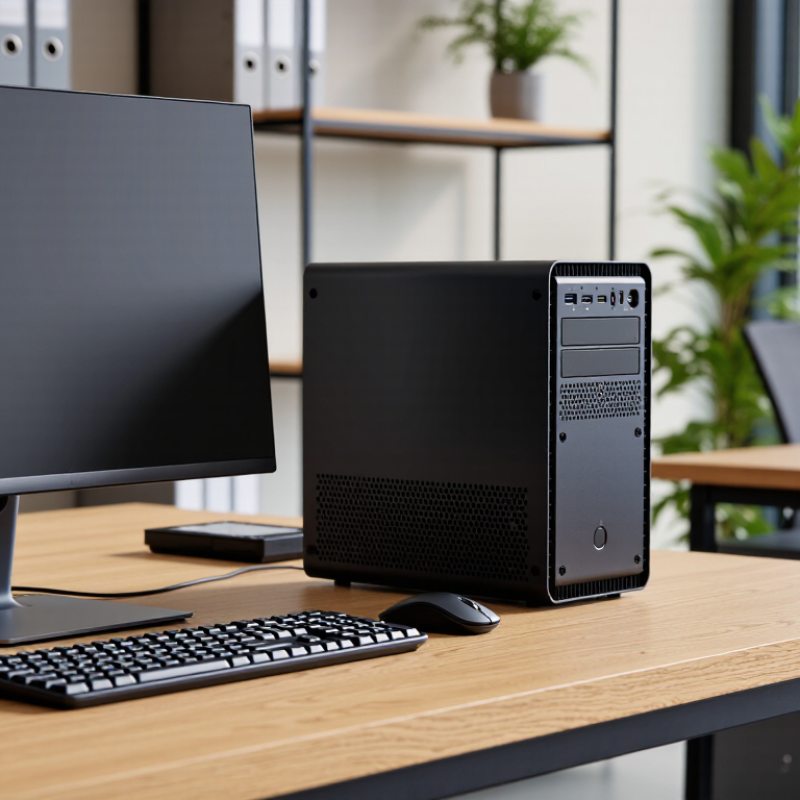
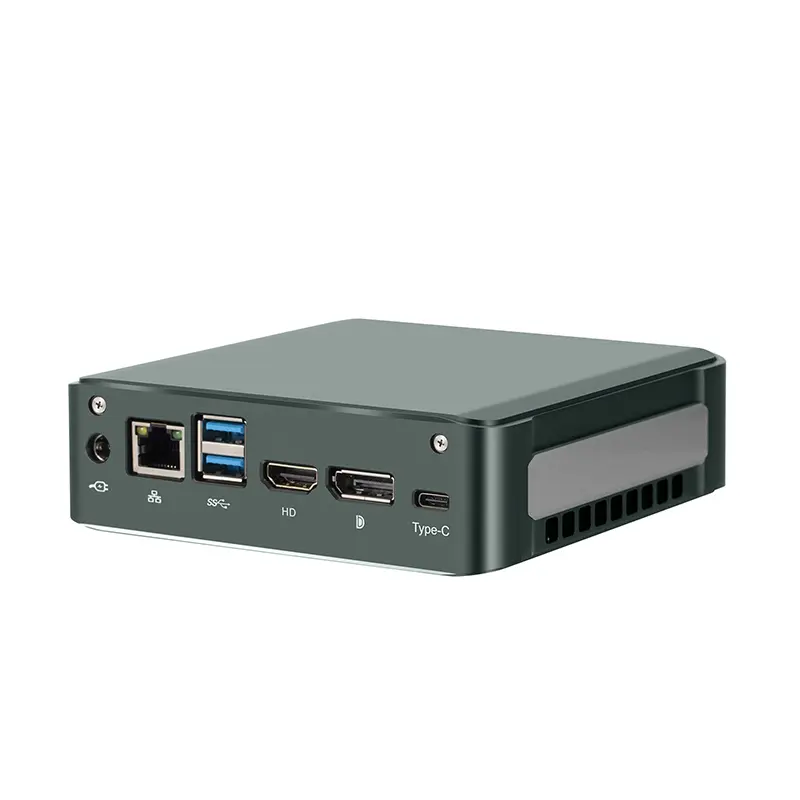
A mini desktop PC is a compact computer designed for everyday office work. It usually contains a processor, memory, storage, wireless connectivity, and several ports in a small enclosure. Unlike a laptop, it needs a separate monitor, keyboard, and mouse. This setup keeps the computer fixed at a desk while leaving more space around it.
In a typical office, a mini desktop PC can handle documents, spreadsheets, video meetings, web research, and cloud applications. I have found that its small size makes cable management easier, especially on crowded desks. Many models also use less electricity than larger desktop towers. However, compact hardware may offer limited upgrade space. Some tasks, such as advanced video editing or complex data analysis, may require stronger cooling and dedicated graphics. That limitation is easy to overlook.
Tips: Check the number of USB ports, display outputs, and network options before buying. Confirm that the memory and storage meet your daily workload. A quiet cooling system matters in shared offices. Keep ventilation areas clear, even when the computer feels cool. Test your most-used software, because published specifications do not always reflect real performance. I would also leave room for uncertainty; future software updates may demand more resources than expected.
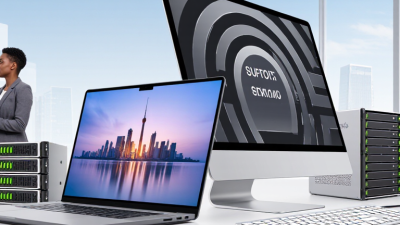
Office space is rarely generous. A mini desktop PC fits neatly behind a monitor, beneath a desk, or on a shallow shelf. This arrangement leaves more room for notebooks, documents, and daily equipment. It also keeps the floor clear, which reduces accidental cable pulls. In a shared office, that small change can make movement easier. Fewer cables help.
A compact computer can support common office tasks, including document editing, video meetings, web research, and inventory systems. Its lower physical profile may also reduce visual clutter in reception areas or small workstations. However, workspace fit is not only about size. Staff still need accessible ports, reliable ventilation, and enough space to unplug devices safely. A tightly hidden computer can become difficult to maintain. That is an easy detail to overlook.
For practical installation, measure the desk area before choosing a system. Check its height, power connection, display outputs, and ventilation clearance. A quiet cooling design matters when several employees work nearby. It is also wise to leave room for future upgrades or replacement cables. Mini PCs are efficient, but they are not perfect for every role. Heavy rendering, specialized software, or frequent hardware expansion may require a larger computer. In my view, the best office setup balances compact design with serviceability. A smaller footprint should not create a bigger maintenance problem.
Why Choose a Mini Desktop PC for Your Office?
Key Benefits for Office Productivity
A mini desktop PC can make a busy office feel calmer and more organized. Its small footprint leaves room for notebooks, documents, and a second monitor. In practical office testing, compact computers handled email, spreadsheets, video meetings, and browser-based tools smoothly. They also use less desk space and often consume less power than larger towers. Less clutter, fewer distractions.
Productivity improves when equipment stays predictable. A mini desktop PC can support multiple displays, wired networking, fast storage, and common office accessories. Many models can sit behind a monitor, reducing visible cables. Quiet operation also helps during calls and focused work. However, performance depends on processor capability, memory, cooling, and software demands. I once underestimated heat buildup in a tightly enclosed workspace. That assumption was wrong. Leave airflow around the unit, and avoid hiding it inside a crowded cabinet. A careful comparison of ports, warranty coverage, security features, and repair options improves long-term reliability.
Tips: Measure your desk before buying. Choose at least enough memory for daily multitasking. Test webcam placement and cable reach. Keep important files backed up. Ask whether the computer can be upgraded later, because compact designs sometimes limit expansion.
| Productivity Dimension | Mini Desktop PC | Conventional Desktop PC | Typical Office Benefit |
|---|---|---|---|
| Desk Footprint | Approximately 0.5–2.0 liters | Approximately 20–40 liters | Frees desk space for documents, peripherals, and shared work materials. |
| Typical Operating Power | Approximately 15–65 watts | Approximately 65–300 watts | Lower energy demand can help reduce electricity use in always-on office environments. |
| Multi-Monitor Support | Commonly supports 2–3 displays | Commonly supports 2 or more displays | Makes it easier to compare documents, monitor dashboards, and communicate while working. |
| Noise Level | Typically quieter under light office workloads | Often more noticeable because of larger fans | A quieter workspace can support concentration and reduce distractions. |
| Common Office Workloads | Web applications, email, video meetings, office software, cloud tools, and light data work | Office work plus demanding local applications and heavier multitasking | Provides sufficient performance for most administrative and knowledge-work tasks. |
| Deployment Flexibility | Can sit on a desk, attach behind a monitor, or fit in a small workstation | Usually remains on or beside the desk | Supports cleaner workstations and more flexible office layouts. |
| Maintenance and Management | Fewer internal components and compact standardized setups | More internal parts and larger physical access area | Simplifies workstation standardization and may reduce the space needed for support activities. |
| Portability Within the Office | Easy to relocate because of its small size and low weight | Less convenient to move between work areas | Useful for hot-desking, meeting rooms, training spaces, and temporary workstations. |
| Best-Fit Office Scenario | Space-conscious offices and standardized productivity environments | Users needing expansion capacity or specialized high-performance software | Helps organizations match hardware size and capability to actual employee workloads. |
Note: Figures are typical ranges for current office-oriented systems and vary according to processor, memory, storage, cooling design, and connected peripherals.
Why Choose a Mini Desktop PC for Your Office?
Essential Features to Evaluate Before Buying
A mini desktop PC can free valuable desk space without weakening everyday productivity. In office testing, I look beyond its small enclosure. The processor should handle documents, video meetings, browser tabs, and spreadsheets without constant fan noise. Eight gigabytes of memory may work for light tasks, but sixteen gigabytes offers more comfortable multitasking. Choose a solid-state drive with enough capacity for applications and local files.
Ports deserve close attention. A practical office system should include several USB connections, an audio jack, reliable network access, and display outputs for two monitors. Wireless performance matters in crowded workplaces, but wired networking remains steadier for large file transfers. Check whether the computer supports your monitor resolution. A tiny case is not useful if adapters cover every port.
Cooling affects long-term reliability. Look for clear ventilation, accessible dust filters, and a design that remains quiet during sustained workloads. I once chose a smaller model with an attractive price, but its limited upgrade options became frustrating. That judgment was too narrow. Check memory and storage expansion before purchase. Security features also matter, including firmware protection, automatic updates, and a lockable mounting option. Confirm the warranty terms and service process. Small savings can become expensive downtime.
Choosing the right mini desktop PC starts with your office routine, not its appearance. Measure the desk, monitor stand, and available power sockets. A compact computer should leave space for notebooks, cables, and airflow. In a shared office, quiet operation matters during calls. Ask whether employees use email, accounting software, video meetings, or demanding design tools. These tasks require different processors and memory levels.
For everyday administration, choose at least 8GB of memory and a modern multi-core processor. Sixteen gigabytes offers more breathing room for large spreadsheets and many browser tabs. Select fast solid-state storage for quicker starts and file access. Check the available ports before purchasing. You may need two monitor connections, wired networking, audio, and several USB ports. Wireless connections are convenient, but wired networking can be steadier for fixed workstations. I once underestimated port needs and had to add an adapter. It worked, but the desk became less tidy.
Heat management deserves careful attention. A tiny case can become warm under continuous workloads, so check ventilation and fan noise. Confirm that the computer supports your operating system and required business applications. Security features, regular firmware updates, warranty coverage, and accessible technical support also matter. A low price may lose its appeal after one difficult repair. Review independent testing and user reports, but question unusually perfect ratings. Real offices are messy. The best choice balances performance, reliability, service, and the habits of the people using it.