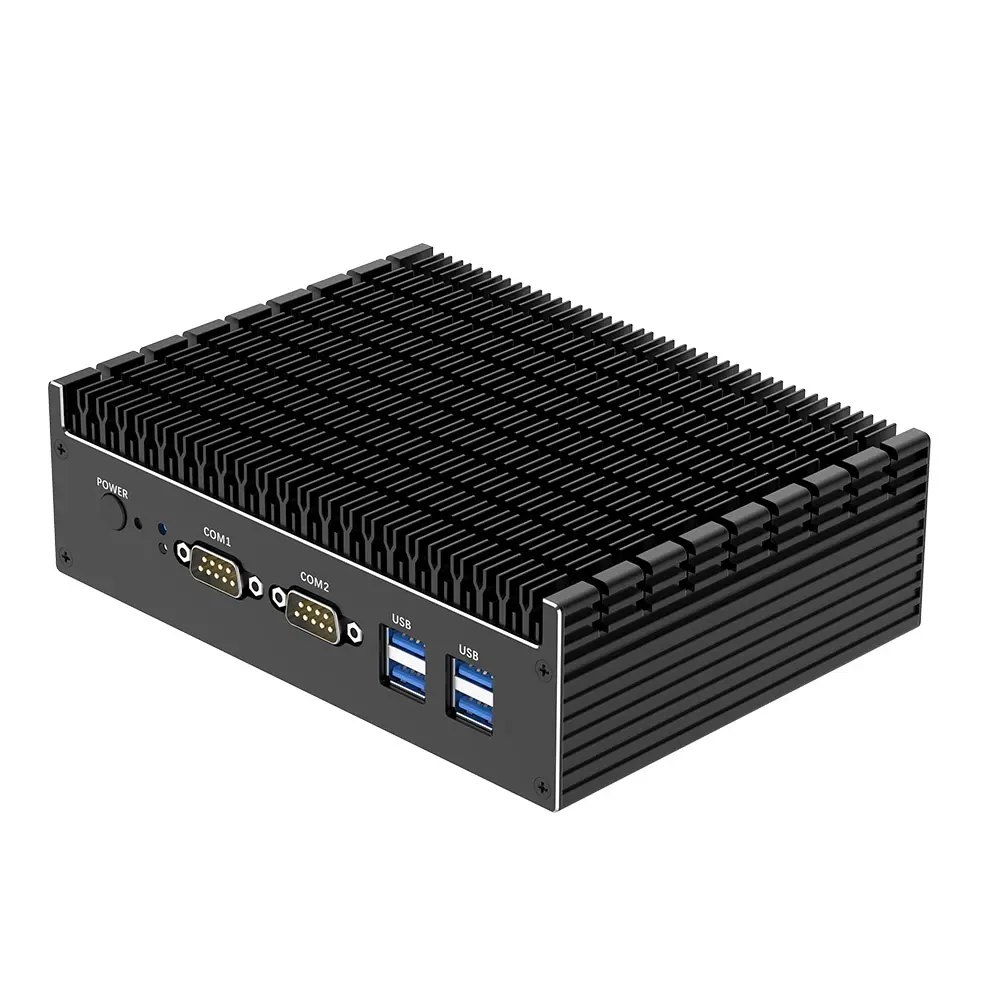
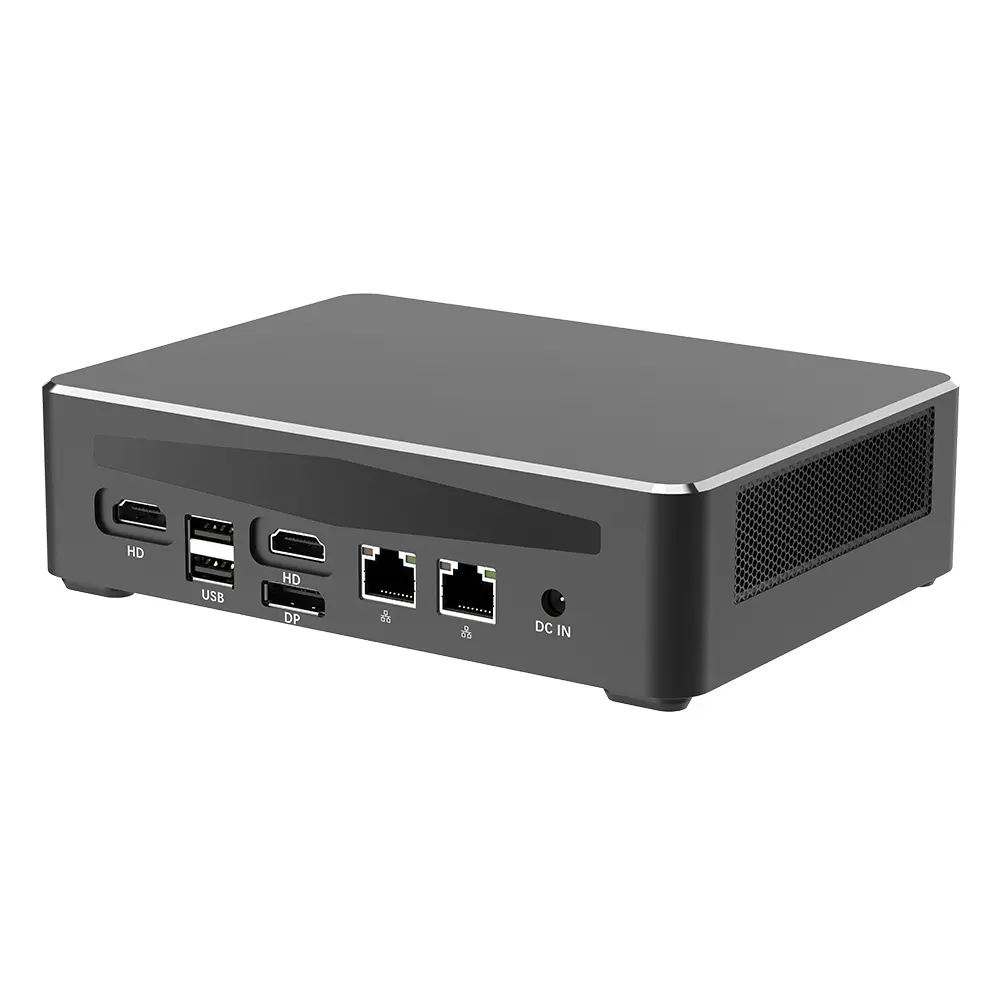
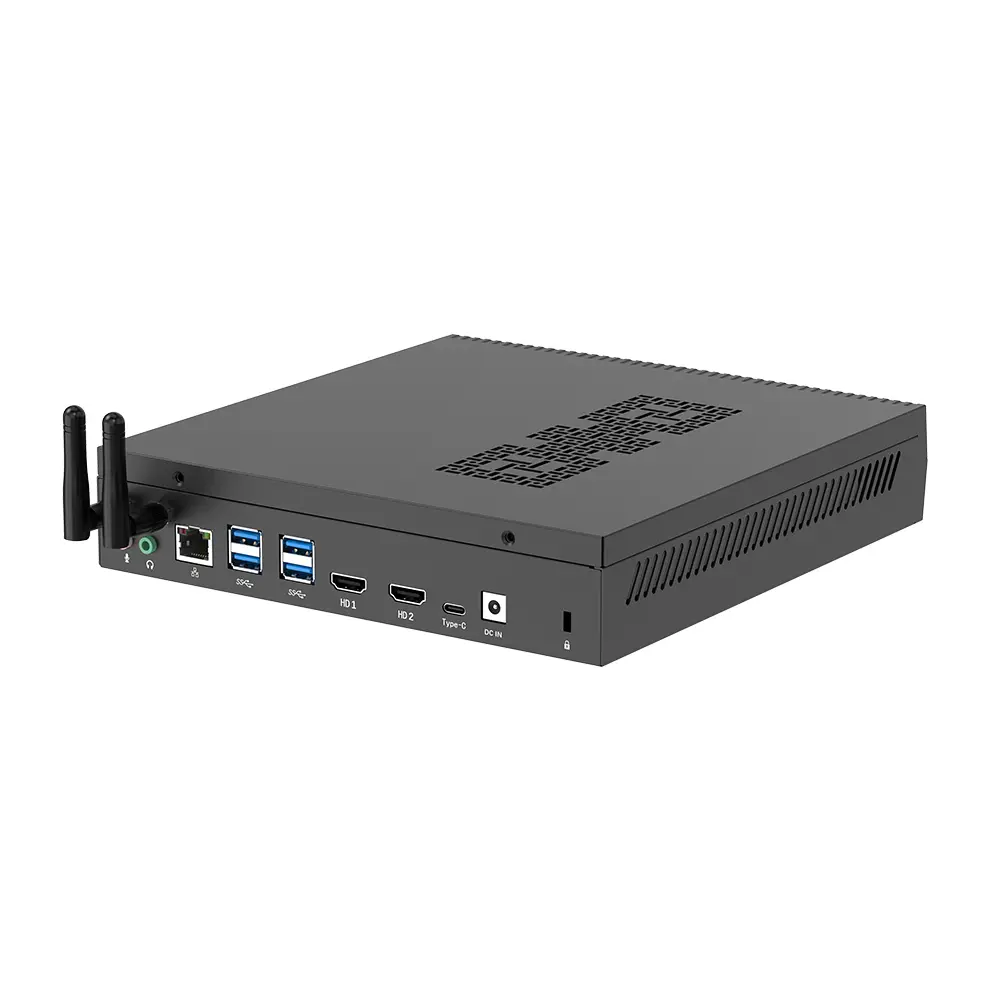
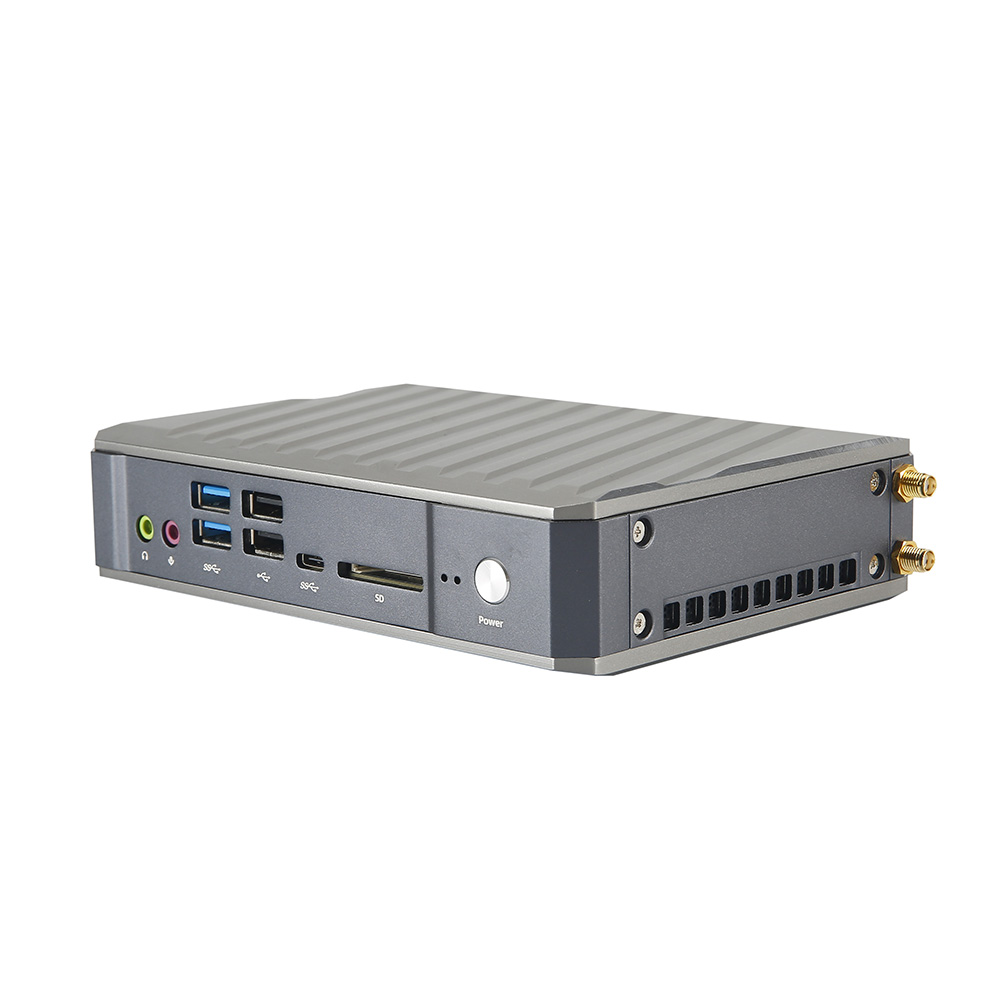
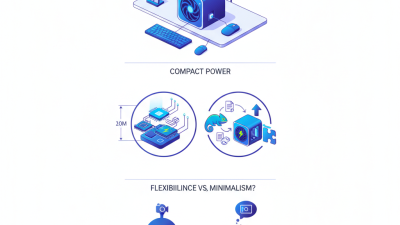
Choosing the best Kleiner Desktop PC begins with a practical question: what will you actually do with it?
A compact computer may sit quietly beside your monitor, but its size can hide important compromises. Check the processor, memory, storage, cooling design, ports, and upgrade options. A machine for email and documents needs different hardware from one used for 4K editing, software development, or competitive gaming. Do not let a long specification list decide for you. Measure the desk space, count your peripherals, and consider the noise level in your room.
Steve Jobs once said, “You’ve got to start with the customer experience and work back toward the technology—not the other way around.” That principle fits the Kleiner Desktop PC market especially well. A fast processor means little if the fan becomes distracting during meetings. A small case is attractive, yet limited airflow may reduce sustained performance. I have also found that buyers often overlook power adapters, wireless standards, and warranty support. These details become visible only after daily use.
This guide will compare performance, reliability, connectivity, energy use, and long-term value. It will also question the assumption that smaller always means better. Sometimes, a slightly larger desktop provides quieter cooling and easier repairs. The right choice depends on your workload, budget, room, and patience for compromises. Expect useful clarity, but not a perfect answer.
Before comparing specifications, define how you will use the computer each day. A quiet office setup needs different hardware from a workstation for video editing or gaming. Write down your routine for one normal week. Include browser tabs, video calls, spreadsheets, photo work, and streaming. Small details matter. A compact PC may sit beside your monitor, but it still needs enough power for your busiest task.
For email, documents, research, and online meetings, a modern processor with 8GB of memory can work. I recommend 16GB for smoother multitasking and longer useful life. Choose solid-state storage for faster startup and quieter operation. A 512GB drive suits many users, but large media libraries need more space. Check the connection ports, too. You may need dual display support, fast networking, or several USB ports.
Your habits should guide the final choice. If you edit 4K footage, run development tools, or use large design files, select stronger processing and 32GB of memory. Cooling also deserves attention in a compact case. Poor airflow can create noise during long sessions. I once underestimated this issue, and the small computer became distracting under load. My first estimate was wrong. Leave room for heavier future workloads, but do not pay for hardware you will rarely use. Read independent test results and confirm warranty terms before buying.
A compact desktop PC should match your daily workload, not just its advertised speed. For office work, web browsing, and light editing, a modern four- or six-core processor usually feels responsive. Check its sustained performance, not only the maximum clock speed. Small cases can restrict cooling. Heat changes everything. During testing, I watch temperatures while opening large spreadsheets and exporting photos. A processor that slows after ten minutes may disappoint, despite impressive specifications.
Memory affects multitasking more than many buyers expect. I recommend at least 16GB for general work, especially with several browser tabs and communication tools open. Choose 32GB for video editing, software development, or virtual machines. Dual-channel memory can improve responsiveness, but confirm whether the modules are replaceable. Some compact systems use soldered memory. That limits future upgrades. I once ignored this detail, and replacing the entire computer became necessary sooner than planned.
Storage determines startup speed, file access, and usable capacity. An NVMe solid-state drive generally loads applications faster than an older hard drive. Capacity matters too; a nearly full drive can reduce convenience and performance. For many users, 512GB is a practical starting point, while creative projects may require 1TB or more. Check independent benchmark results, warranty terms, and drive endurance ratings. Specifications can look perfect on paper. Real workloads reveal the compromise.
How to Choose the Best Kleiner Desktop PC?
A compact desktop PC should fit your workspace without sacrificing practical access. Measure twice. Check its height, width, and rear clearance before buying. IDC’s Worldwide Quarterly Personal Computing Device Tracker reported 262.7 million PC shipments in 2024. This volume shows that small computers remain relevant, but dimensions vary widely. A tool-free case is useful when cleaning dust or replacing storage. However, extremely small designs can limit cooling and future repairs.
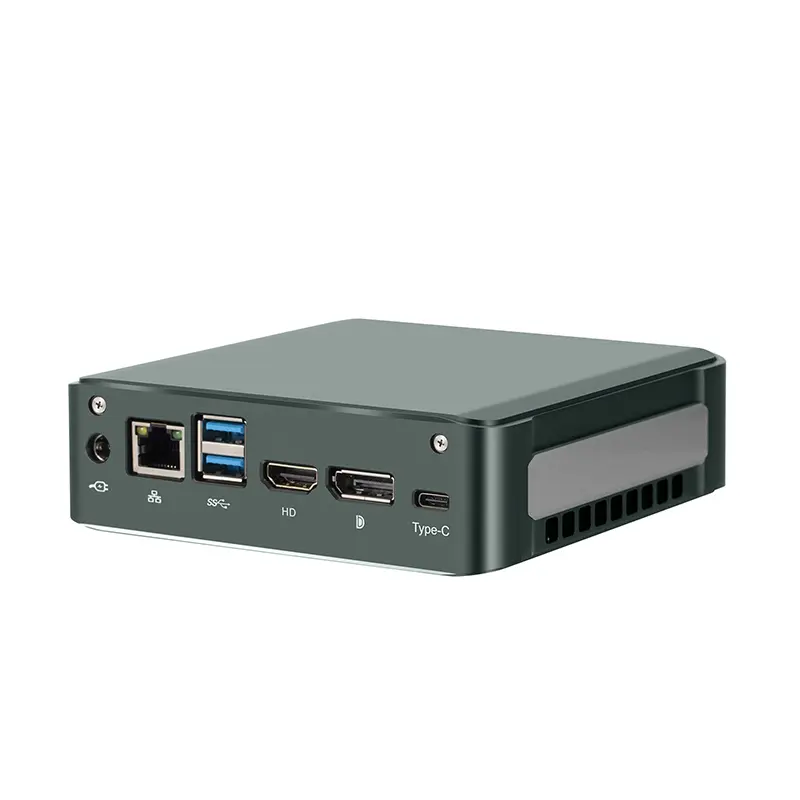
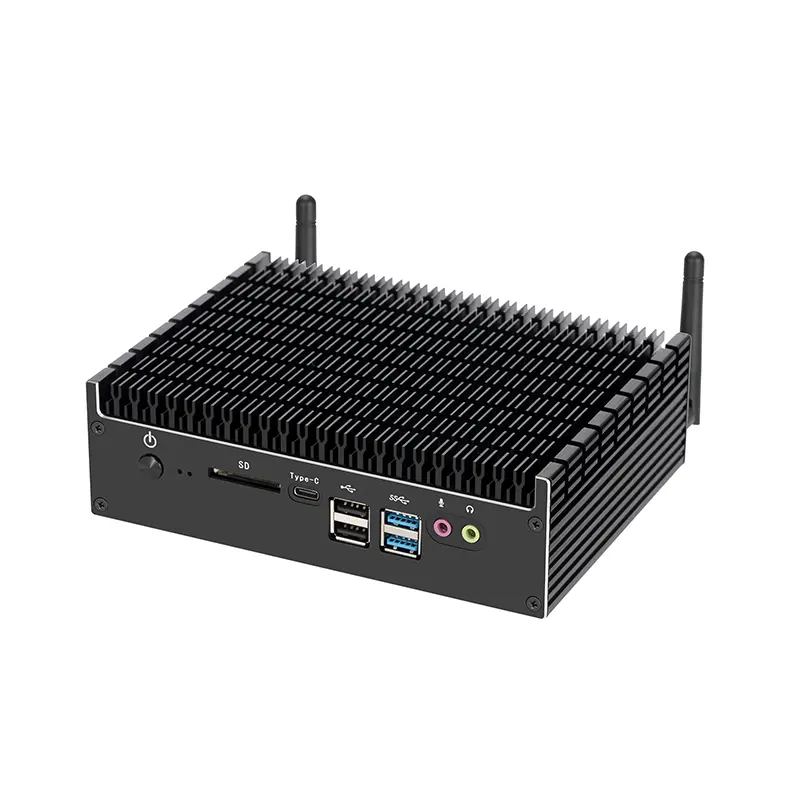
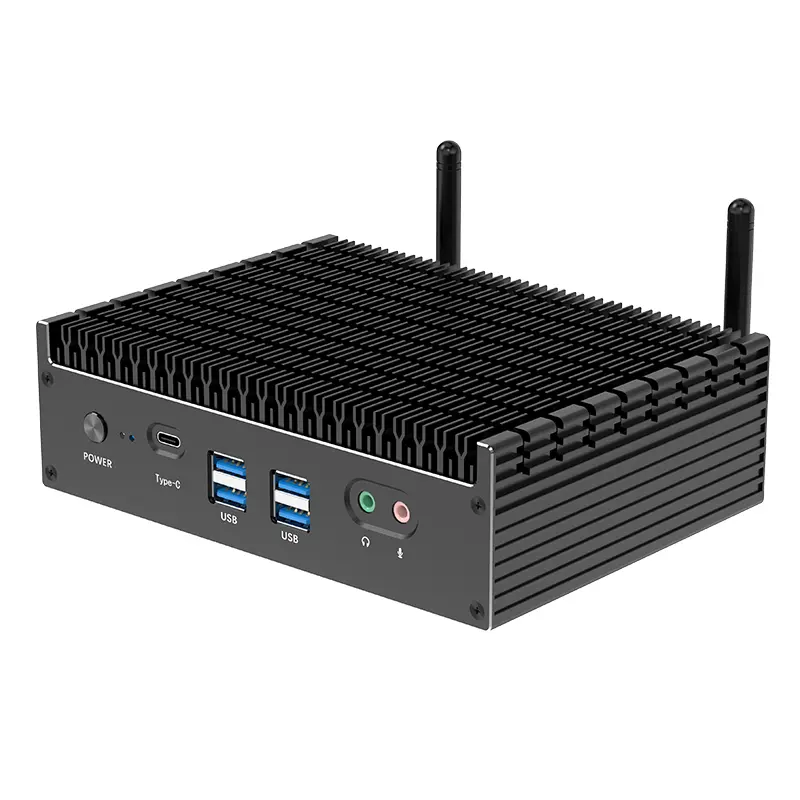
Ports deserve closer inspection. A front USB-C port can quickly connect a phone, drive, or camera. Rear USB-A ports still support keyboards, printers, and older accessories. Look for separate audio, wired-network, and display outputs. USB-IF documentation states that USB4 can support up to 80Gbps under its latest specification, but actual performance depends on the computer, cable, and connected device. Port labels can also be confusing. Read the technical sheet, not only the product photos.
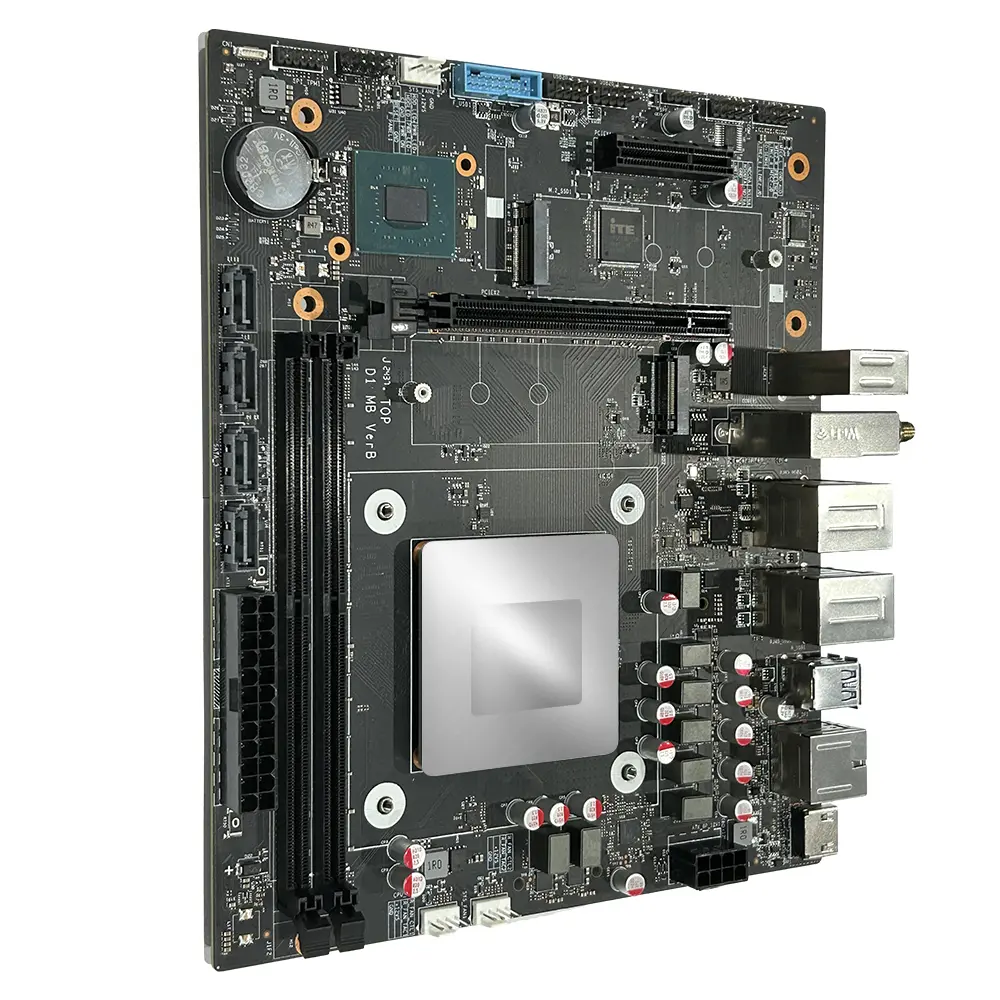
Connectivity should match your daily setting. Wi-Fi 6E or newer can reduce congestion on compatible networks, while Ethernet offers steadier performance for large file transfers. For upgrades, confirm whether memory is socketed or soldered. Check the maximum supported capacity, storage interface, and available internal slots. PCI-SIG specifications show PCIe 5.0 provides 32.0 GT/s per lane, yet a compact system may expose fewer lanes. More speed is not always more flexibility. Leave room. A model that accepts one additional drive may age better than a slightly faster sealed design.
| Evaluation Dimension | Ultra-Compact Mini PC | Small-Form-Factor Desktop | Compact Tower Desktop | Recommended Selection Guide |
|---|---|---|---|---|
| Typical footprint and volume | Approximately 0.5–2.0 L; commonly about 10–20 cm wide and deep. | Approximately 5–15 L; commonly about 18–25 cm wide and 25–40 cm deep. | Approximately 15–30 L; commonly about 17–22 cm wide and 35–45 cm deep. | Choose the smallest category that still meets your cooling, storage, and expansion requirements. |
| Desk and mounting flexibility | Easy to place behind a monitor, under a desk, or on a shelf. VESA-style mounting may be available. | Fits under or beside most desks, but needs more ventilation clearance than an ultra-compact model. | Best placed beside or under a desk; usually less suitable for monitor-back mounting. | For limited desk space, prioritize a compact model with a secure mounting option and accessible ventilation. |
| Front-panel ports | Usually 2–4 USB ports, with at least one high-speed USB port; a 3.5 mm audio jack is common. | Usually 2–4 USB ports, an audio jack, and sometimes a front USB-C port. | Usually 2–4 USB ports, audio jacks, and more room for additional front-panel connections. | For frequent peripheral use, select a model with front USB-C and at least two easily accessible USB-A ports. |
| Rear I/O ports | Typically includes HDMI or DisplayPort, USB ports, Ethernet, and a power input. Port count is limited. | Often includes several USB ports, one or more display outputs, Ethernet, and audio connectors. | Usually offers the broadest rear connectivity, with multiple USB ports, display outputs, Ethernet, and audio. | Check the exact port layout rather than relying only on the computer category. |
| Display support | Commonly supports one or two external displays; some configurations support three through compatible outputs. | Often supports two or three displays, depending on the processor, graphics hardware, and available outputs. | Usually provides the most flexible multi-monitor support, especially when a dedicated graphics card is installed. | For office productivity, verify the number of simultaneous displays and the required resolution and refresh rate. |
| Wireless connectivity | Modern models commonly offer Wi-Fi 6, Wi-Fi 6E, or newer wireless standards, plus Bluetooth. | Usually available with Wi-Fi and Bluetooth, either integrated or through an add-in card. | May include integrated wireless networking, but wired Ethernet is more common as the primary connection. | Choose Wi-Fi 6 or newer for busy networks; confirm router compatibility before selecting 6 GHz support. |
| Wired networking | Usually includes Gigabit Ethernet; selected models provide 2.5 Gigabit Ethernet. | Commonly includes Gigabit or 2.5 Gigabit Ethernet, depending on the motherboard. | Often provides the easiest access to faster Ethernet adapters or expansion cards. | Choose 2.5 Gigabit Ethernet only when the network equipment and internet or local-storage workload can use it. |
| Memory upgrade potential | May use replaceable SO-DIMM memory, but some models use soldered memory that cannot be upgraded. | Usually provides two memory slots, although maximum capacity varies by motherboard and processor. | Most likely to provide two or four standard desktop memory slots and higher maximum capacity. | Confirm that memory is socketed and check the maximum supported capacity before purchase. |
| Storage expansion | Commonly supports one M.2 solid-state drive; some models also provide a 2.5-inch drive bay. | Often supports one or two M.2 drives plus one 2.5-inch or 3.5-inch drive, depending on the enclosure. | Usually offers the most drive bays, including multiple M.2 slots and standard SATA drive support. | For long-term flexibility, select at least one spare M.2 slot or an accessible SATA drive bay. |
| Graphics upgrade options | Generally relies on integrated graphics; external graphics support may require a high-speed USB4 or equivalent connection. | May support a low-profile graphics card if the case, power supply, and cooling system are compatible. | Most likely to support a full-height graphics card, subject to card length, thickness, and power limits. | For gaming, 3D work, or video production, prioritize internal graphics expansion and adequate power delivery. |
| Cooling and sustained performance | Compact cooling can become audible under prolonged heavy workloads and may limit sustained performance. | Provides a better balance between size and airflow, but internal temperatures depend heavily on case design. | Offers the best airflow potential and is generally better for continuous high-load workloads. | For extended rendering, compilation, or intensive calculations, choose a case with larger fans and clear airflow paths. |
| Power supply and efficiency | Usually uses an external power adapter, which reduces internal heat but adds a separate item on the desk. | May use an internal compact power supply or an external adapter, depending on system power requirements. | Usually uses an internal power supply with more capacity for additional drives and expansion cards. | Compare total system power requirements with the power supply rating and leave reasonable capacity for upgrades. |
| Ease of maintenance | Limited internal space can make cleaning and component replacement more difficult. | Maintenance is moderate; access may require removing several panels or carefully routing cables. | Usually easiest to open, clean, and upgrade because components are more accessible. | Choose a tool-less or easily removable design if the computer will be upgraded or cleaned frequently. |
| Best use cases | Web browsing, office work, streaming, digital signage, light development, and space-constrained setups. | Office productivity, home servers, moderate content creation, and users needing some upgrade capacity. | Gaming, workstation applications, extensive storage, high-performance cooling, and long-term expansion. | Match the form factor to the workload rather than choosing solely by external size. |
| Overall suitability | Best for minimal spaceLow power use | Best balanceModerate upgrades | Best expandabilityHigh sustained performance | For most buyers, the small-form-factor category offers the strongest compromise between compact size, connectivity, cooling, and upgradeability. |

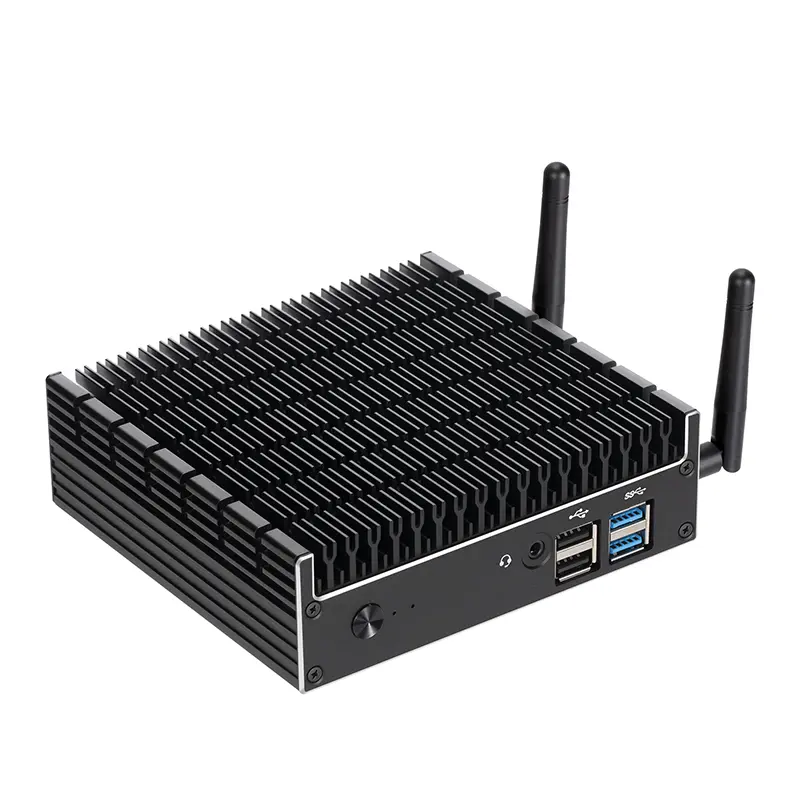
Cooling should be your first practical check. A small case can hide serious heat problems. Look for wide ventilation slots near the processor and power supply. During testing, run a browser, video call, and several documents together. Listen for sudden fan surges. A quiet fan is useful, but silence can also signal poor airflow. Keep at least five centimeters around the vents.
Power efficiency matters every day, not only on a specification sheet. Measure wall power with a simple watt meter. Compare idle consumption with usage during video playback and heavier work. A modest processor may be enough for office tasks and light editing. It can also reduce heat inside the case. Check whether the included power adapter feels unusually warm. That detail deserves attention.
Build quality becomes obvious after repeated handling. Inspect the panel gaps, screw threads, rubber feet, and port alignment. The case should not twist when lifted with one hand. Internal cables should stay away from the fan. I once trusted a neat exterior, but a loose internal connector caused random shutdowns. That mistake changed my testing routine. I now check every connection before judging reliability. Some compact computers use thin metal to reduce weight. That is not automatically bad, but flexing panels may reveal weaker protection. A clear service policy and accessible replacement parts also support long-term confidence.
Choosing a compact desktop PC requires more than comparing processor names. In practical testing, I check how quickly the computer opens several applications, handles video calls, and transfers large files. A strong processor means little if the system has limited memory or slow storage. For everyday work, 16GB of RAM and a solid-state drive offer a sensible starting point. Check the ports carefully. A missing display connection or extra USB port can create unexpected costs.
Price should include the complete ownership experience. Compare the computer, operating system, storage, accessories, electricity use, and possible upgrades. A cheaper model may become expensive after adding memory or external storage. I once chose a low-priced compact PC with impressive specifications, but its small fan became distracting during long tasks. That decision looked efficient on paper. It was not comfortable in daily use.
Warranty terms deserve equal attention. Look for clear coverage periods, repair procedures, replacement conditions, and response times. Reliable sellers explain what accidental damage, battery wear, and included accessories cover. Also check whether memory and storage can be replaced without damaging the case. A quiet cooling system, stable power adapter, and sensible thermal design often matter more than a small performance advantage. Specifications can mislead. Real workload testing reveals more. Leave room for doubt, especially when independent reviews disagree.