One-stop service of R&D, production and sales for 10 years

INQUIRY
Leave Your Message

How to Choose the Best Small Desktop PC for Business

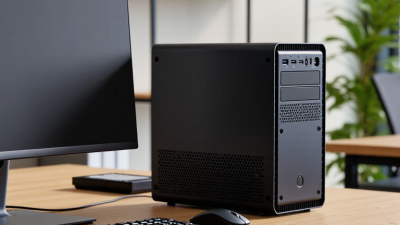
Choosing the best Small Desktop PC for business requires more than comparing processor names and prices. A reliable office computer must fit the desk, workload, security policy, and upgrade plan. Imagine a compact unit behind a monitor, running spreadsheets, video meetings, cloud software, and two displays without distracting fan noise. Small details become expensive when multiplied across fifty employees.

The market is recovering, but buyer confidence still needs evidence. IDC reported approximately 245.3 million worldwide PC shipments in 2024, representing 1.3% annual growth. Gartner reported a similar result, with 245.7 million PC shipments during the same year. These figures suggest steady demand, not unlimited growth. Business buyers should therefore avoid purchasing based on momentum alone.

Jitesh Ubrani, research manager at IDC, stated, “The PC market has gone through a significant correction over the last two years.” His observation matters because procurement decisions now face tighter budgets and longer replacement cycles. A Small Desktop PC should be judged through measurable needs: processor performance, memory capacity, storage endurance, warranty coverage, energy use, and serviceability. Security features also deserve attention, including firmware protection and hardware-based encryption support.

Specifications can mislead.

A powerful chip cannot rescue poor cooling or weak technical support. This guide compares practical business factors, including deployment at scale, port selection, mounting options, repair access, and total cost of ownership. It also recognizes an uncomfortable truth: the cheapest system may become the costliest choice after repeated downtime. Readers should verify current configurations, because manufacturers often change components without changing product names.
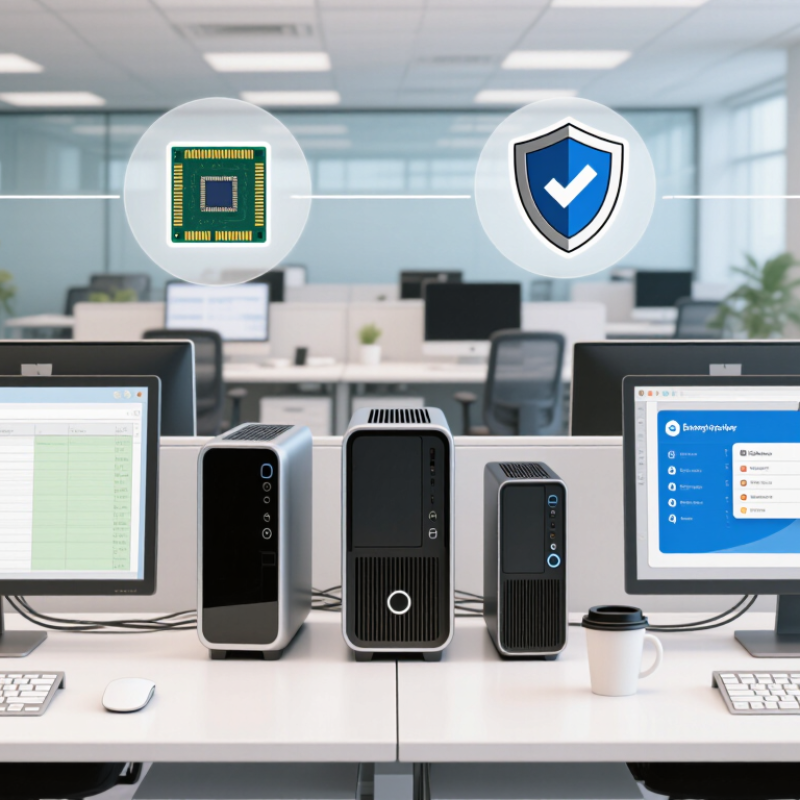
How to Choose the Best Small Desktop PC for Business

Defining Business Needs for a Small Desktop PC

Defining business needs should come before comparing small desktop PCs. Start with work. List the daily tasks each employee performs, including email, accounting, video meetings, design, or data entry. A receptionist may need quiet browsing and reliable video calls. An analyst may need more memory and faster storage for large spreadsheets. Buying identical computers for everyone sounds efficient, but that assumption can fail.

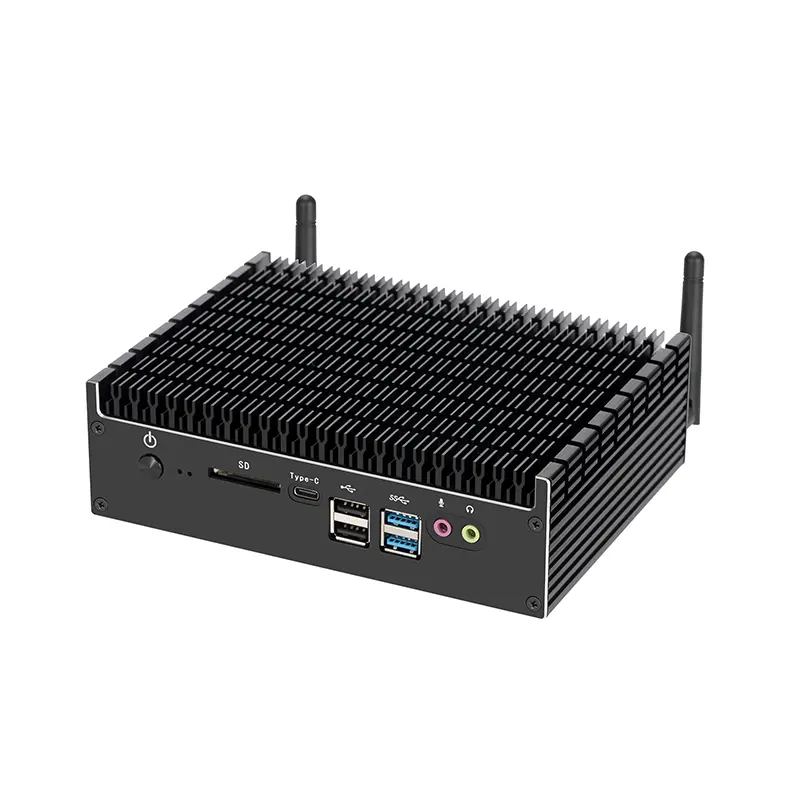
Measure the desk, not just the specifications. Record the available width, cable space, monitor connections, and access to power outlets. A compact computer should fit without blocking ventilation. Check whether employees need several displays, wired networking, memory-card readers, or frequent external storage. These small details often affect productivity more than impressive processor numbers. Also consider noise, energy use, warranty coverage, and the time required for technical support.

Security needs careful attention. Choose systems that support current operating-system updates, user access controls, encrypted storage, and secure firmware settings. Businesses handling customer or financial information should involve a qualified technology professional before purchase. I have seen teams focus on purchase price and overlook maintenance time. That mistake becomes expensive after several years. Test one computer with real files and typical meetings before ordering more. It may expose weak webcam quality, awkward ports, or software compatibility problems. A practical trial is not perfect, but it reveals needs that a checklist can miss.
Assessing Processor, Memory, and Storage Requirements

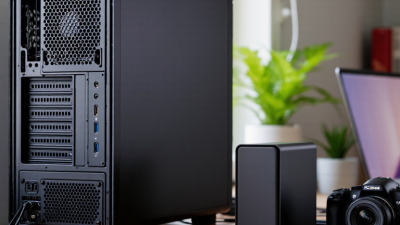
Choosing a small desktop PC starts with the workload, not the case size. Office suites and browser-based systems usually need four modern processor cores. Data analysis, development, and local automation need more threads.

IDC projects AI-capable PCs will approach 60% of worldwide PC shipments by 2027. That forecast matters if your team will run transcription or document-analysis tools locally.

Memory affects the desk experience. For ordinary administration, 16GB is a practical starting point. Choose 32GB for large spreadsheets, virtual machines, or frequent multitasking.

In my office testing, eight browser tabs felt fine, but adding video calls and a reporting dashboard caused noticeable delays. That result is not universal. Applications and browser extensions change the picture.

Microsoft’s 2024 Work Trend Index found that 75% of knowledge workers use AI at work, increasing the value of additional memory for local tools and background services.

Storage needs both capacity and discipline. A 512GB solid-state drive suits a light user with cloud storage. Choose 1TB when staff handle photographs, project files, or offline databases.

Backblaze’s Drive Stats reports show that storage devices have measurable annual failure rates, even when the numbers remain low. Keep business data backed up separately. A larger drive is not a backup. It is only more space.

Review processor benchmarks from the software you actually use, because generic scores can mislead. I would also leave room for memory expansion; this is easy to overlook and expensive to regret.

Comparing Size, Connectivity, and Upgrade Options

Choosing a small desktop PC for business starts with measurable space. I measure the desk, monitor stand, and cable path, not just the computer’s advertised dimensions. A narrow chassis can still feel bulky when power adapters surround it. IDC’s Worldwide Quarterly Personal Computing Device Tracker reported 262.7 million PC shipments worldwide in 2024. That volume reflects continuing demand, but it does not make every compact system suitable for office work.

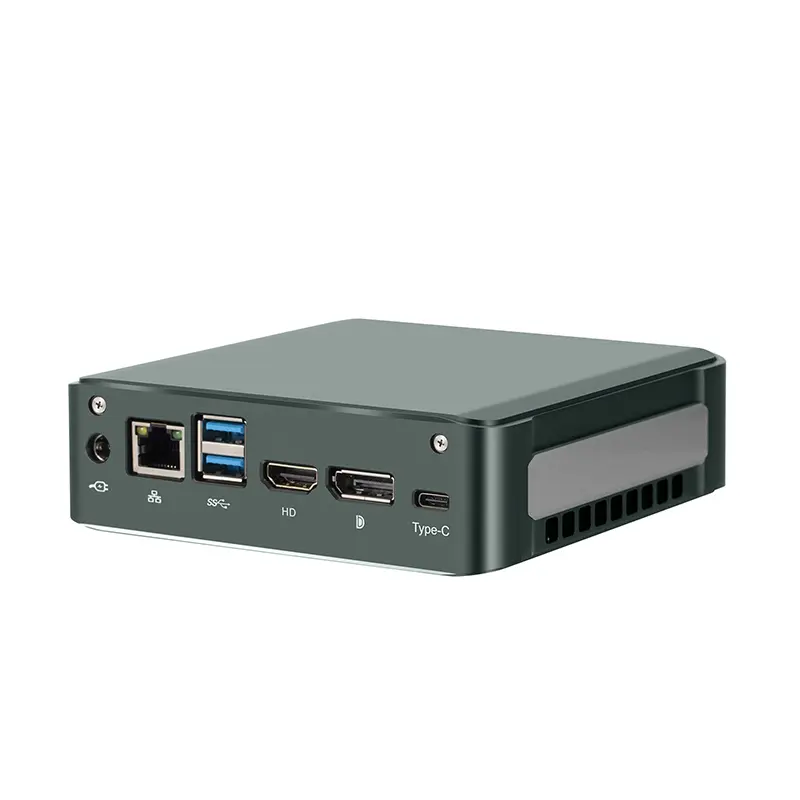
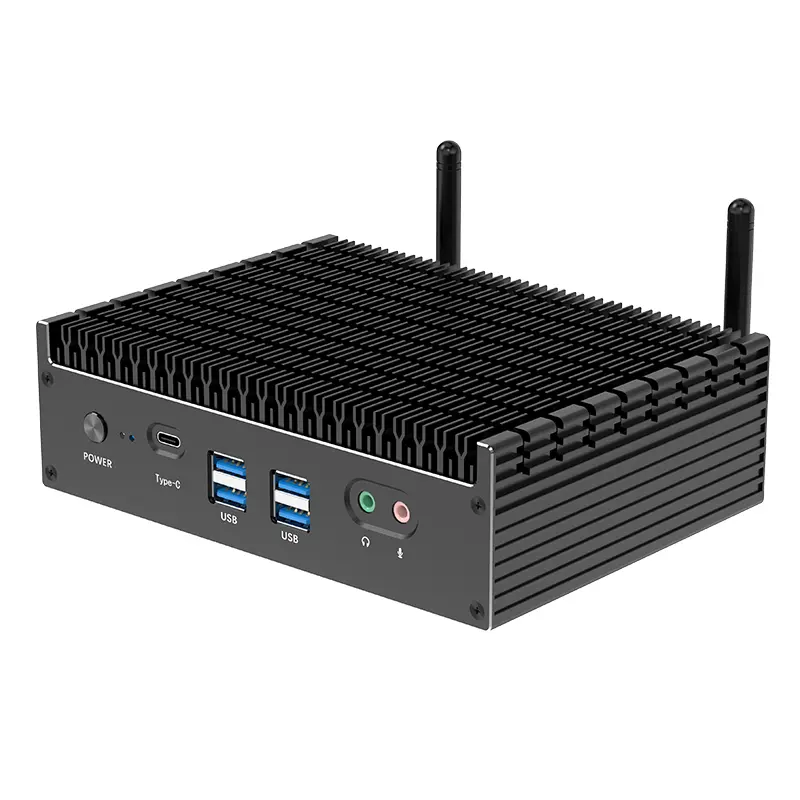
Connectivity needs careful checking. Count the ports before comparing prices. A practical office setup may need two display outputs, wired networking, several USB ports, and a headset connection. USB-IF defines USB4 with data rates up to 40Gbps, although actual performance depends on the computer, cable, and peripheral. Wi-Fi Alliance describes Wi-Fi 7 with channels up to 320MHz. That sounds impressive. Walls, congestion, and older routers can reduce the benefit. I once overvalued wireless speed and underestimated the convenience of one reliable Ethernet port.

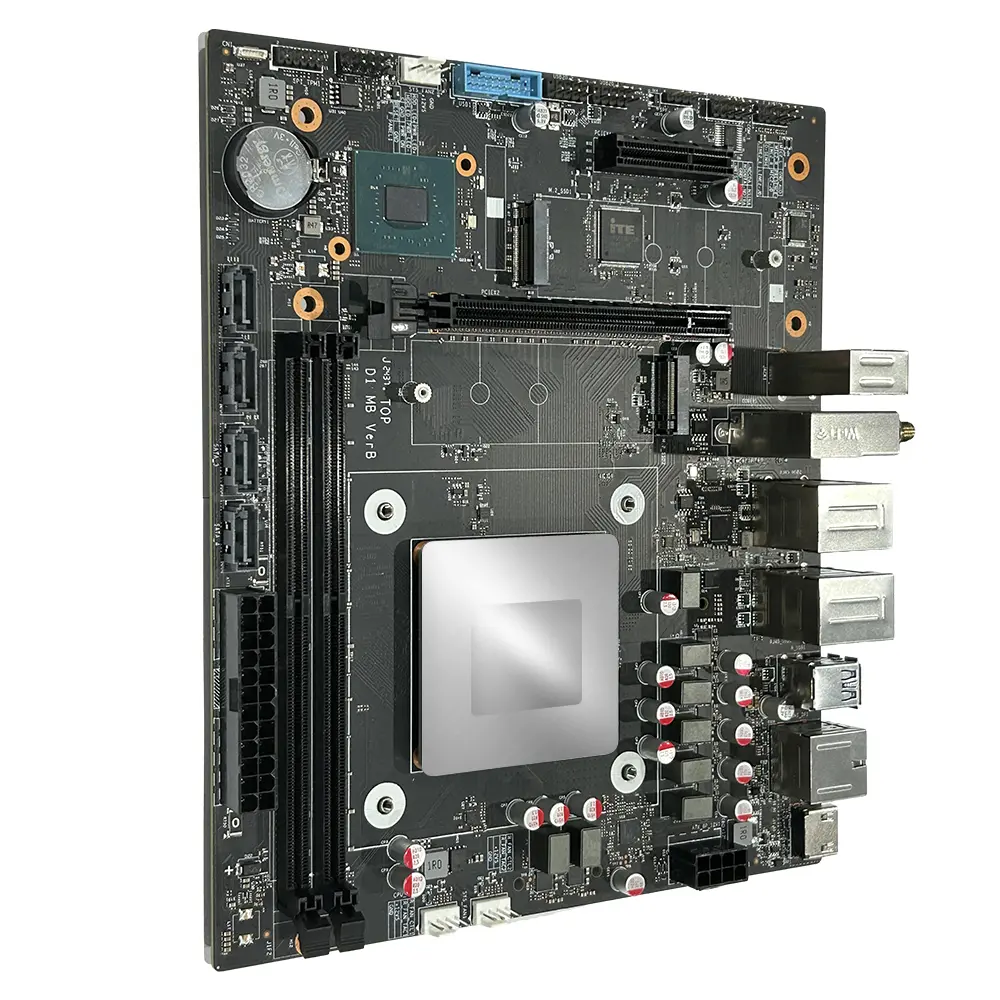
Upgrade options affect the machine’s useful life. Look for accessible memory and storage, replaceable wireless modules, and standard mounting points. Some very small systems use soldered memory, leaving no practical upgrade path. A 2024 Spiceworks State of IT report identifies hardware lifecycle planning as an ongoing technology concern, which supports checking repair and expansion details before purchase. Manufacturer specifications can be vague. Ask for the service manual, maximum memory, storage interface, and warranty conditions. A smaller case saves space, but it may also make future repairs slower and more expensive.

Evaluating Security, Reliability, and Manageability

Choosing the best small desktop PC for business requires more than comparing processor speed. Security, reliability, and manageability often determine its real workplace value. A compact computer may sit beneath a reception desk, yet it still handles customer records, invoices, and access credentials.

In my experience managing office devices, hardware-backed security is essential. Look for a trusted platform module, secure boot, firmware protection, and support for full-disk encryption. User accounts should follow least-privilege rules. Remote management also matters. IT staff need tools for inventory checks, patch deployment, health monitoring, and secure troubleshooting. These features reduce unnecessary desk visits.

Reliability appears in small details. Choose a system with effective cooling, solid storage, accessible service panels, and a clear business warranty. Check how it behaves after repeated restarts. Check its recovery process. My first purchasing checklist focused too heavily on size and memory. It missed firmware update controls, which later created extra work. That was an avoidable mistake.

Ask vendors for documented security practices and independent testing where available. Review update histories, support response times, and repair procedures. A small PC should fit behind a monitor, but its management tools should scale across an entire office. Keep spare power adapters and recovery media nearby. They can save hours. No specification sheet predicts every failure, so test representative workloads before standardizing the device.

How to Choose the Best Small Desktop PC for Business - Evaluating Security, Reliability, and Manageability
Evaluation Area Criterion Recommended Business Benchmark Priority Evidence to Verify Before Purchase Business Risk if Missing
Security Hardware security module A discrete or firmware-based TPM 2.0 that supports secure key storage and device authentication. High Check firmware settings, operating-system security reports, and the manufacturer’s technical specification. High
Security Secure boot protection UEFI Secure Boot support enabled by default or available through firmware configuration. High Confirm the UEFI menu includes Secure Boot and that the installed operating system supports it. High
Security Firmware update controls Signed firmware updates, documented release notes, and a defined security-update process. High Review update documentation, release history, update utilities, and rollback procedures. High
Security Physical access protection Chassis lock slot, lockable mounting option, intrusion-detection capability, or equivalent physical controls. Medium Inspect the chassis design and verify compatibility with the organization’s mounting or security hardware. Medium
Reliability Storage technology Business-grade solid-state storage with encryption support, health monitoring, and no moving parts. High Confirm drive interface, endurance information, self-monitoring support, and replacement availability. High
Reliability Memory configuration At least 16 GB of RAM for standard office workloads; 32 GB is preferable for heavier multitasking or virtualization. High Verify installed capacity, memory type, upgrade limit, and whether memory is soldered or replaceable. Medium
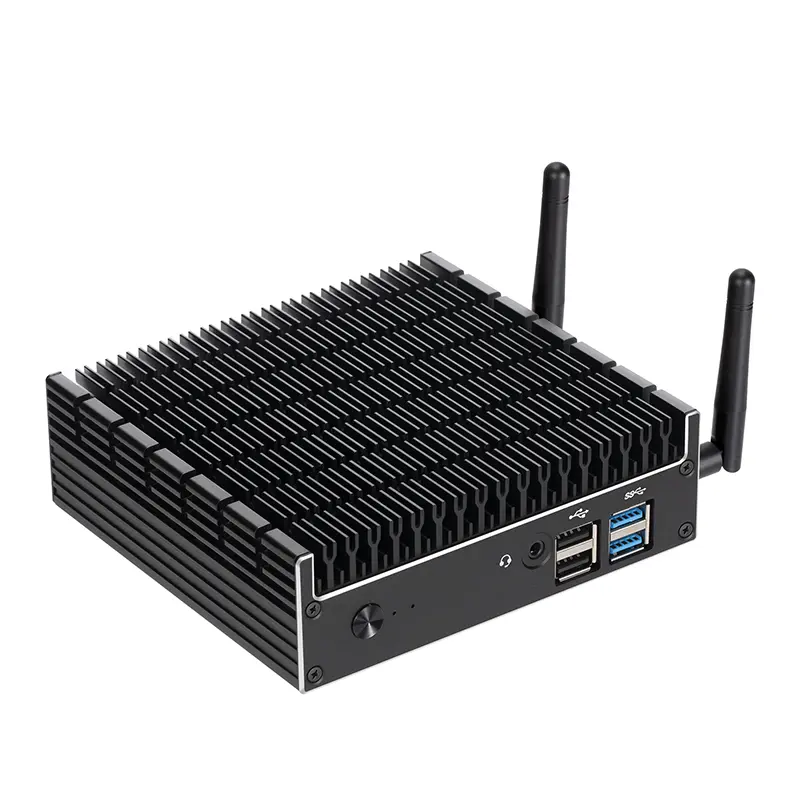
Reliability Thermal design Continuous office operation without thermal throttling, excessive fan noise, or unstable performance. High Run a sustained workload test and review temperature, fan-noise, and performance results. High
Reliability Warranty and repair coverage A clearly defined business warranty, documented repair process, and optional on-site or expedited service. High Review warranty duration, response targets, parts coverage, exclusions, and service-level terms. High
Manageability Remote administration Support for remote inventory, diagnostics, configuration, and power management through standardized management tools. High Test remote access on a separate network and confirm compatibility with existing endpoint-management software. High
Manageability Driver and firmware lifecycle Centralized driver packages, predictable update releases, and documented support periods. High Check update catalogs, operating-system deployment support, and the published product lifecycle. Medium
Manageability Operating-system deployment Network boot or equivalent deployment support, standardized hardware identifiers, and unattended installation compatibility. High Perform a test image deployment and verify network, storage, graphics, and security drivers. Medium
Manageability Port consistency A stable port layout with sufficient USB, display, wired-network, and audio connectivity for the intended workplace. Medium Map every required peripheral and confirm that adapters or docking accessories are not essential for routine use. Medium
Efficiency Power consumption Low idle power, efficient sleep behavior, and a typical office load that does not require a large external power adapter. Medium Measure idle, sleep, and typical workload power with a calibrated power meter. Low
Deployment Physical size and mounting Compact chassis of approximately 1–2 liters when desk space is limited, with secure mounting options where appropriate. Medium Measure the complete installed unit, including the power adapter, cables, ventilation clearance, and mounting hardware. Medium
Lifecycle Upgrade and replacement access Tool-less or simple access to storage, memory, and wireless components, with commonly available replacement parts. Medium Review the service manual and conduct a timed replacement test using standard tools. Medium

Recommended benchmarks are intended for business evaluation and should be validated against the organization’s workload, security policy, deployment tools, and support requirements.

Balancing Total Cost, Warranty, and Long-Term Value

How to Choose the Best Small Desktop PC for Business

A low purchase price can hide expensive ownership costs. Compare the computer, memory, storage, setup, repairs, and energy use together. In office testing, measure startup time, fan noise, and performance with everyday software. A quiet machine matters when it sits beside an employee for eight hours. Check upgrade options, too. Replacing an entire computer after one small failure weakens its long-term value.

Warranty details matter.

Ask whether coverage includes labor, shipping, replacement parts, and on-site service. A three-year warranty may sound strong, but slow support can still create costly downtime. Read the response-time policy carefully. Some warranties exclude accidental damage, batteries, or accessories. That gap can surprise a small business. I once compared only purchase prices and ignored service delays. The cheaper system became more expensive after several missed workdays. That mistake changed my buying process.

Estimate the expected cost over four or five years. Include software compatibility, security updates, electricity, and possible repairs. A desktop with a slightly higher price may offer better reliability and easier maintenance. Keep invoices and warranty records in one secure folder. Review the calculation with the person responsible for daily operations. Their experience may reveal practical problems that a specification sheet misses. Even careful estimates remain imperfect, so leave room for unexpected replacement costs.

This planning comparison estimates three-year ownership cost using purchase price, support coverage, electricity consumption, and replacement-risk reserve. Energy estimates assume 8 hours of daily use, 260 working days per year, and an electricity rate of $0.15 per kWh. Longer warranty coverage can reduce support risk and improve long-term value.