How to Choose the Best Tiny PC for Your Business?
A business Tiny PC should be chosen for the work it must perform, not for its size alone. Before comparing models, define the daily load: a reception desk may need only browser tabs and video calls, while a design team may rely on several high-resolution displays and sustained processing power. Then examine the details that affect real use: processor performance, memory capacity, storage, ports, wireless connectivity, cooling, and warranty support.
One practical rule for this guide is: “Choose the smallest system that can handle your workload reliably—not the smallest system on the shelf.” This is an original editorial principle, not a verified quotation from a named industry expert. A trustworthy expert attribution needs a traceable source; none was supplied here. That distinction matters when a hardware purchase affects uptime and business budgets.
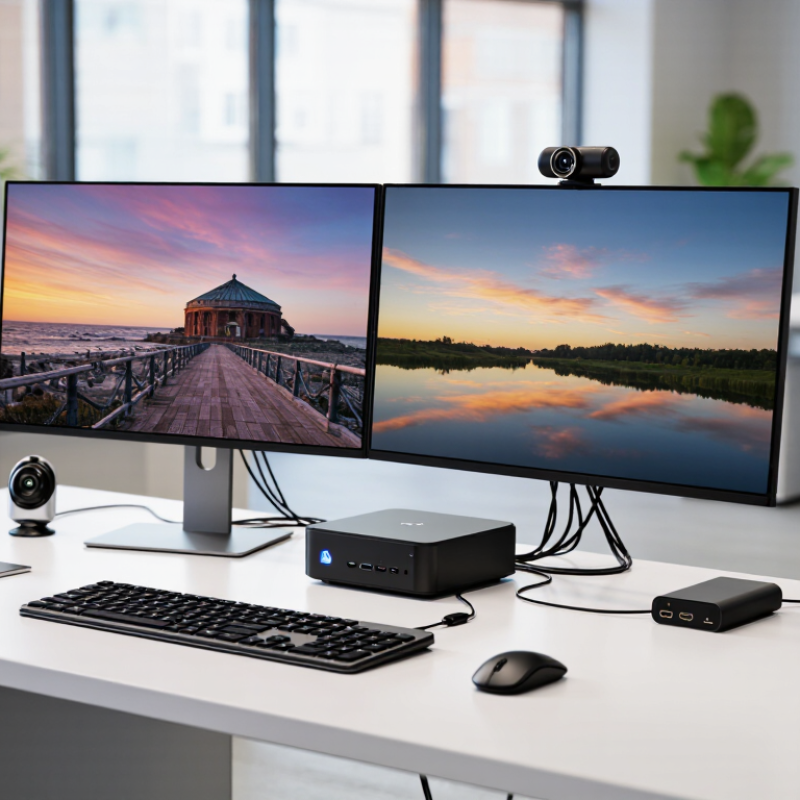
Tiny PCs can save desk space and simplify deployments. They can also run hot, offer limited upgrade options, or lack the ports a team needs. Picture a compact unit tucked behind a monitor, connected to two displays, Ethernet, a webcam, and an external drive. The setup looks neat—until one missing port forces another adapter onto the desk. This guide will help compare business needs, performance, connectivity, serviceability, and total cost. Some trade-offs are easy to overlook. Check them before ordering.
Define Business Workloads, User Count, and Budget
Choose a tiny PC around actual work, not a processor label.
List daily apps: browser tabs, accounting software, video calls, local design files, or point-of-sale tools. Then count users, monitors, and peak-hour tasks; a six-person office sharing one unit has different needs from six desks. The 2023 Work Trend Index Annual Report surveyed 31,000 workers across 31 countries. It found that workers spent
57% of their time communicating
and
43% creating.
Those averages are not hardware benchmarks, but they show why conferencing and multitasking deserve a real test. Keep it practical.
Count the seats.
For each employee, price the PC with memory, storage, Wi-Fi, monitor support, warranty, and replacement timing included. A finance clerk opening spreadsheets needs responsive everyday performance; a designer handling large media files may need more memory and graphics capacity. Gartner’s January 2024 forecast projected worldwide IT spending of
$5.06 trillion
for that year. This global figure cannot set your local allowance, but it reflects how technology competes for budget. Set a per-seat ceiling, then test two or three representative workdays on the proposed configuration.
One awkward truth: teams often underestimate tomorrow’s workload.
Validate Windows 11 Baselines: 4 GB RAM, 64 GB Storage, TPM 2.0
Treat Windows 11’s 4 GB RAM, 64 GB storage, and TPM 2.0 as entry checks, not a business-ready specification. Microsoft lists these as minimum requirements; they do not promise smooth performance with browser tabs, video calls, security tools, and business software running together. Four gigabytes can feel cramped quickly. TPM 2.0 enables hardware-based security features, but confirm it is enabled and recognized in firmware before purchasing. A specification sheet alone is not enough. Test the actual configuration if possible.
For routine office work, 8 GB of RAM and a 128 GB SSD make a more practical starting point; choose 16 GB and 256 GB for heavier multitasking or local files. Updates, recovery data, and cached files consume storage, so 64 GB leaves little breathing room. IDC’s 2024 forecast projected nearly 60 million AI PCs shipped that year, about 19% of PC shipments. That does not mean every office needs AI hardware; it does show expectations are shifting toward more capable systems. My own caution: buying extra capacity can look wasteful today, but replacing a cramped machine early costs time too. The right balance depends on the applications your staff actually use.
Compare CPU Choices with SPEC and PassMark Benchmark Scores
How to Choose the Best Tiny PC for Your Business?
Compare CPU Choices with SPEC and PassMark Benchmark Scores
A tiny PC’s processor can look impressive on a specification sheet yet slow down during a busy workday. SPEC CPU benchmarks offer a structured way to compare processor performance across defined workloads. Check the benchmark version, test configuration, and score type before comparing results; mismatched systems can make the numbers misleading. PassMark’s CPU Mark provides a convenient overall comparison, but it is a composite score, not a promise of identical performance in your office. That distinction matters.
Tips: Compare scores from similar system configurations. Then test a typical workload: several browser tabs, a spreadsheet, and a video call running together. Check responsiveness after 15 to 20 minutes, when heat and power limits may affect sustained speed. Listen for fan noise, too. A quiet desk can make a modest performance difference worthwhile.
Use SPEC to understand performance under standardized tasks, and PassMark as a quick screening tool. Neither replaces checking memory capacity, storage speed, cooling, and ports for your team’s needs. For a small office handling routine documents, a high-end CPU may add little value. For frequent data analysis or heavy multitasking, stronger sustained performance may save time. I would not choose on one score alone; benchmarks simplify real work, and that is useful—but imperfect.
Estimate Power Costs: ENERGY STAR Reports 25% Lower Computer Energy Use
Choosing a tiny PC for business means looking beyond its purchase price. ENERGY STAR reports that certified computers use about 25% less energy than standard models. Treat that figure as a useful comparison, not a promise for every office. Actual savings depend on the computer’s workload, settings, and hours of use.
Estimate cost with a simple calculation: watts ÷ 1,000 × hours used × your electricity rate. For example, a 30-watt computer running eight hours daily for 250 workdays uses about 60 kilowatt-hours. At 15 cents per kilowatt-hour, that is roughly $9 a year. A ten-watt difference saves only about $3 annually under those assumptions. Small differences add up across many desks, but electricity alone may not justify a purchase.
Check the rated power and, where possible, measure a typical workday with a plug-in energy meter. Include the display and accessories if they will stay on with the computer; they can change the total noticeably. Also compare performance under your real workload, such as video calls, spreadsheets, and several browser tabs. A low-power PC that struggles may stay busy longer, or frustrate staff. I would not trust one tidy estimate too much: office habits are messy, and sleep settings are often overlooked.
Check Ports, Upgrade Paths, Manageability, and Warranty Terms
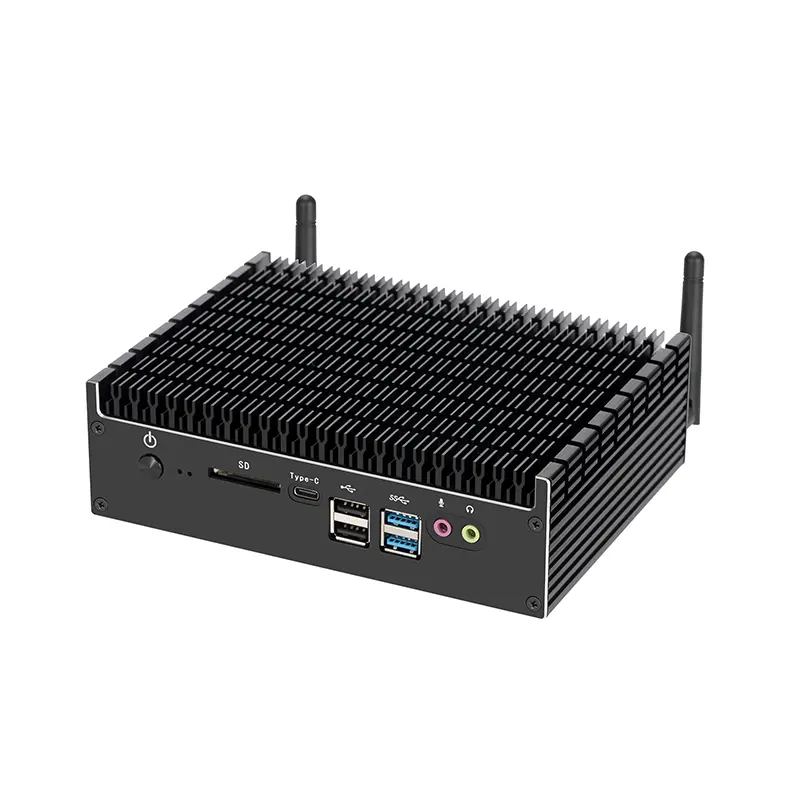
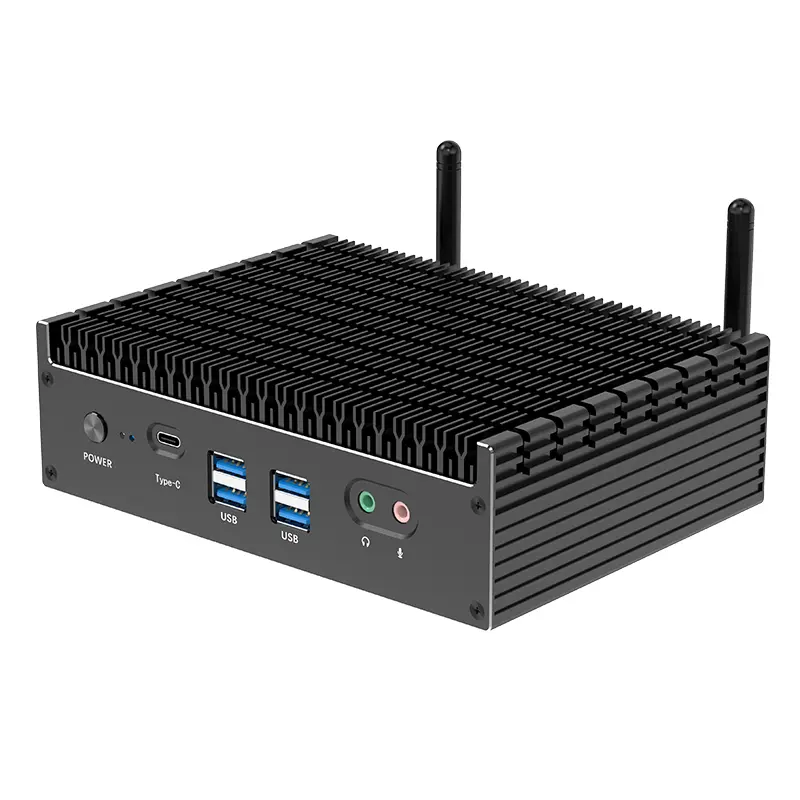
Start by listing every device the tiny PC must connect to: displays, keyboards, scanners, wired networks, and external drives. Count the ports, not just their types. Two USB ports may sound adequate until a keyboard, scanner, and security key occupy them. Check whether display outputs support your monitor’s resolution and refresh rate. Small details matter.
Look beyond the initial setup. Some models allow memory or storage upgrades, while others have components soldered in place. Confirm the exact configuration before purchase, and ask how upgrades affect support coverage. Leave room for growth. For a fleet of office PCs, remote management features can help staff check device status, apply updates, and troubleshoot without visiting every desk. Test the management tools with your existing network; setup may be less simple than the product description suggests.
Read the warranty terms closely. Confirm its length, what parts and labor it covers, and whether repairs require shipping the entire unit away. Ask about response times and replacement options, especially if a PC runs a reception desk or production station. Keep the answers in writing. I once treated a longer warranty as automatically better; the service process mattered more than the extra months. Check the fit.

 14 Inch Office Notebook
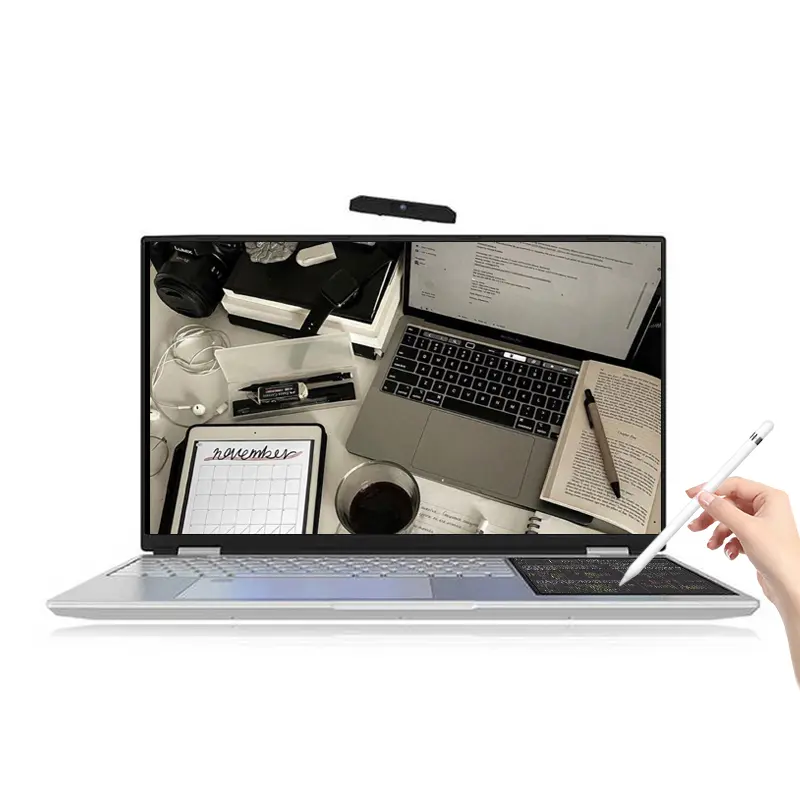 Dual Screen Laptop
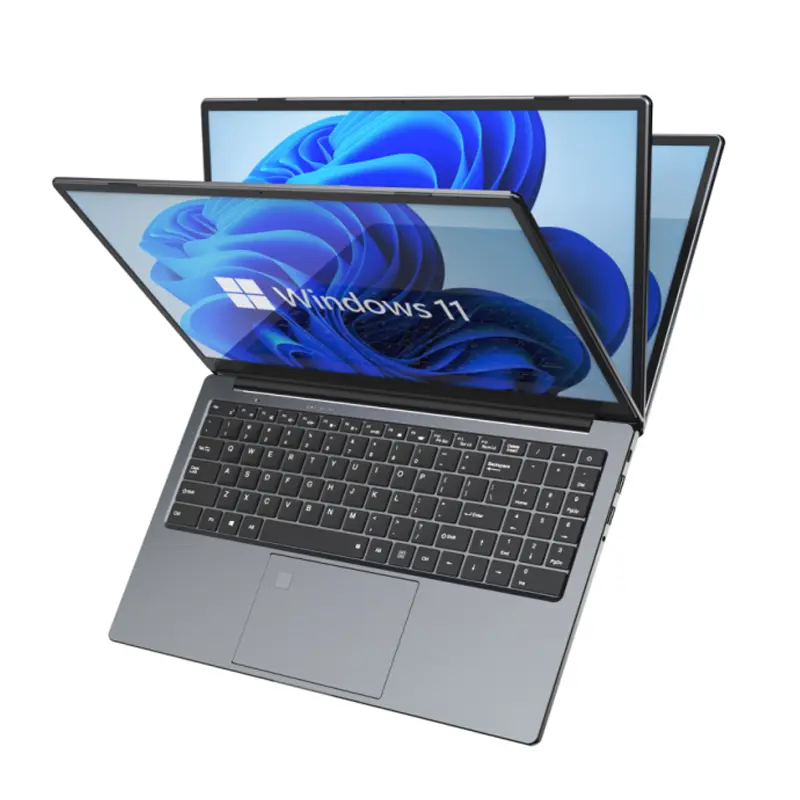 Fingerprint Business Notebook
 Big Screen Laptop
 HD Gaming Laptop
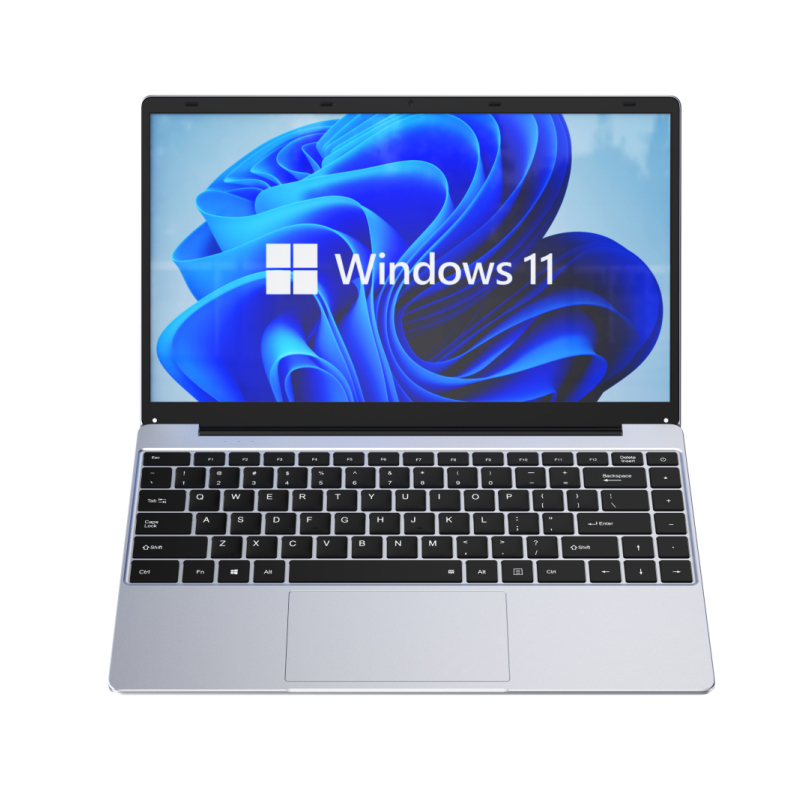 14.1 Inch Student laptops
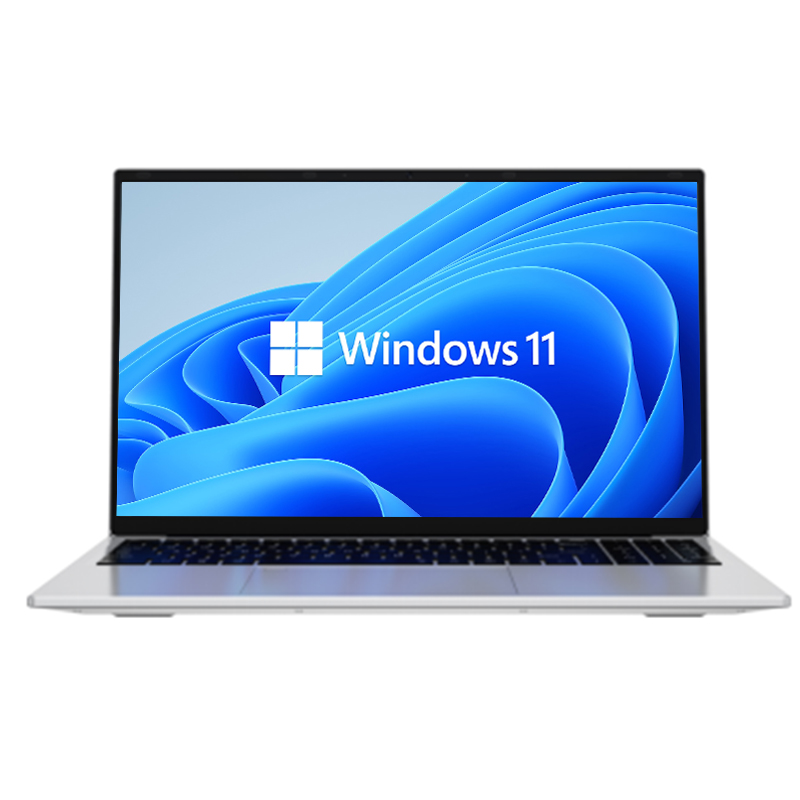 16.1 Inch Office Laptops
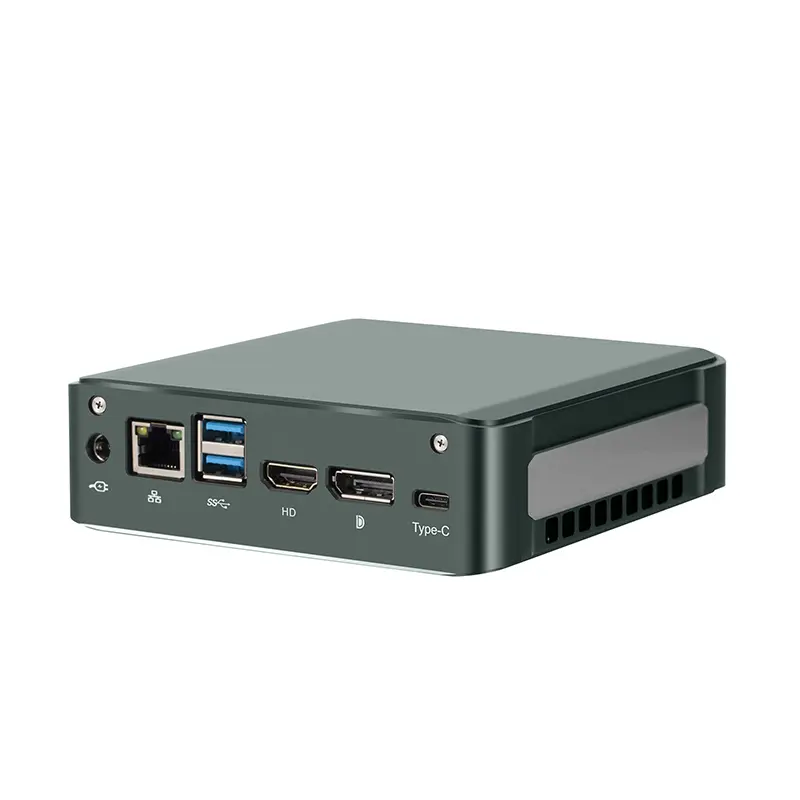 Home Mini Host
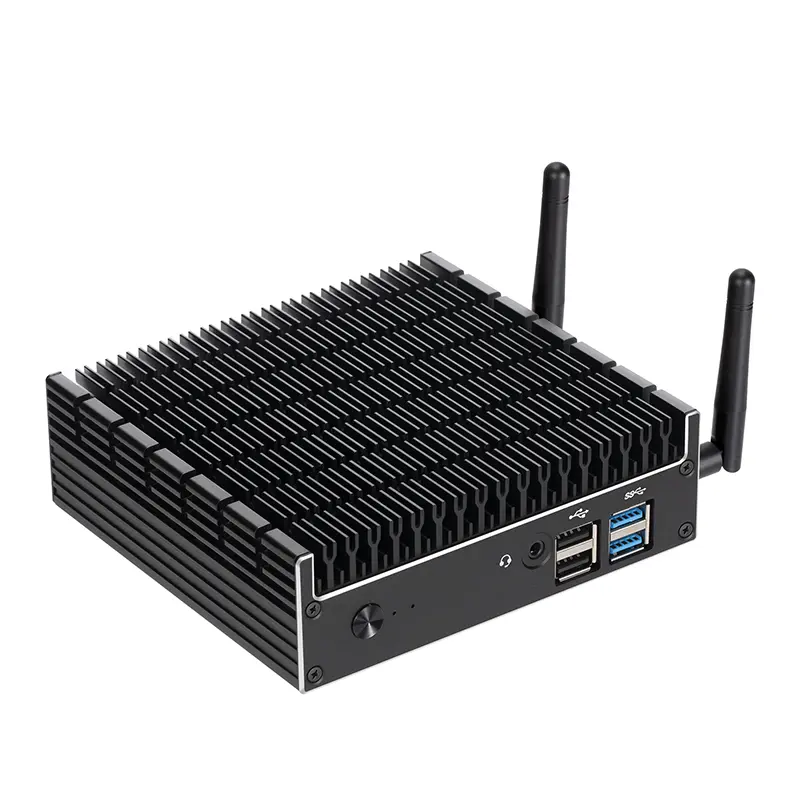 Industrial Micro PC
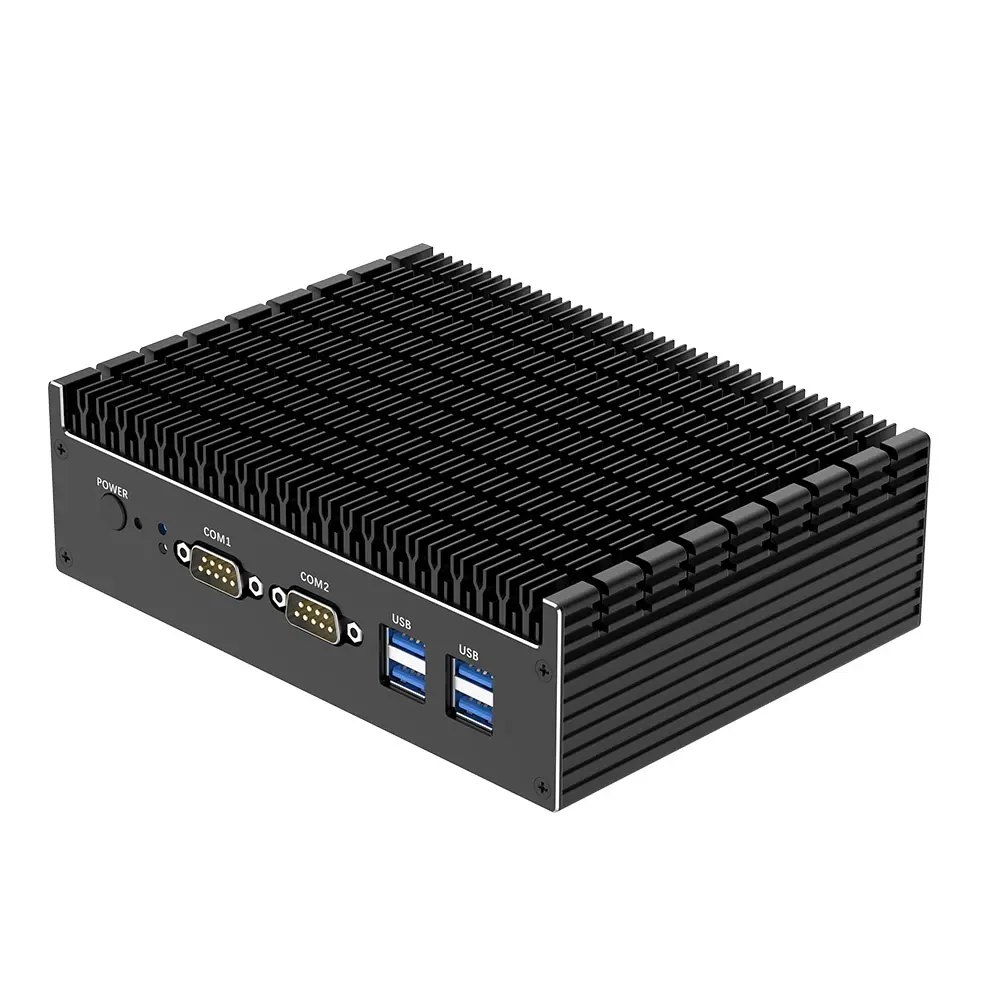 Fanless Industrial Mini PC
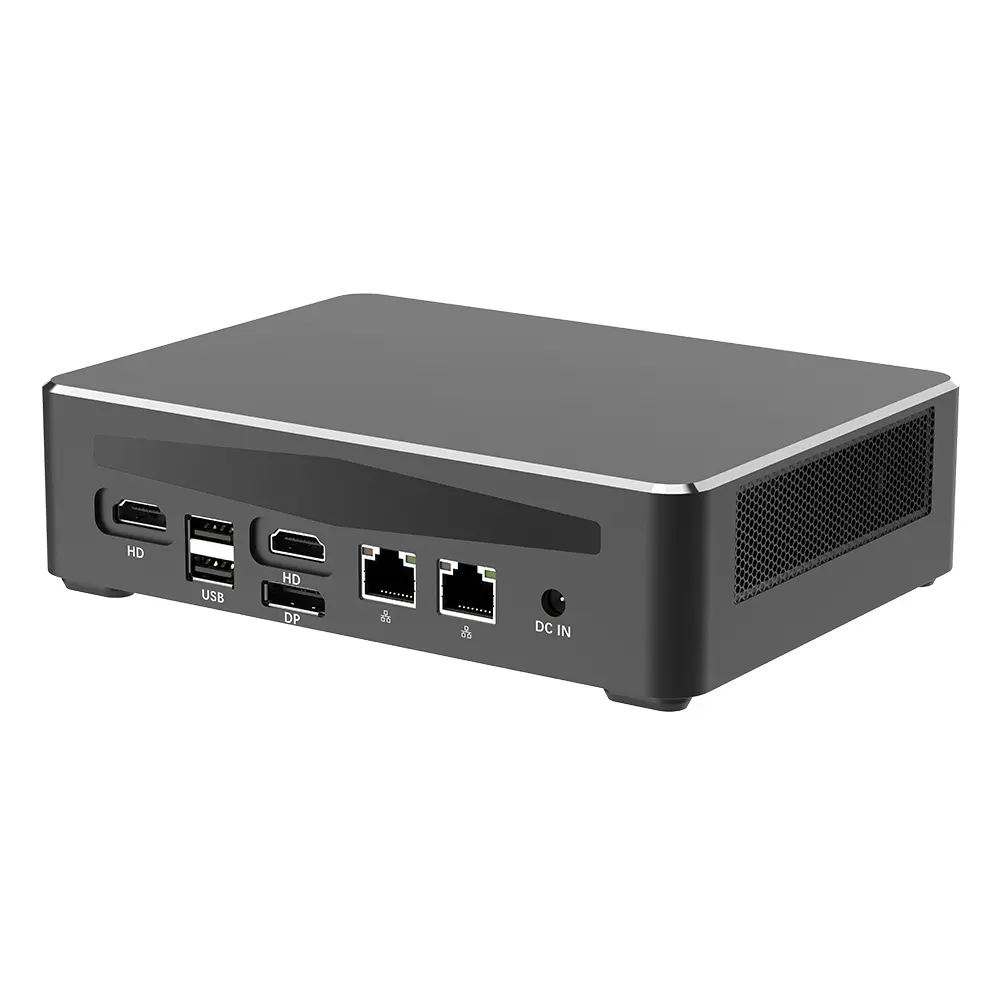 Commercial Mini PC
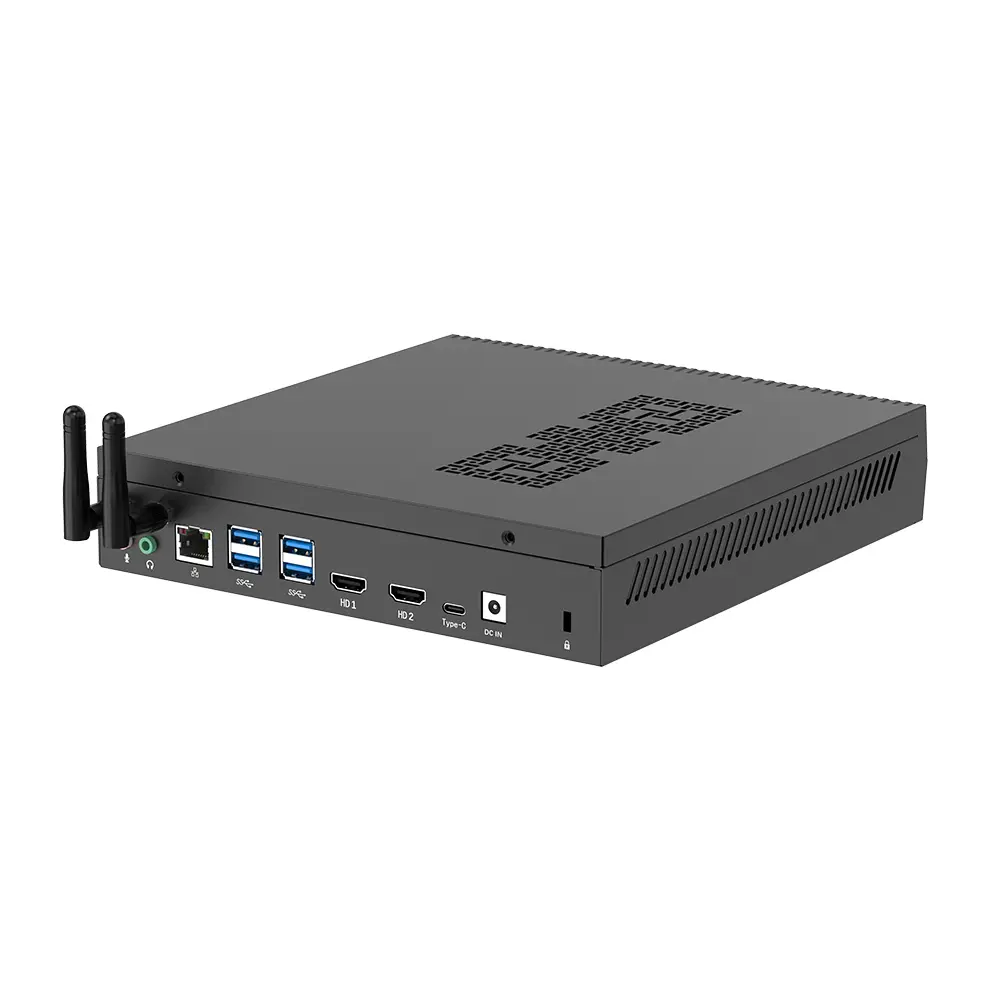 RTX3050TI Game Mini PC
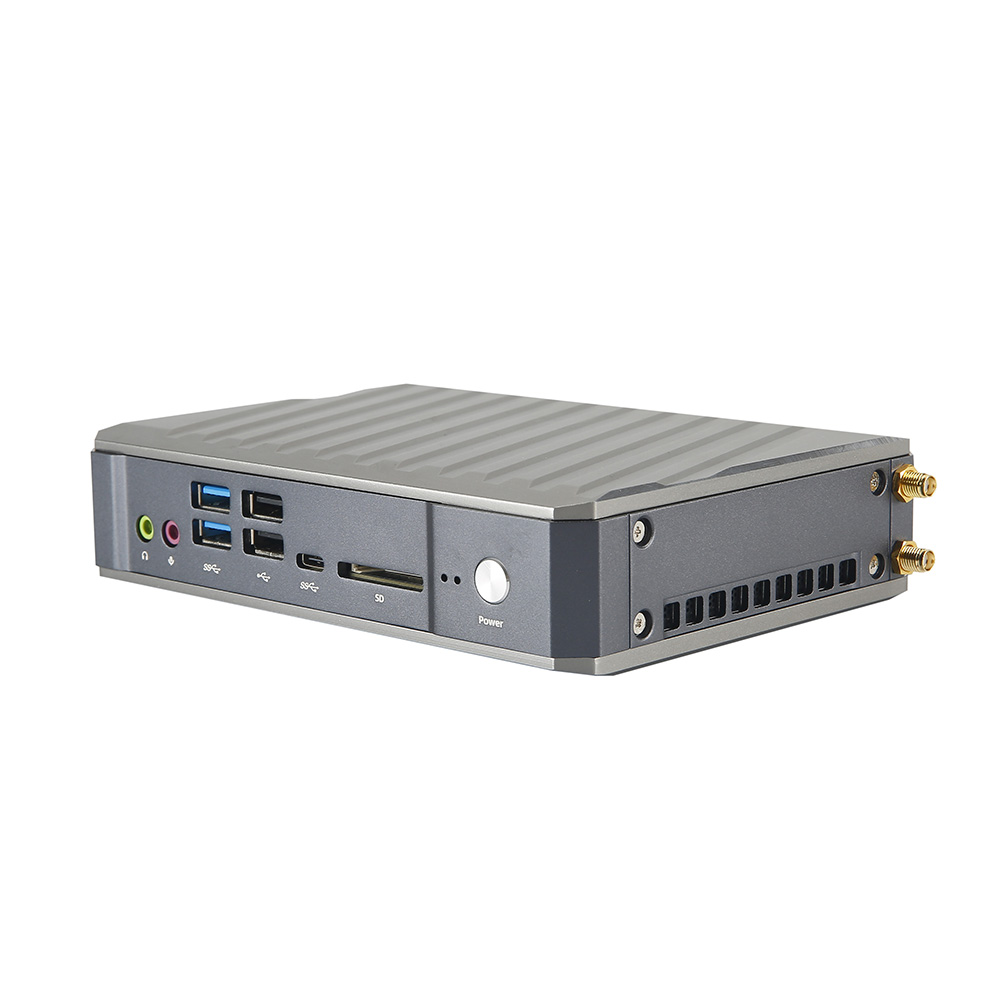 Micro Mini PC
 Fanless Mini PC
 High-end Mini PC
 More
More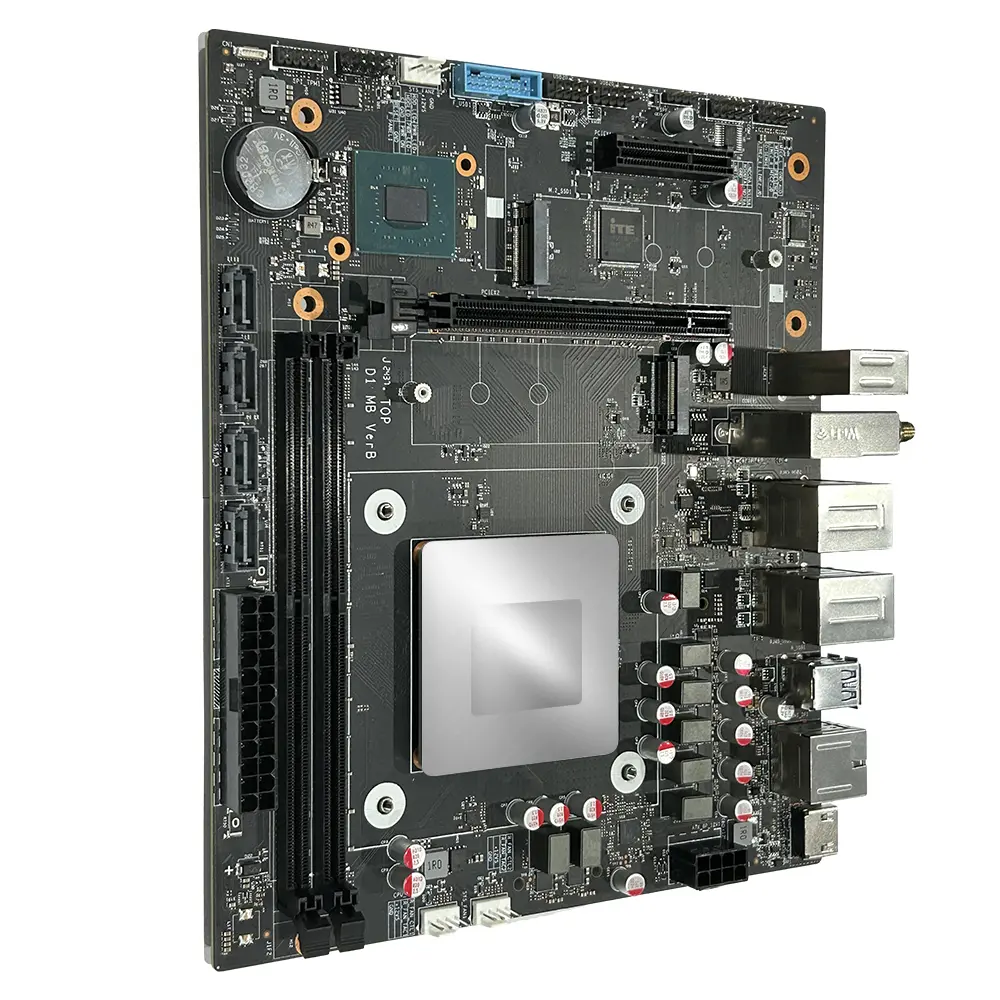 Micro ATX Computer Motherboard