One-stop service of R&D, production and sales for 10 years

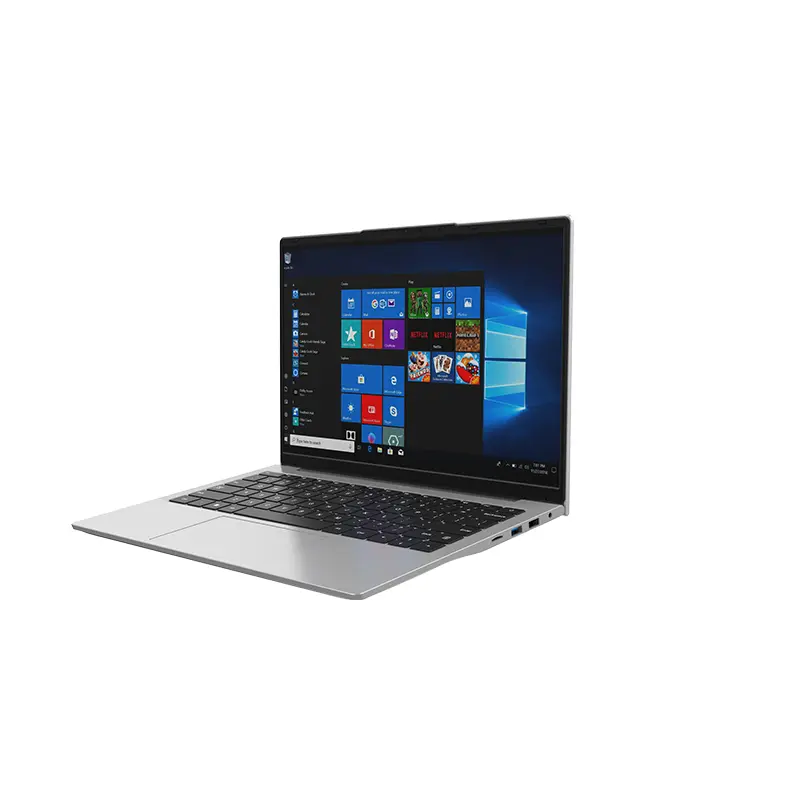 14 Inch Office Notebook
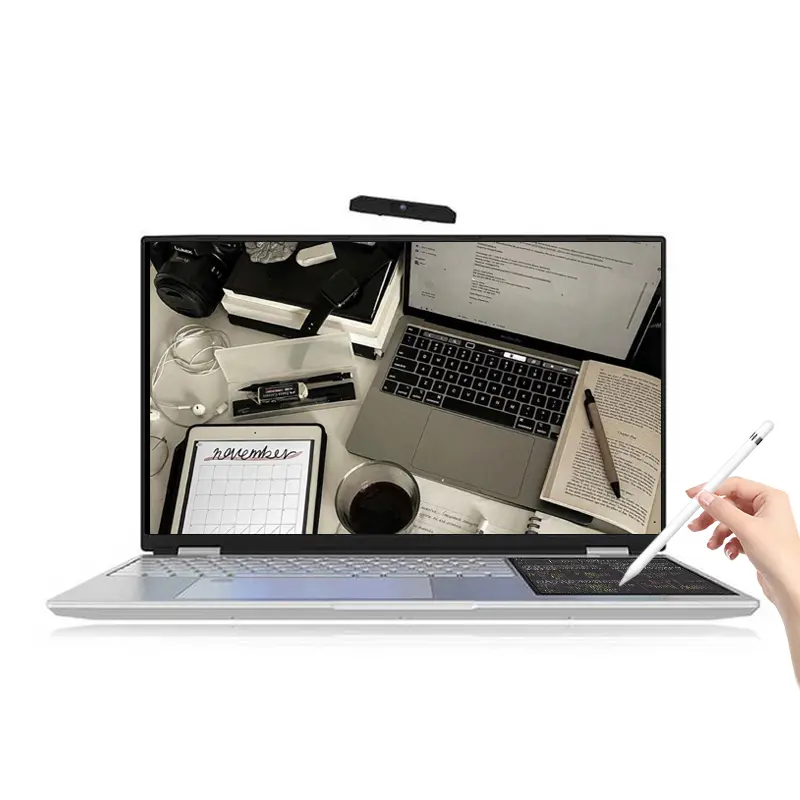 Dual Screen Laptop
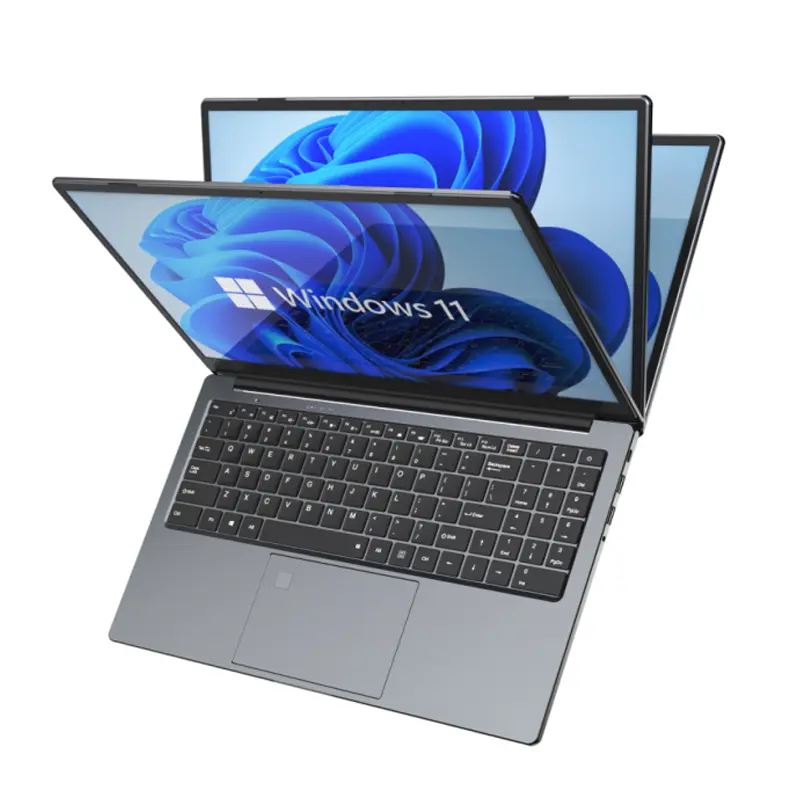 Fingerprint Business Notebook
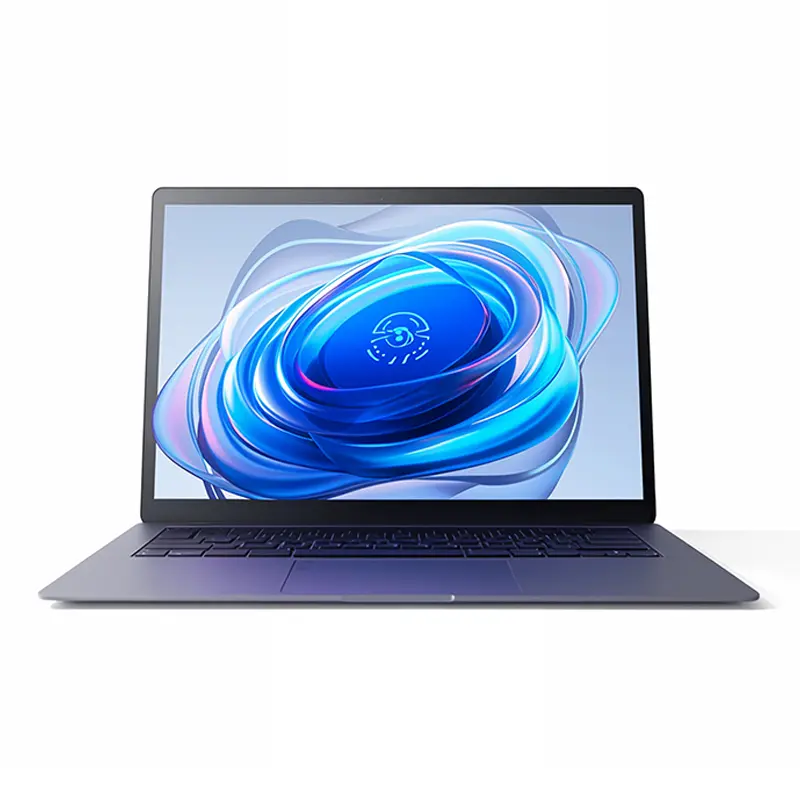 Big Screen Laptop
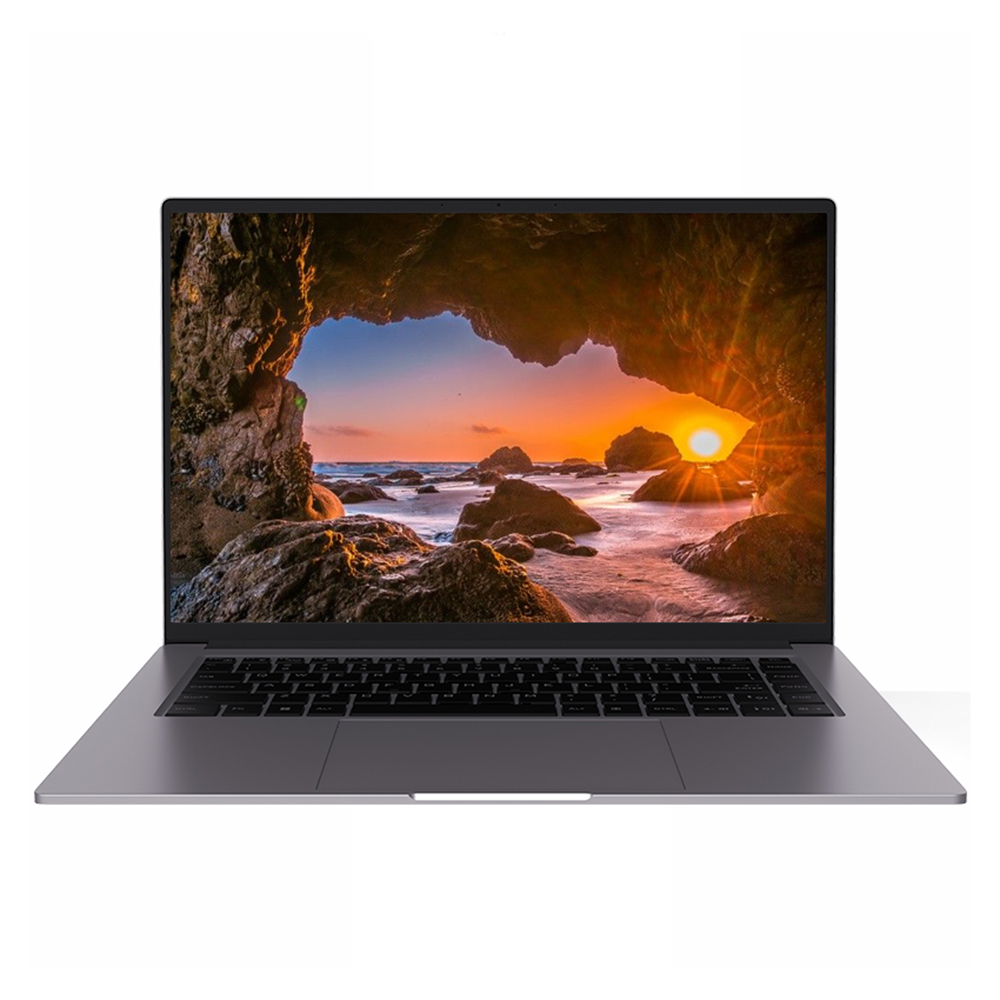 HD Gaming Laptop
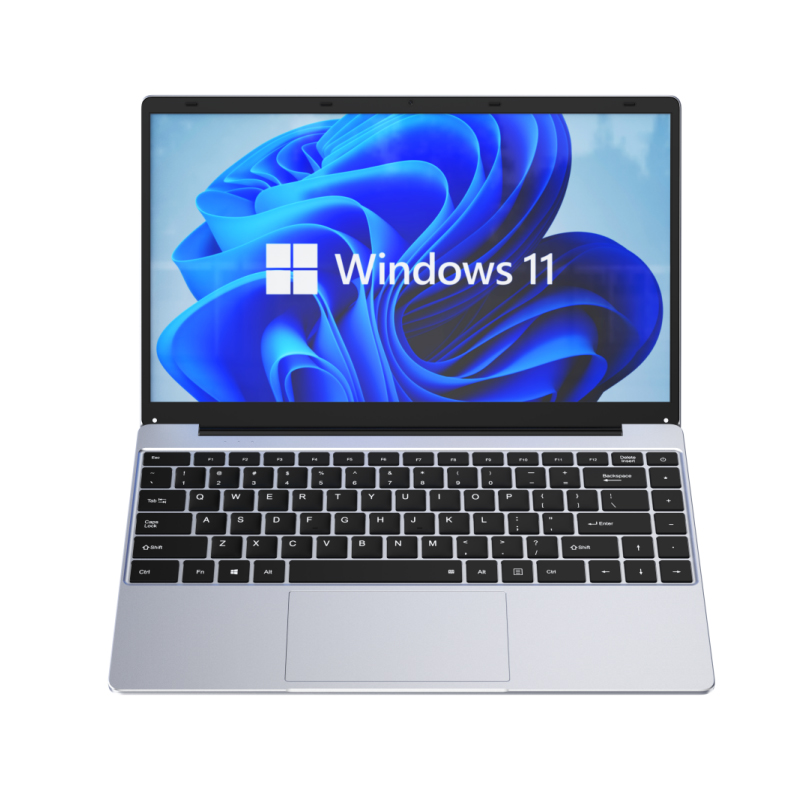 14.1 Inch Student laptops
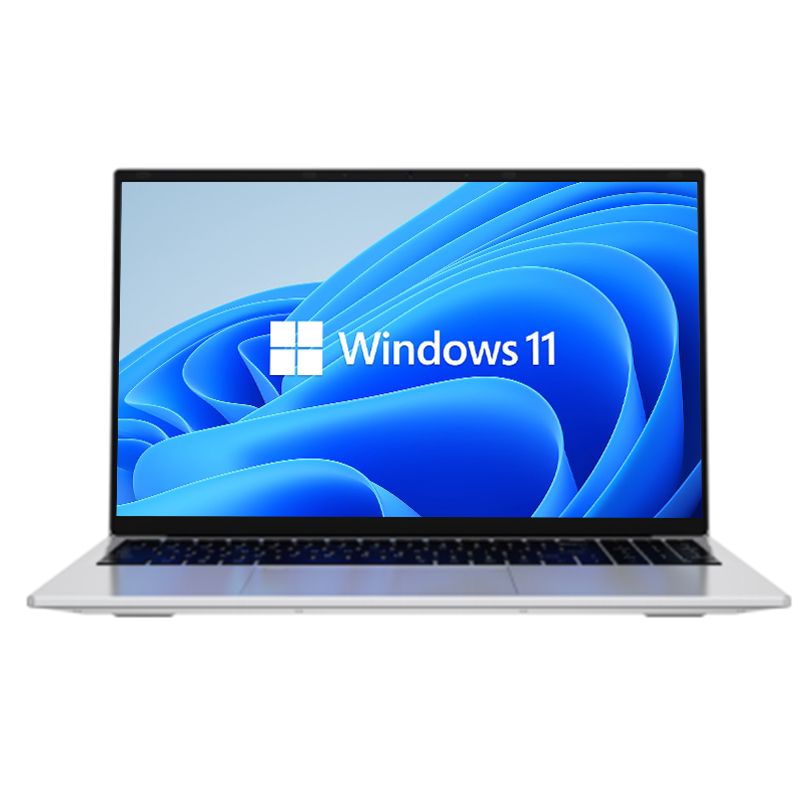 16.1 Inch Office Laptops
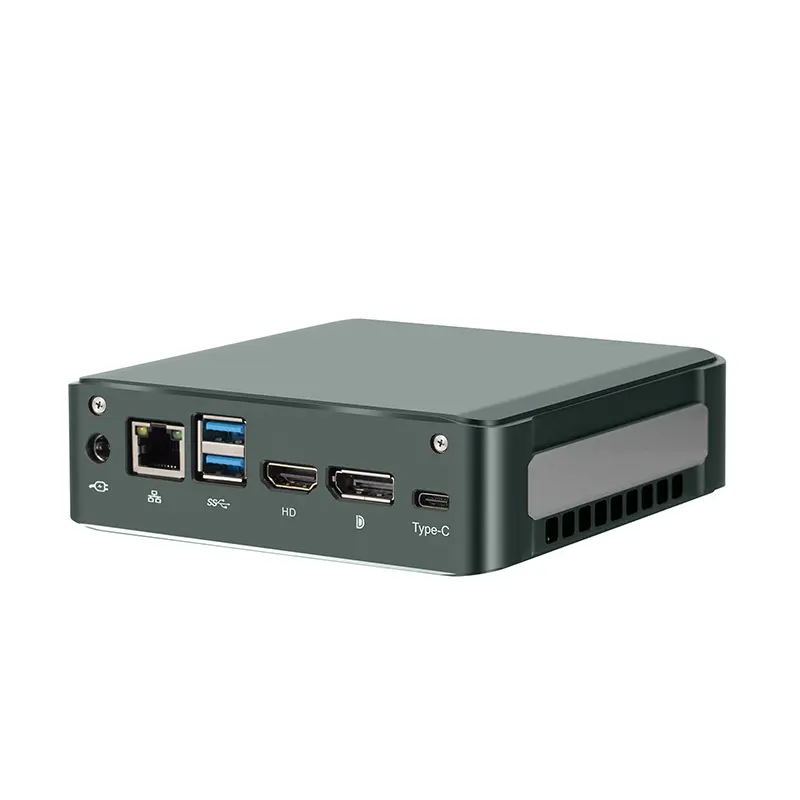 Home Mini Host
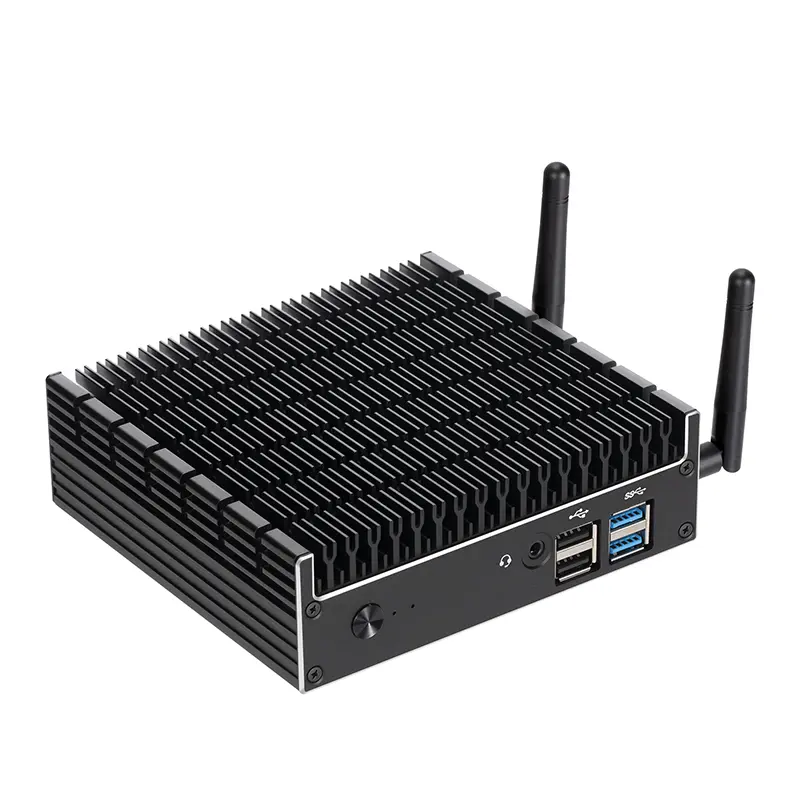 Industrial Micro PC
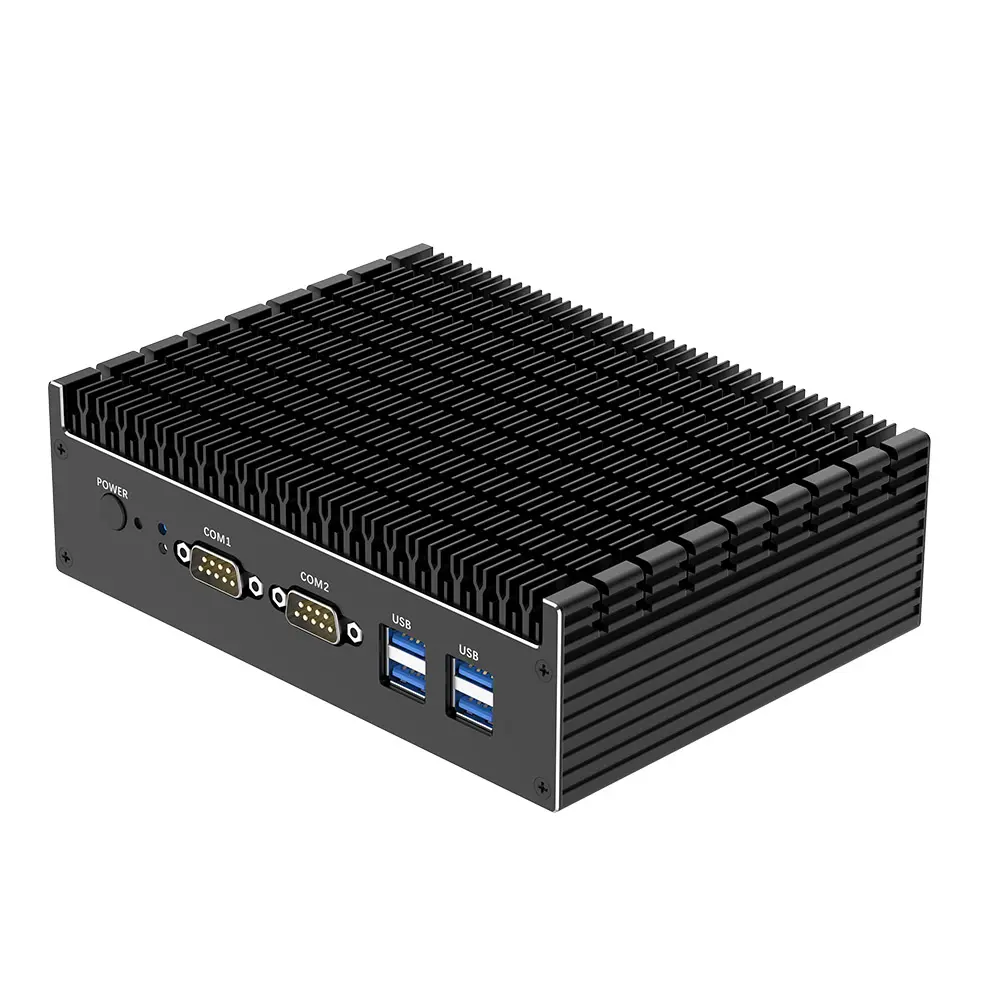 Fanless Industrial Mini PC
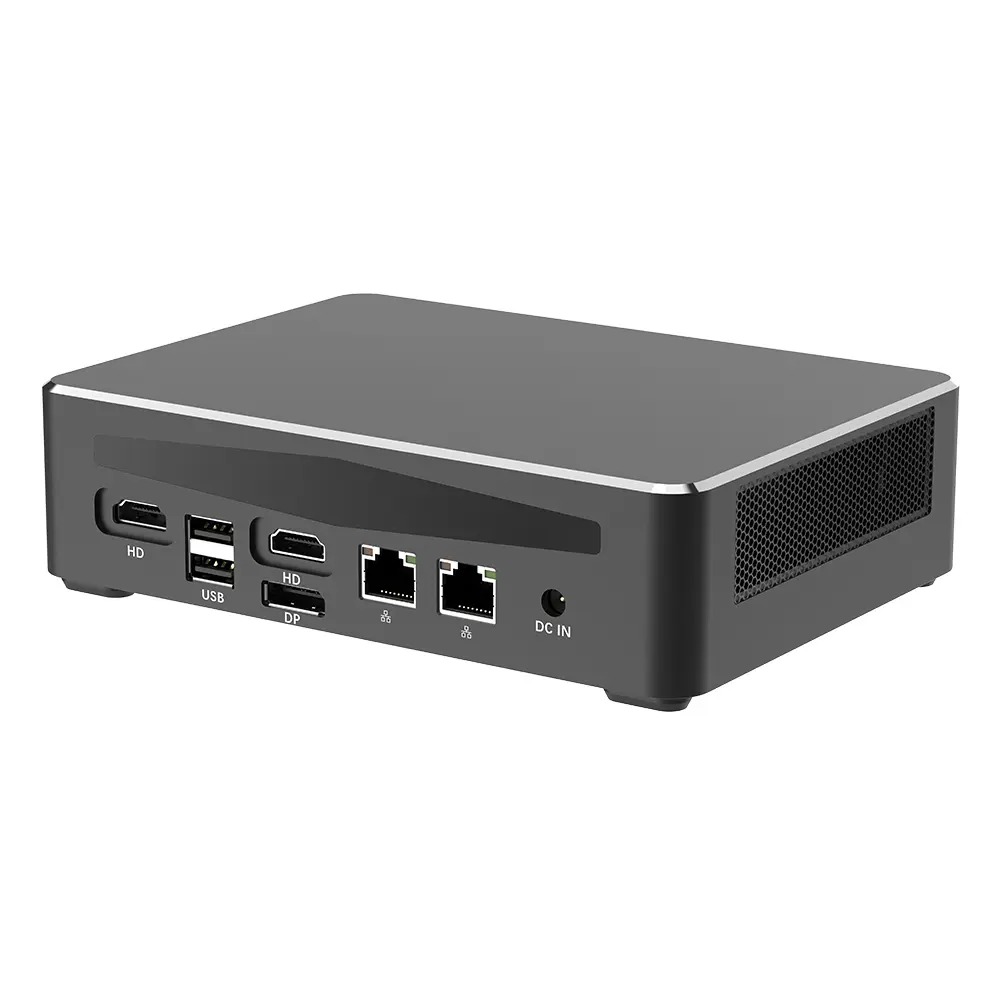 Commercial Mini PC
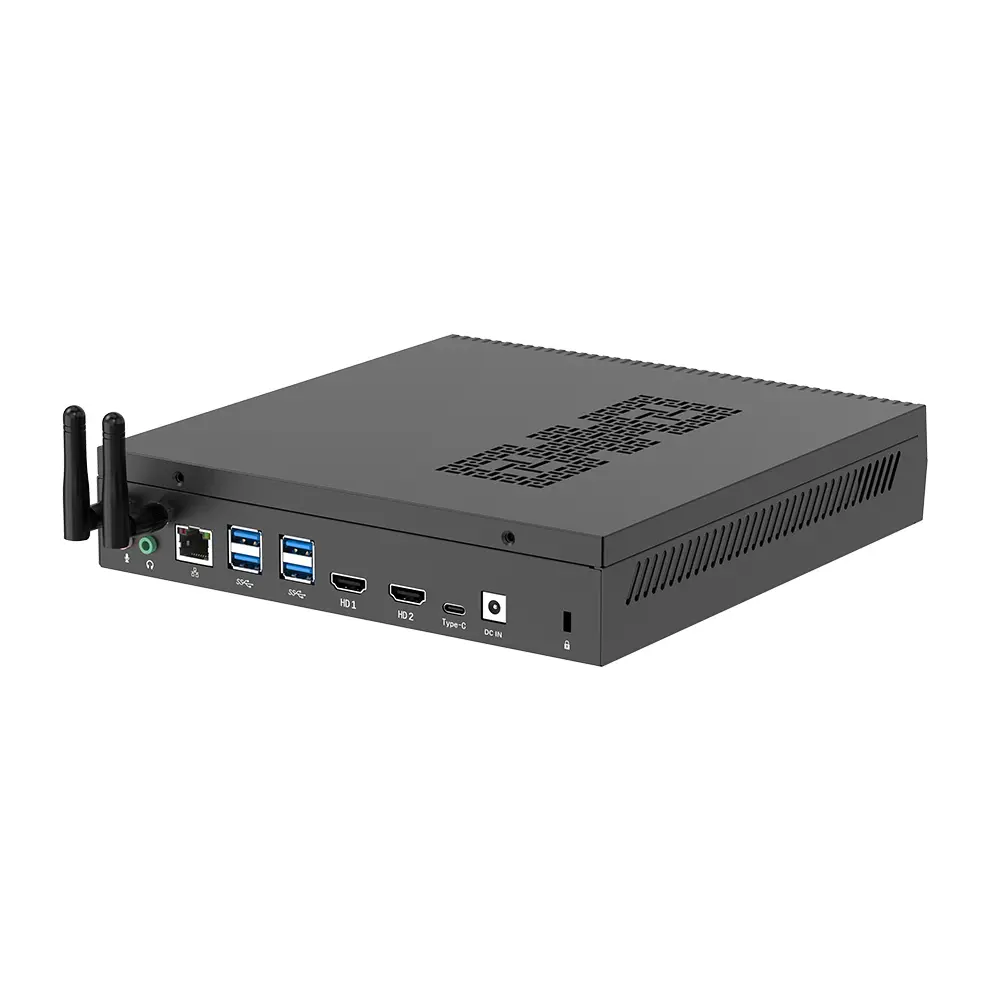 RTX3050TI Game Mini PC
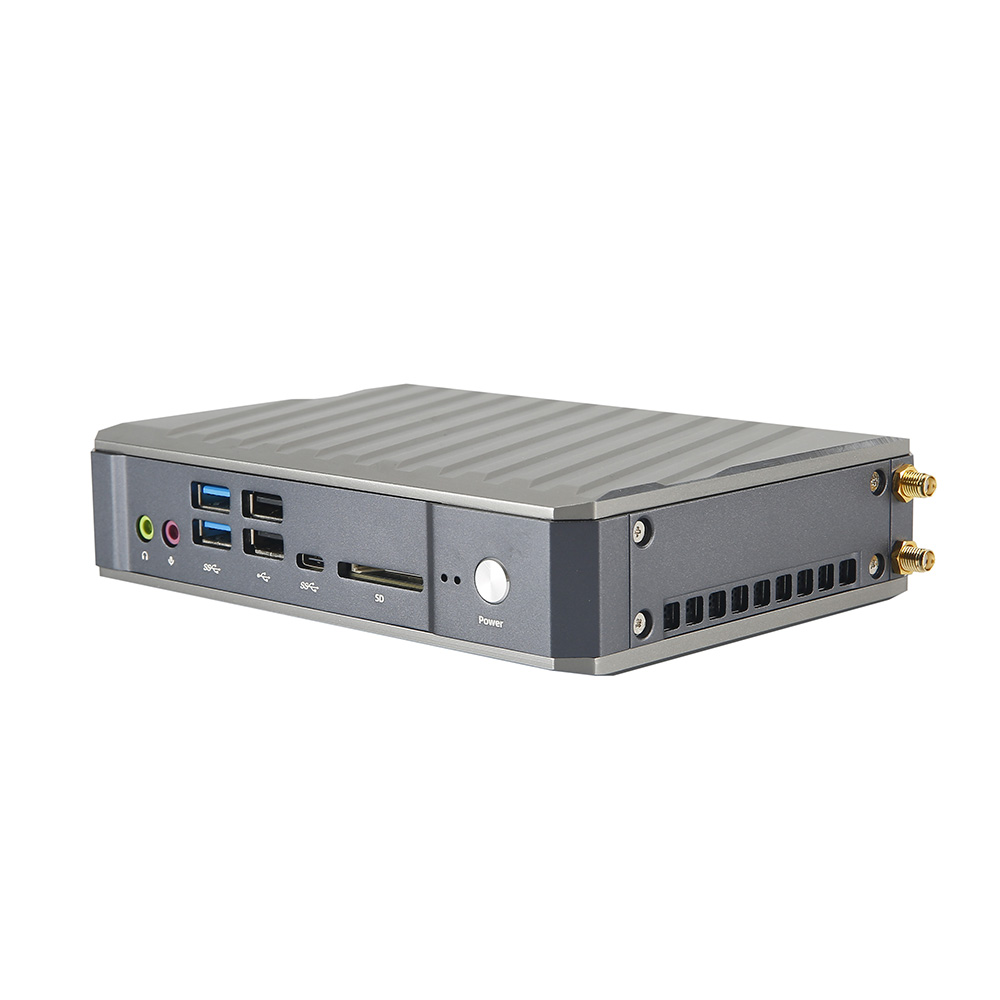 Micro Mini PC
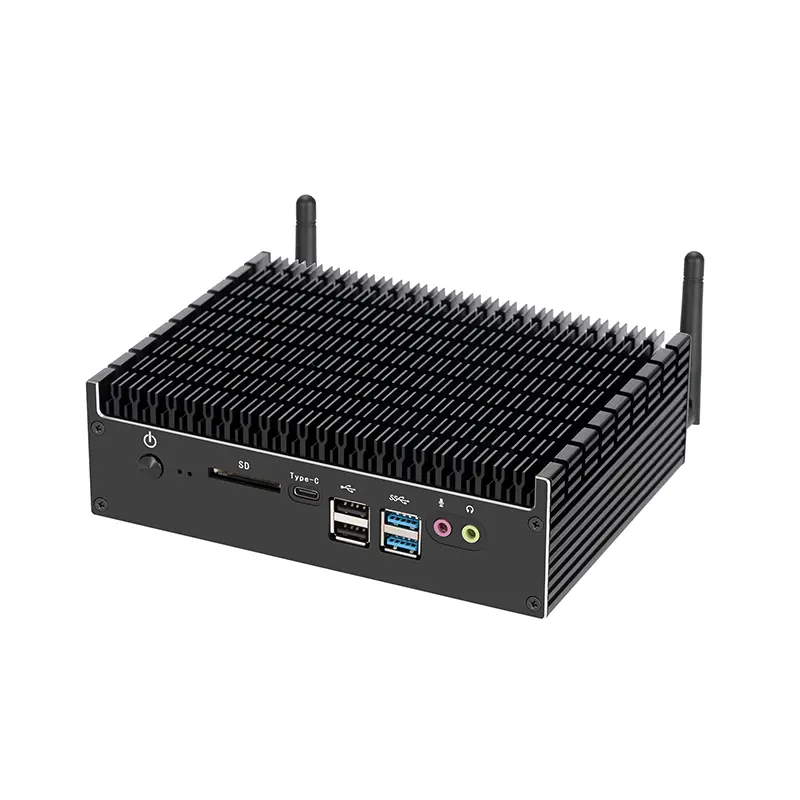 Fanless Mini PC
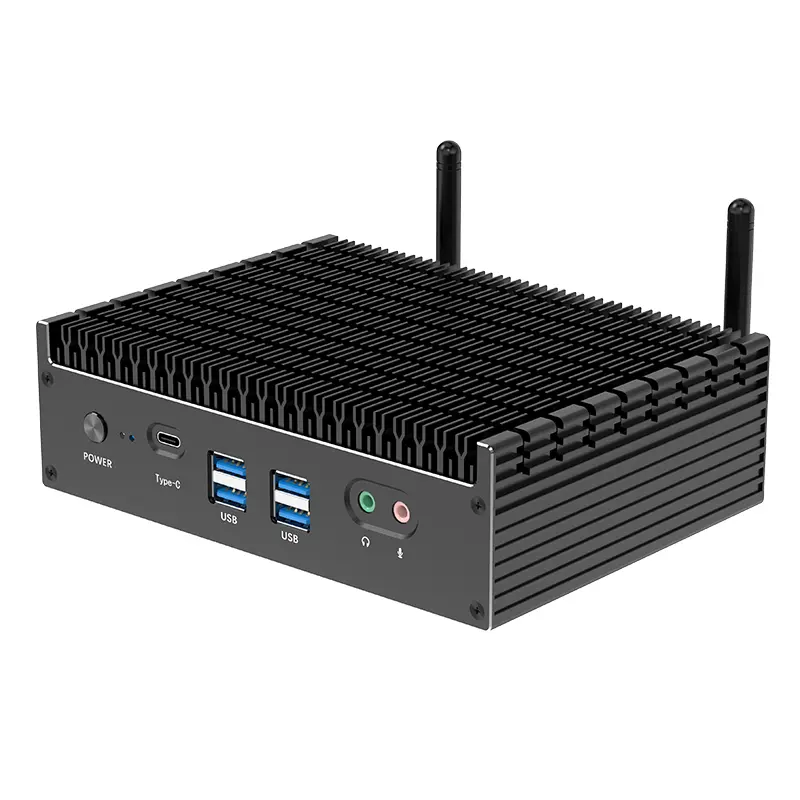 High-end Mini PC
 More
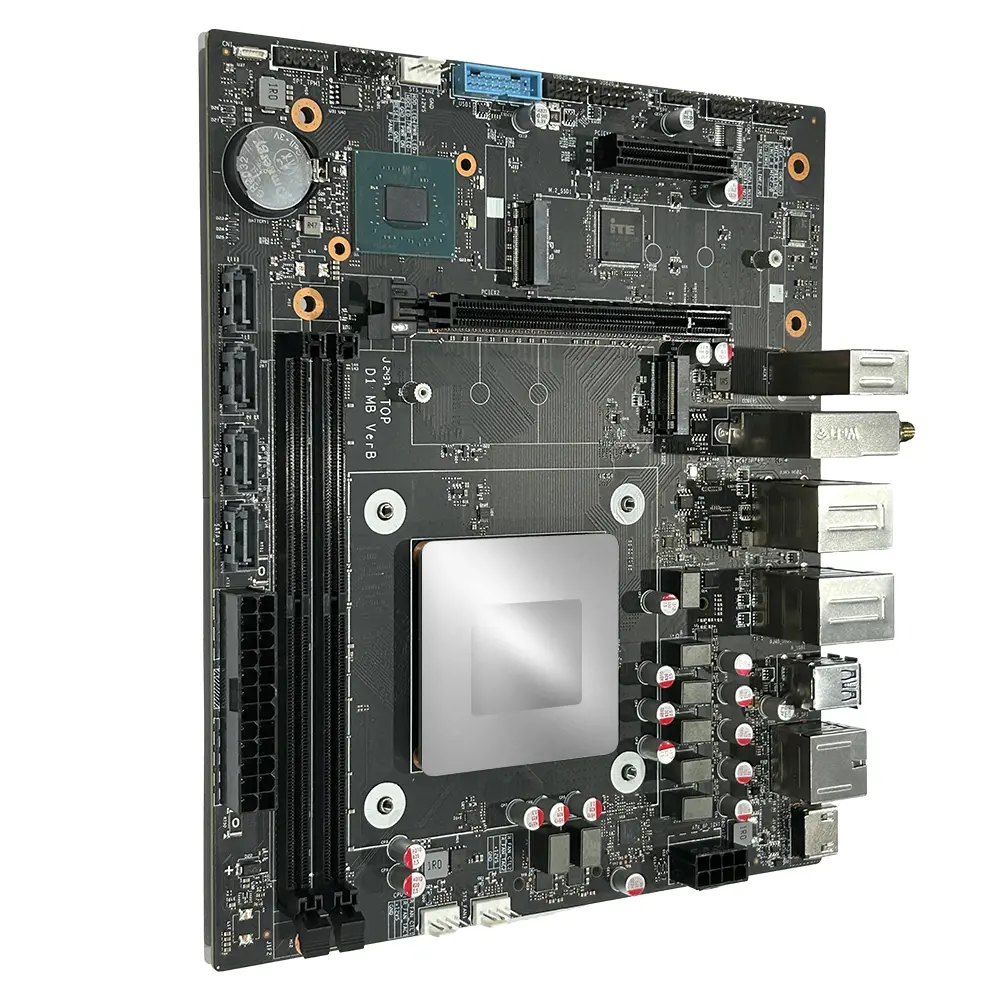 Micro ATX Computer Motherboard
Leave Your Message
Choosing a laptop in 2026 is less about chasing the newest processor and more about finding a machine that fits your daily work. A thin, quiet laptop may suit a student carrying it between classes. A video editor may need a brighter display, stronger graphics, and room for large files. The right choice depends on how you use it.
Gartner analyst Mikako Kitagawa studies the PC market and changing device needs. A practical paraphrase of her market-focused perspective is: choose for real tasks, not headline specifications. That distinction matters. A long battery-life claim means little if your actual workload drains the laptop by lunchtime. Likewise, a premium screen may be wasted if you mostly write documents.
This guide explains how to compare performance, memory, storage, displays, battery life, portability, and support. It also considers operating systems, ports, upgrade limits, and total cost. Look beyond the display case: check keyboard comfort, screen glare, fan noise, and charger size. Small details become daily annoyances—or quiet benefits.
There is no perfect laptop. I’ve seen buyers overpay for power they rarely use, and others regret choosing too little memory. Both mistakes are easy to make. A Laptop Computer Laptop should match your workload today while leaving reasonable room for tomorrow. The sections ahead offer a practical way to weigh trade-offs, compare options, and buy with fewer surprises.

Before comparing models, write down what the laptop must do on an ordinary Tuesday. Office documents, many browser tabs, and video calls need less processing power than 4K editing or complex data work. For demanding tasks, prioritize a capable processor, sufficient memory, and sustained cooling; otherwise, a fast specification can feel sluggish after several minutes. For everyday use, a bright screen, comfortable keyboard, and reliable webcam may matter more. Small details add up.
IDC reported 262.7 million PC shipments worldwide in 2024, up 1% from 2023. That broad market figure does not tell you which laptop fits, but it shows how many configurations compete for attention. IDC also forecast 114 million AI PCs shipping in 2025, about 43% of PC shipments. Treat that as market context, not a reason to buy. If your work rarely uses AI features, battery life or memory may be a better use of your budget.
Portability is a daily trade-off, not a number on a product page. Imagine carrying the laptop, charger, and water bottle across a station: a lighter device helps, but a small screen can strain long work sessions. Check the total carry weight and the ports you actually use. Set a firm budget, then reserve room for needed accessories or a warranty. Some compromises are unavoidable. I would still test the keyboard in person if possible; specifications do not capture its feel.
| Workload | Typical Tasks | Processor Guidance | Memory | Storage | Display Guidance | Typical Weight | Estimated Battery Use | Indicative Budget (USD) |
|---|---|---|---|---|---|---|---|---|
| Everyday essentials | Web browsing, email, video calls, streaming, and basic documents | Modern entry-level processor; prioritize a recent generation and solid-state storage | 8 GB minimum; 16 GB preferred for smoother multitasking | 256 GB SSD minimum; 512 GB if storing many files locally | 13–15 inches; Full HD (1920 × 1080) or better; matte finish can help reduce reflections | About 1.3–2.0 kg (2.9–4.4 lb) | Roughly 6–10 hours of mixed, moderate use | About $350–$650 |
| Study and general productivity | Research, office apps, many browser tabs, online classes, and light photo editing | Mid-range processor with responsive performance for multitasking | 16 GB recommended | 512 GB SSD recommended | 13–16 inches; Full HD or higher; a 16:10 aspect ratio provides extra vertical workspace | About 1.2–1.8 kg (2.6–4.0 lb) | Roughly 8–14 hours of mixed, moderate use | About $600–$1,100 |
| Frequent travel and mobile work | Travel, presentations, writing, video meetings, and work away from power outlets | Efficient mid-range processor; prioritize performance per watt and quiet operation | 16 GB recommended; 32 GB for heavier multitasking | 512 GB SSD; choose 1 TB for large offline files | 13–14 inches; Full HD or higher; check brightness, webcam quality, and port selection | About 1.0–1.5 kg (2.2–3.3 lb) | Roughly 9–16 hours of mixed, moderate use | About $800–$1,600 |
| Creative and technical work | Photo editing, software development, large spreadsheets, design, and occasional video editing | Upper-mid-range or high-performance processor; dedicated graphics may help with GPU-accelerated work | 32 GB recommended; 16 GB may suit lighter projects | 1 TB SSD recommended; consider external storage for large project archives | 14–16 inches; high-resolution display with good color coverage for color-sensitive work | About 1.4–2.4 kg (3.1–5.3 lb) | Roughly 5–10 hours of demanding work; longer for lighter tasks | About $1,100–$2,500 |
| Gaming, 3D, and intensive compute | Modern games, 3D rendering, simulation, and workloads that benefit from dedicated graphics | High-performance processor; select a dedicated GPU appropriate to the software and target resolution | 16 GB minimum for many uses; 32 GB preferred for demanding games and creative workloads | 1 TB SSD recommended; check whether storage can be expanded | 15–17 inches; Full HD or higher; a high refresh rate benefits gaming, while resolution affects GPU load | About 2.0–3.5 kg (4.4–7.7 lb) | Often about 1–4 hours under heavy load; demanding performance commonly requires wall power | About $1,000–$3,000 or more |
Planning notes: Budget ranges are broad U.S. estimates, not fixed market prices. Actual battery life varies with screen brightness, software, battery size, and workload; manufacturer claims and real-world results can differ. Before buying, check upgradeability, keyboard comfort, ports, warranty terms, and whether the computer meets the requirements of your essential apps.