One-stop service of R&D, production and sales for 10 years

INQUIRY
Leave Your Message

How to Choose the Best Kleiner Desktop PC for Business?

Choosing the best Kleiner Desktop PC for business begins with the work it must perform daily. A compact case may look efficient, but appearance alone cannot protect productivity. The right model should match your software, workload, workspace, and support expectations.

Dieter Rams, a respected product-design authority, said, “Good design is as little design as possible.” That principle matters here. A useful Kleiner Desktop PC should stay quiet beside a monitor, start quickly, and remain accessible for upgrades or maintenance. Its footprint should leave room for documents, cables, and movement. Small details become noticeable after eight hours.

Business buyers should examine processor performance, memory capacity, storage speed, operating-system compatibility, and warranty coverage. For office applications, 16GB of RAM may provide a comfortable baseline. Larger spreadsheets, virtual machines, design tools, and data workloads may require more. Fast solid-state storage can reduce waiting, but it cannot repair weak cooling or poor thermal design.

Ports deserve close attention. Count the displays, network connections, USB devices, and security accessories used at each desk. Wireless features are convenient, yet wired networking can offer steadier performance. Noise also matters. A fan that sounds harmless in a showroom may become distracting during calls.

This guide will compare practical business priorities rather than chase impressive specifications. Some recommendations may remain debatable. That is intentional. Every workplace differs, and the cheapest Kleiner Desktop PC is not always the most economical choice. Reliability, service access, energy use, and employee comfort often influence the real cost. Choose evidence over marketing language, and test the computer against actual tasks before making a final decision.
How to Choose the Best Kleiner Desktop PC for Business?

Define Your Business Computing Needs

How to Choose the Best Kleiner Desktop PC for Business?

Define Your Business Computing Needs

Choosing a compact desktop PC should begin with daily work, not attractive specifications. List the applications your team uses every hour. Office documents, accounting tools, browser-based platforms, and video meetings require different resources. A busy spreadsheet may need more memory than a simple email workstation. Creative software usually demands stronger processing and graphics performance.

Think about your workplace conditions. Measure the available desk space, check the number of connected displays, and identify essential ports. Reliable wired networking may matter more than wireless convenience in a fixed office. Also consider maintenance. Tool-free access, standard components, and a clear warranty process can reduce interruptions. My experience shows that businesses often underestimate storage needs. That mistake becomes expensive when shared files grow quickly.

Tips: Start with real workloads. Record slow applications for one week. Choose enough memory for current tasks, plus reasonable headroom. Avoid paying for maximum performance without evidence. It sounds safer, but unused power increases costs. Security should also be part of your requirements. Look for secure boot support, regular firmware updates, and user access controls. Energy use deserves attention too, especially across many workstations. No checklist is perfect. Review your assumptions with employees before purchasing, because actual habits may differ from management’s expectations.
Compare Processor, Memory, and Storage Options

How to Choose the Best Kleiner Desktop PC for Business?

A business desktop should match daily workloads, not impressive specifications alone. For email, invoices, and browser-based tools, a modern four-core processor can be sufficient. Heavy spreadsheets, design software, and video meetings need stronger multi-core performance. Check sustained speed, not only the advertised peak frequency. A fast processor feels useful when several applications remain open. Still, buying excessive power wastes budget and may increase heat.

Memory affects how smoothly work continues. I recommend at least 16 GB for most office users today. Choose 32 GB for large spreadsheets, creative applications, or frequent multitasking. Watch for upgradeable memory slots. They provide flexibility when business needs change. I once underestimated this detail, and replacing the entire computer became necessary sooner than expected. That was avoidable.

Storage influences startup time and file access. A solid-state drive should be the practical baseline because it opens programs quietly and quickly. A 512 GB drive suits ordinary documents, while 1 TB offers more room for local projects. Keep important files backed up separately. Internal storage can fail without warning. Consider processor efficiency, memory capacity, and storage space together. A balanced system often performs better than one with an expensive processor and limited memory. Test the computer with real workplace files before purchase, if possible. Specifications can mislead. Your actual workflow is the better test.

Evaluate Size, Connectivity, and Expansion Features

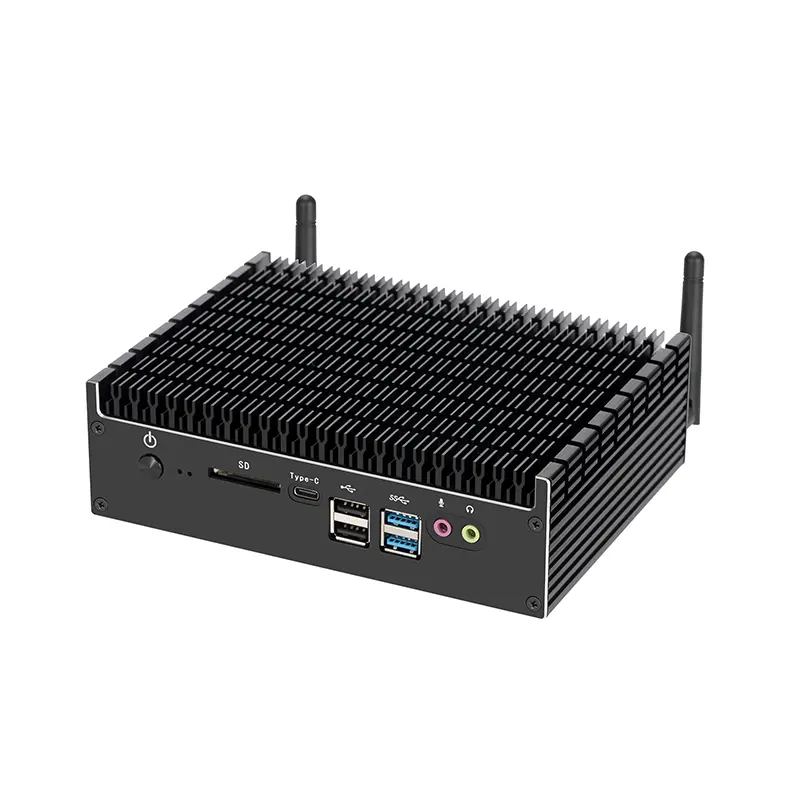
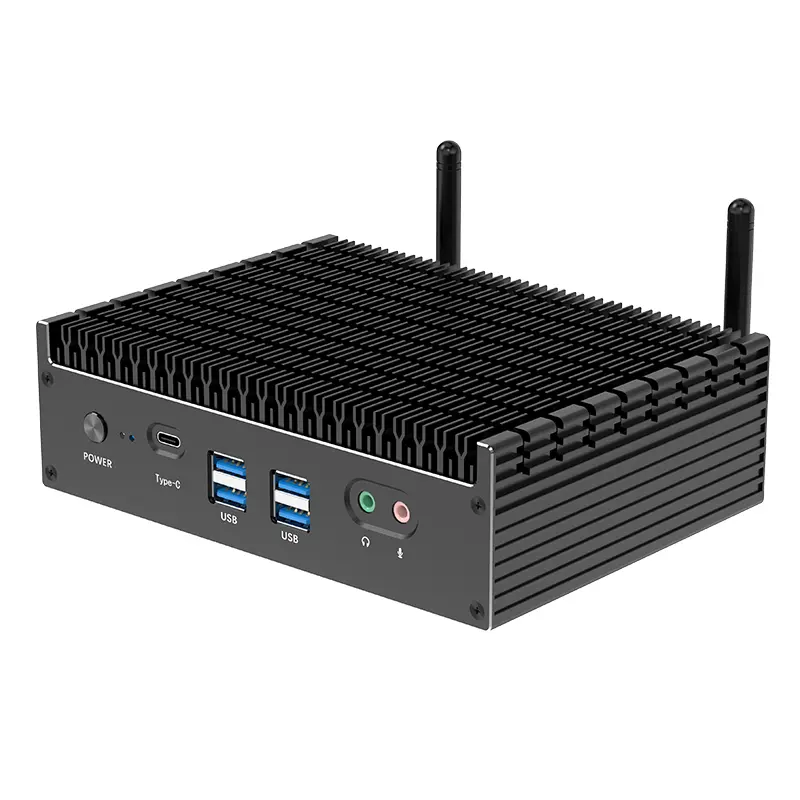
Choosing a Kleiner desktop PC for business starts with its physical footprint. Measure the workspace, including cable clearance and ventilation space. A compact computer can fit behind a monitor or beneath a counter. However, small cases may limit cooling and internal upgrades. I once underestimated airflow in a crowded office, and fan noise became distracting.

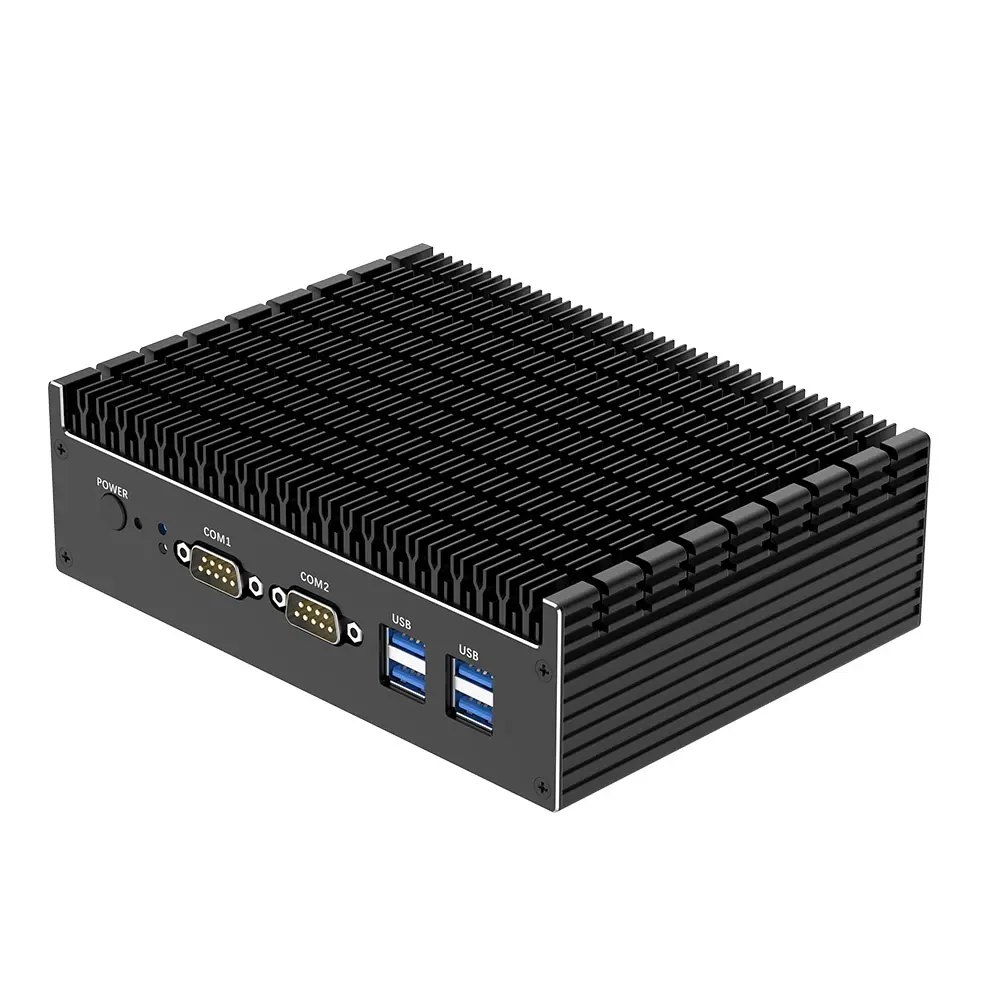
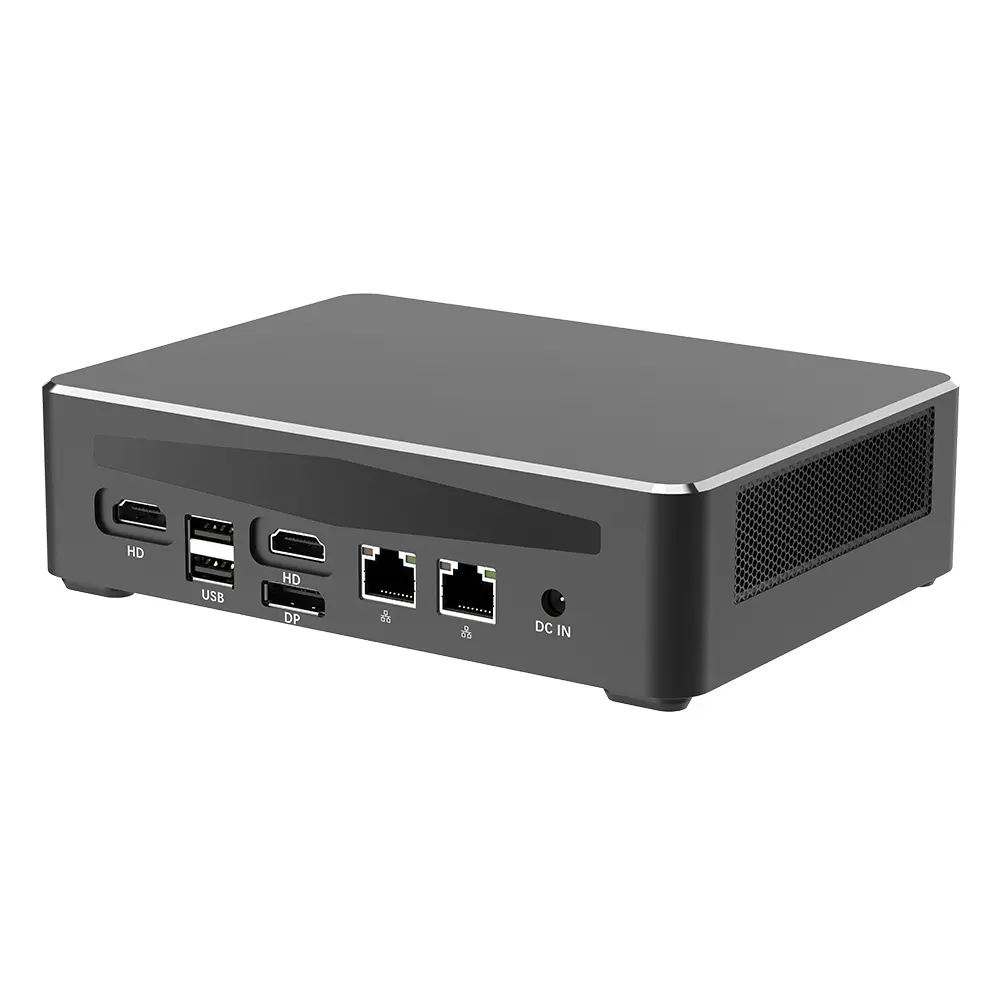
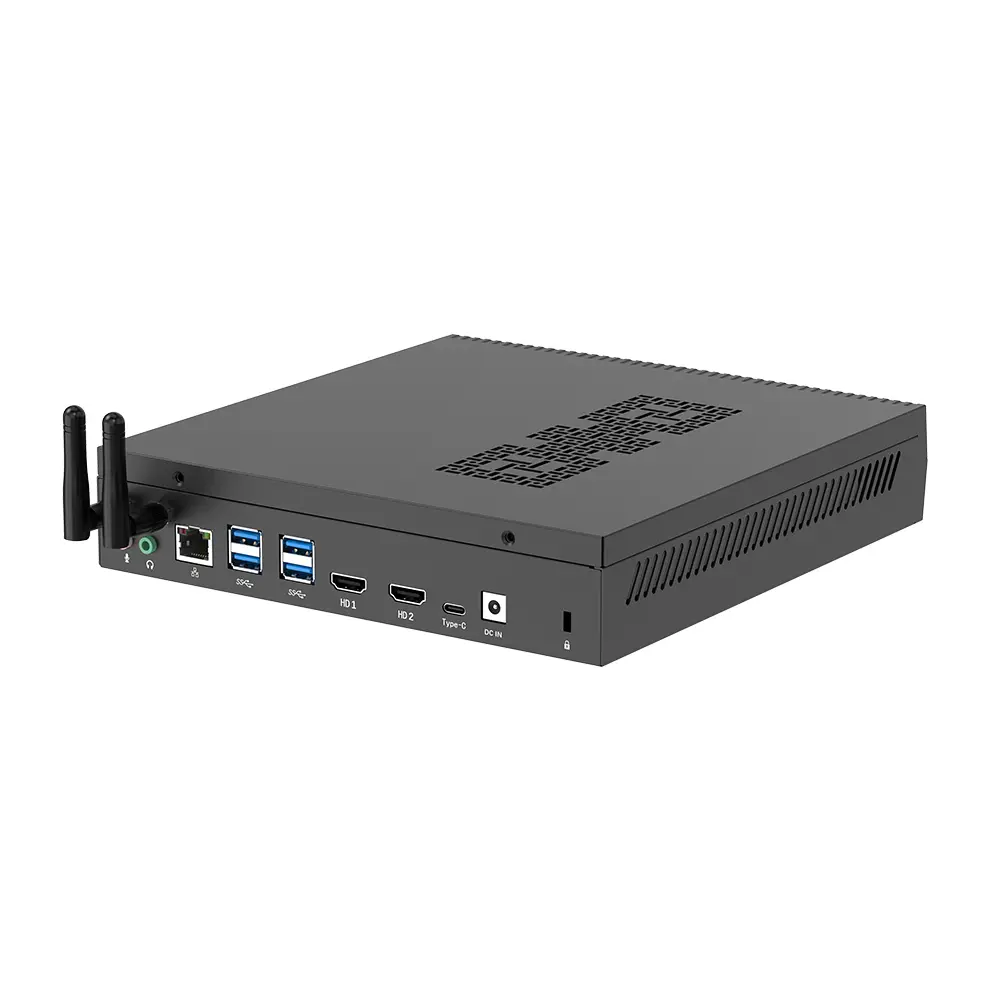
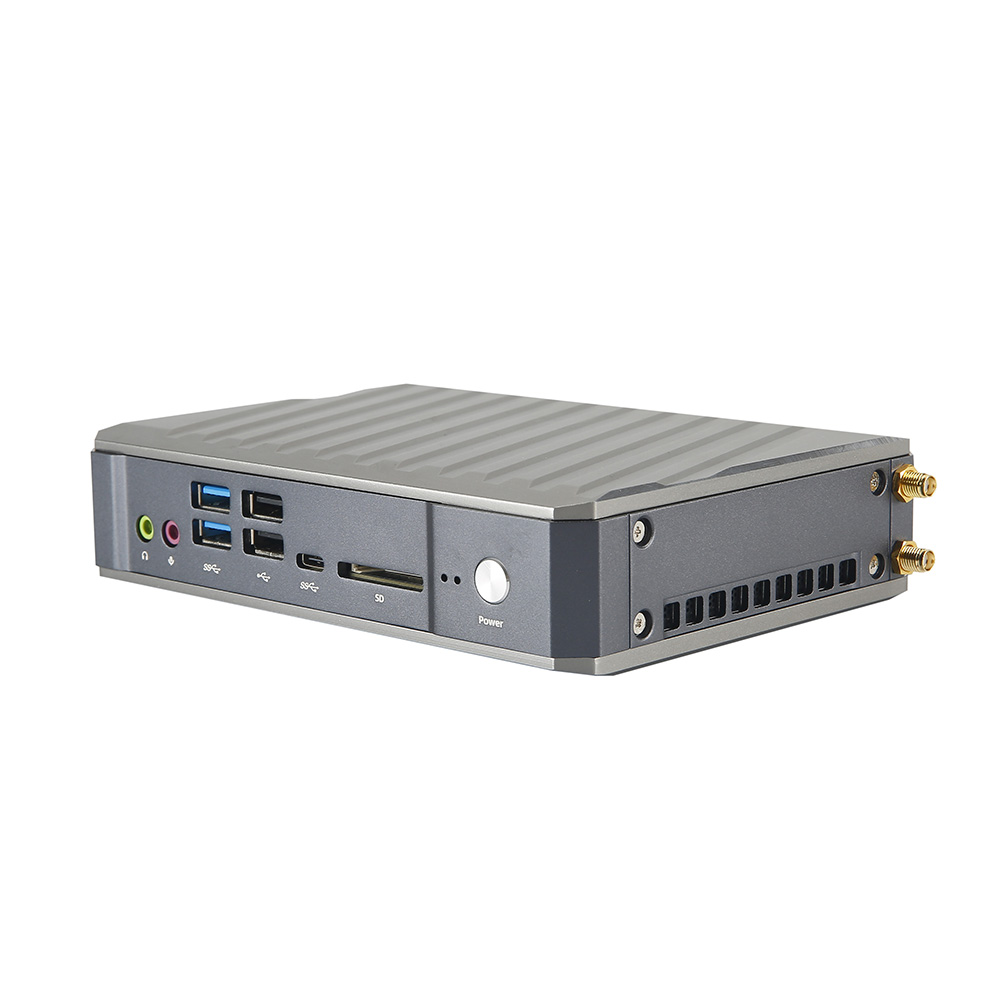
Connectivity should match daily work rather than impressive specifications. Check the number of USB ports, display outputs, network options, and audio connections. Dual-display support can improve spreadsheet and customer-service workflows. Wired networking often provides steadier performance for shared files and video meetings. Wireless access is convenient, but office interference can reduce reliability. Test the ports with existing keyboards, scanners, and external drives before purchasing.

Tips: Draw a simple desk layout first. Leave room for air movement. Count every device that needs a port. Consider a powered hub only when necessary, because extra adapters create clutter and failure points. For expansion, inspect whether memory and storage are replaceable. Some compact systems use restricted components, making future repairs expensive. Ask for service documentation and confirm warranty coverage from an authorized seller. A practical choice may sacrifice a little speed for accessible upgrades and stable connections. That trade-off deserves careful thought.

How to Choose the Best Kleiner Desktop PC for Business? - Evaluate Size, Connectivity, and Expansion Features

Business Form Factor Typical Dimensions
(W × D × H)
Typical Weight Common Connectivity Expansion Capability Best Business Fit Overall Flexibility
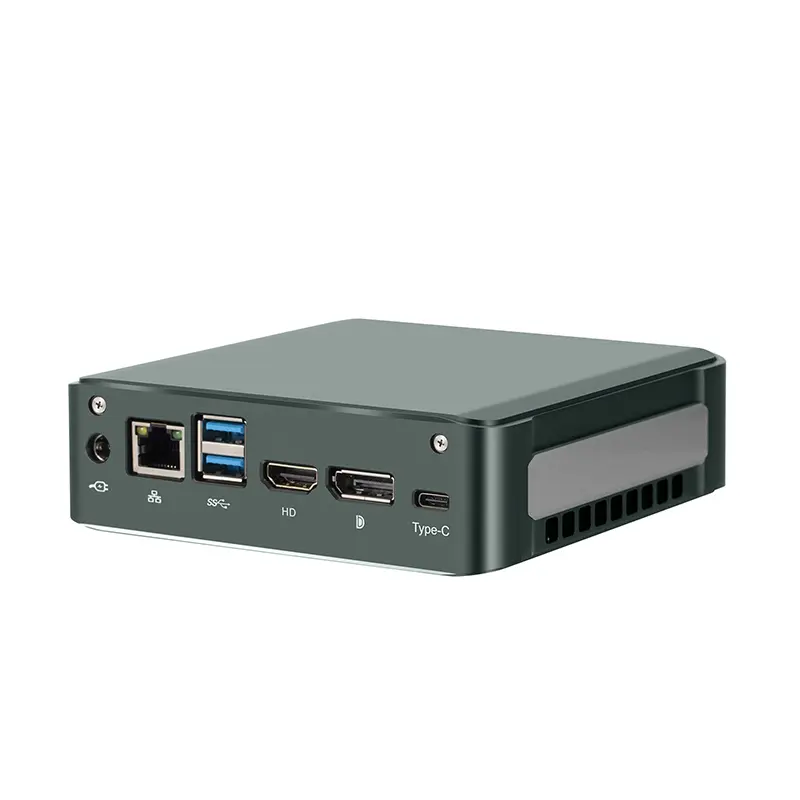
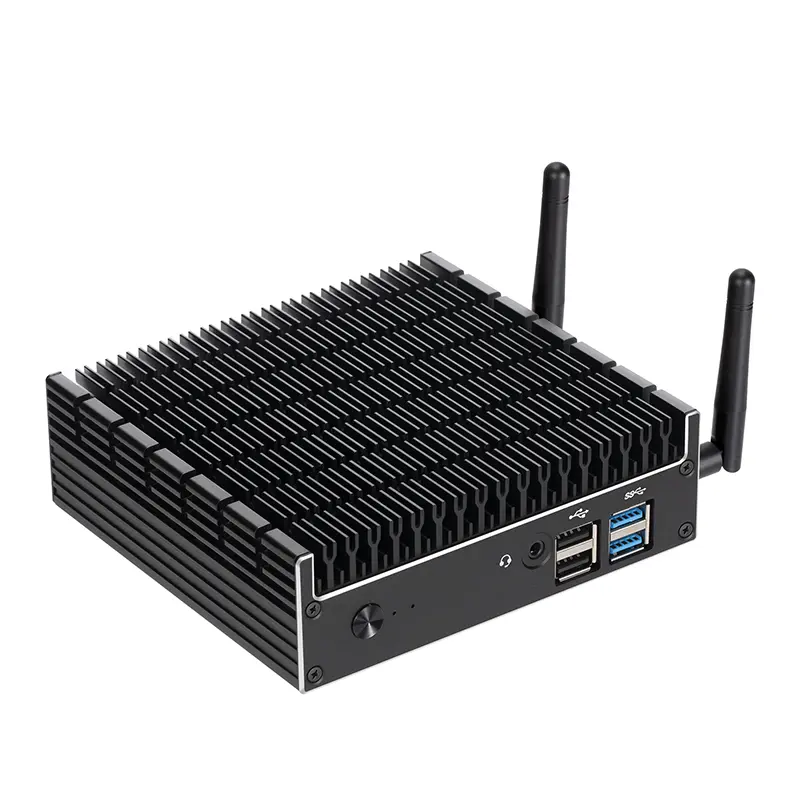
Ultra-Compact Mini PC Approximately 11–14 × 11–14 × 3.5–5 cm About 0.5–1.2 kg Usually 4–6 USB ports, HDMI or DisplayPort, Gigabit Ethernet, 3.5 mm audio; wireless networking is commonly optional or integrated. Typically supports one or two memory modules and one M.2 SSD; usually no standard PCIe card slot. Reception desks, digital signage, thin-client workloads, and space-constrained offices. Limited
Compact Mini PC Approximately 17–22 × 17–22 × 3.5–7 cm About 1–2 kg Usually 5–8 USB ports, one or two digital video outputs, Gigabit or 2.5Gb Ethernet, audio, and Wi-Fi/Bluetooth on many configurations. Often allows memory and storage upgrades; internal space for additional drives varies by chassis. General office applications, accounting, browser-based work, customer service, and multi-monitor setups. Moderate
Small Form Factor Desktop Approximately 9–12 × 28–35 × 27–32 cm About 4–7 kg Commonly 6–10 USB ports, multiple DisplayPort or HDMI outputs, Gigabit Ethernet, audio, and optional wireless connectivity. Usually provides replaceable memory and storage, plus one or more low-profile PCIe slots; drive-bay capacity depends on the enclosure. Most office deployments, data-entry teams, finance departments, and users requiring long service life. High
Micro Tower Approximately 15–20 × 30–38 × 30–38 cm About 5–9 kg Usually 6–10 USB ports, multiple digital display outputs, Gigabit Ethernet, audio, and optional Wi-Fi/Bluetooth. More internal room for memory, storage, cooling, and full-height or low-profile expansion cards, depending on the case design. Engineering software, local databases, graphics work, specialized peripherals, and departments planning future upgrades. Very High
Evaluation guidance: Confirm the exact chassis measurements, power adapter or power supply requirements, supported memory capacity, storage interfaces, monitor limit, network speed, and PCIe slot type before purchasing. Port counts and upgrade options vary by configuration even within the same form factor.

Check Security, Reliability, and Energy Efficiency

How to Choose the Best Kleiner Desktop PC for Business?

A business-ready Kleiner desktop PC should protect data before it improves appearance. Check for hardware-based encryption, secure boot, and a trusted platform module. These features help defend files if the device is lost or attacked. I also inspect BIOS password controls and automatic security updates during testing. Do not trust a specification sheet alone. Settings can vary between models.

Reliability appears in small details. Test the computer with office software, video calls, and several browser tabs open. Listen for unusual fan noise. Check whether the case allows easy cleaning and memory replacement. A clear warranty and responsive technical support also matter. My first shortlist focused too much on processor speed. That was a mistake. Stable performance and service access were more valuable during daily work.

Tips: Measure energy use with a plug-in power meter. Compare idle and full-load readings. Choose efficient hardware, but keep realistic performance needs in mind. Sleep settings can reduce overnight waste. A small power saving may become meaningful across many desks. Check ventilation around the unit, too. Poor airflow increases heat and may shorten component life. I would also record test results before purchase. Memory fades. Numbers are harder to dispute.

Assess Warranty, Support, and Total Ownership Cost

How to Choose the Best Compact Desktop PC for Business

Warranty terms can matter more than a slightly faster processor. Check coverage length, parts included, labor costs, and on-site response times. A three-year warranty sounds strong, but exclusions may leave memory, storage, or power adapters uncovered. Ask whether support is available after normal office hours. Small businesses cannot always wait until Monday.

Support quality should be tested before purchase. Request a sample service ticket process, escalation path, and average response data. Uptime Institute’s 2024 Annual Outage Analysis reported that 54% of surveyed outages cost more than $100,000. That figure concerns larger operations, but the lesson applies to smaller offices too. One unavailable workstation can delay payroll, sales calls, or customer records. I have seen teams choose low prices, then discover that remote troubleshooting was slow and unclear. That mistake is expensive.

Calculate total ownership cost over four or five years. Include electricity, repairs, accessories, software deployment, downtime, and employee setup time. ENERGY STAR research indicates certified computers can use substantially less energy than standard models, depending on configuration and usage. Support contracts may also reduce technician hours. Still, do not assume the longest warranty is best. Compare claim limits, replacement procedures, data handling, and renewal prices. A simple spreadsheet helps, although my own first version once ignored shipping delays. That missing detail changed the final ranking.

How to Choose the Best Kleiner Desktop PC for Business?

Three-year total ownership cost comparison by warranty and support level. Costs are shown in USD per desktop and include purchase, energy, maintenance, downtime, and support.

A longer warranty and faster support response can increase the initial purchase price, but may reduce maintenance and downtime costs over the ownership period. Compare the complete three-year cost rather than the hardware price alone.